The Dispatch Board is a drag-and-drop scheduling tool used to assign Jobs or Job Phases to Resources (Employees, Crews, or Assets). Here, users can only create long-term assignments.
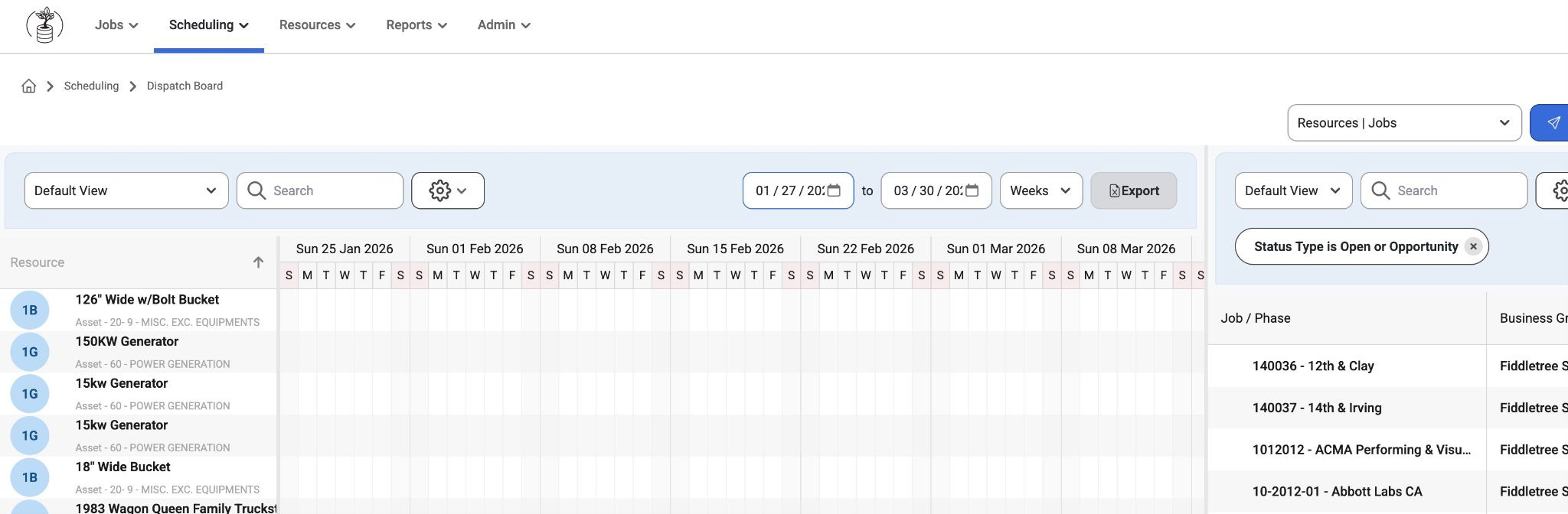
Resources (left): Lists all employees, crews, and assets with details like role, category, or labor type. Search and filters help narrow results.
Unassigned requests are also available to view in the drop down menu. This is customizable to show jobs, phases, and unassigned requests on the left.
Jobs/Phases (right): Displays all jobs (expandable into phases) with key details like job number and site.
Assignment Grid (center): Shows current long-term assignments and allows users to drag and drop jobs/phases onto resources to create or update assignments.
Users can also filter jobs with no assignments by using the checkbox at the top.

Admins can make an assignment on this page and adjust start/end dates or turn off the setting that automatically assigns jobs for a year (In Admin>Settings). Instead, admins can assign the job to a week and then the user can drag it out longer than a week if desired.
The ‘Hours’ Time Preset allows for auto-applying the assignments that are not locked to dates to a single day minimum.
Users can also create saved views with the ‘Save Time’ Present. Filtered time preset views can be saved to custom views so that users don't have to select hourly/weekly/monthly filters every time.
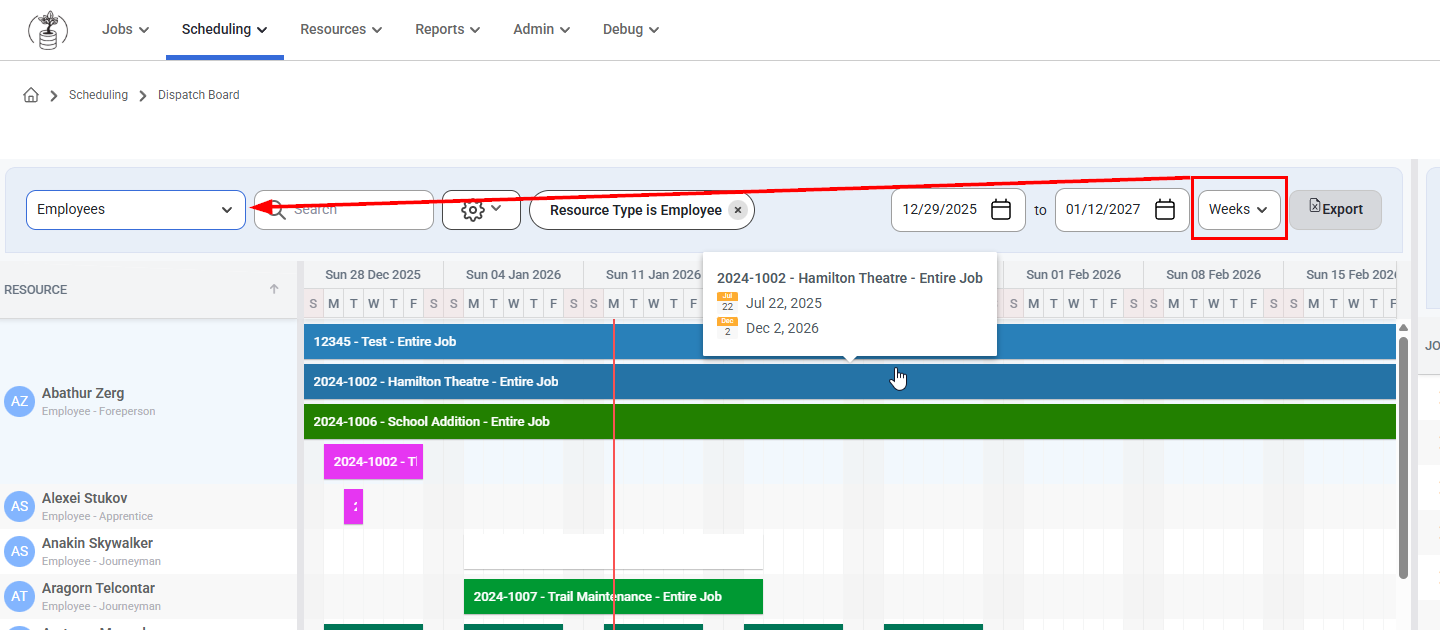
The drop down on the right by the Send button has 3 options:
Resource/Jobs
This selection shows resources on the Left and jobs on the Right. Users can drag and pull resources directly onto the jobs.
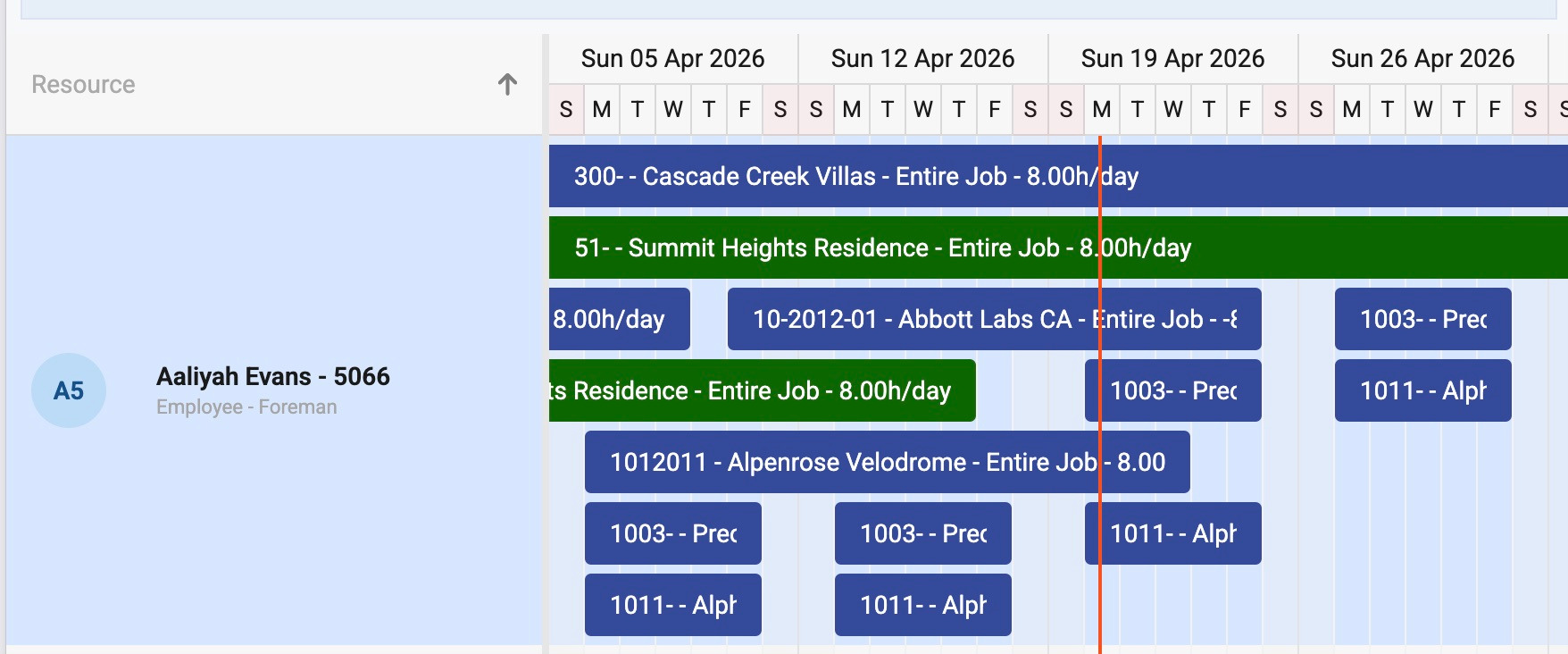
Jobs/Resources
This selection shows jobs on the Left and resources on the Right. Users can drag and drop jobs onto people.
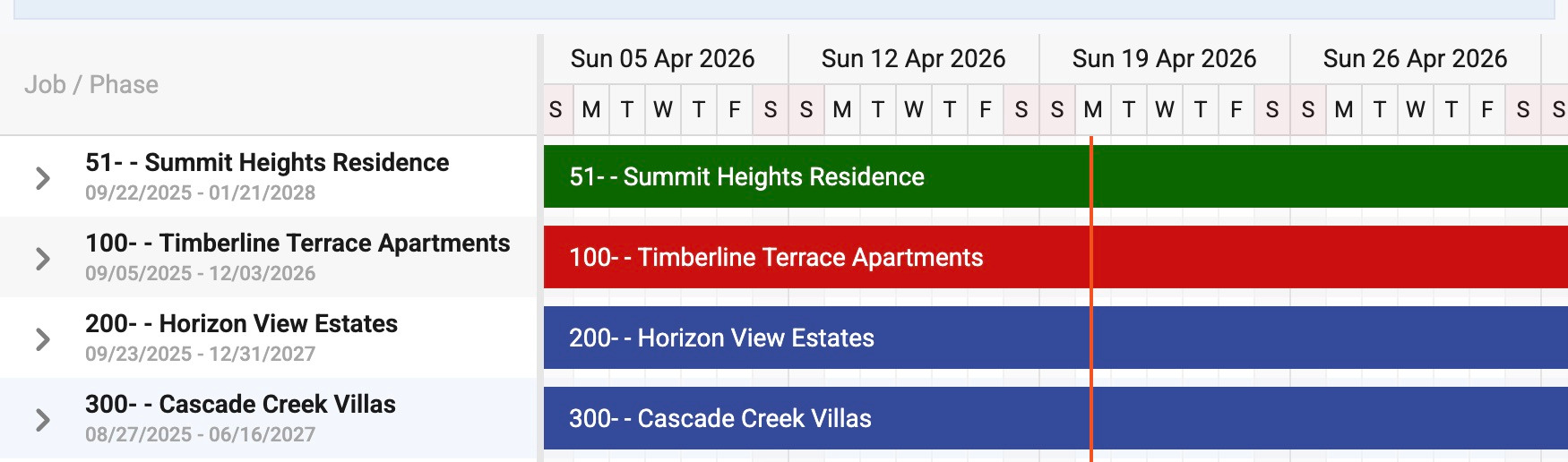
Resources/Unassigned Requests
This selection shows resources (on the right) that have not been assigned to any jobs with resources (job phases and groups) on the left.
- This view is good for long-term assignments and for PM's to use by dragging and dropping a person for a quick assignment.
- Hover text shows Assigned Resources and Gantt Segment when in Job View.
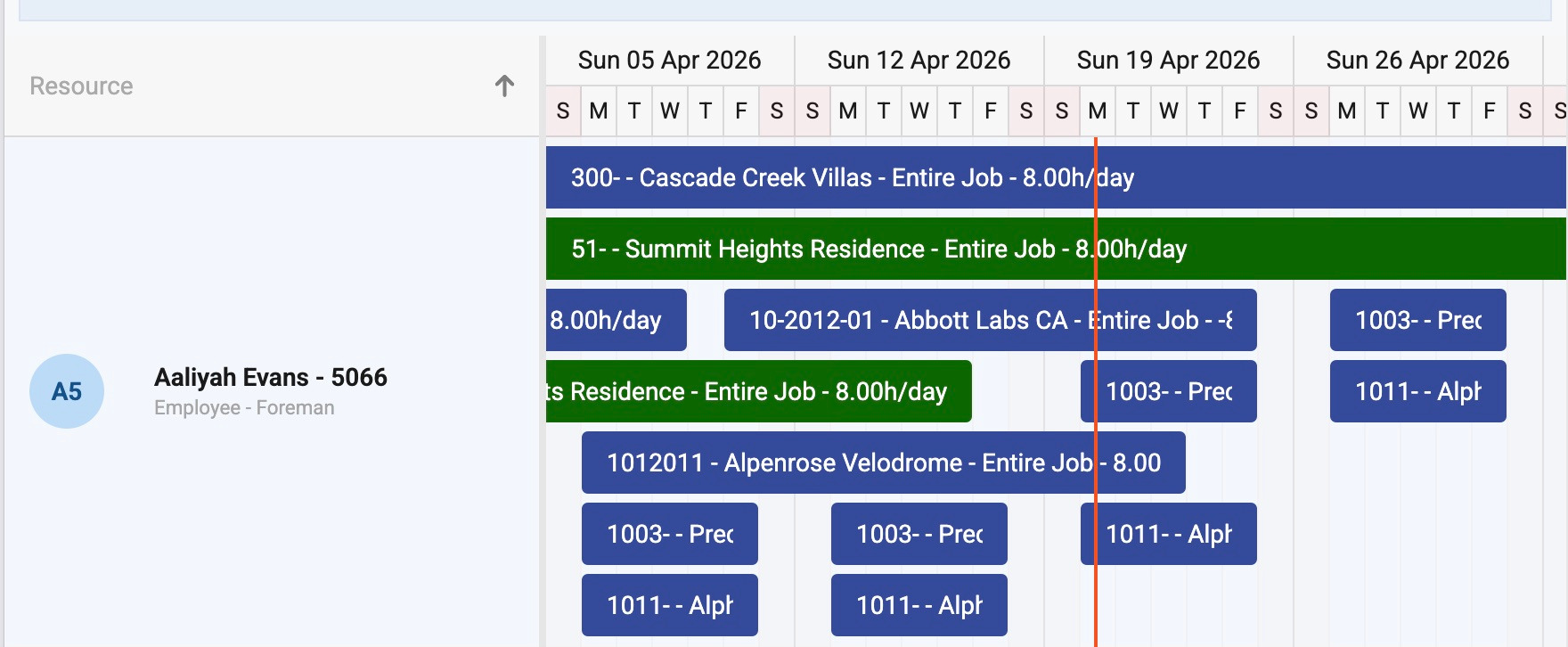
Employee Slide Out
When a user clicks on an employee a slide out to the right will show Details, Certification, and the Schedule History of that Employee as well as Upcoming Allocation
Required certifications will show at the top (if any) and additional certifications will show at the bottom. If there are no required certifications on the job they will not be grouped in that order.
Certifications that expire in 31 days or less will appear in yellow text.
Upcoming Allocations will be displayed at the bottom
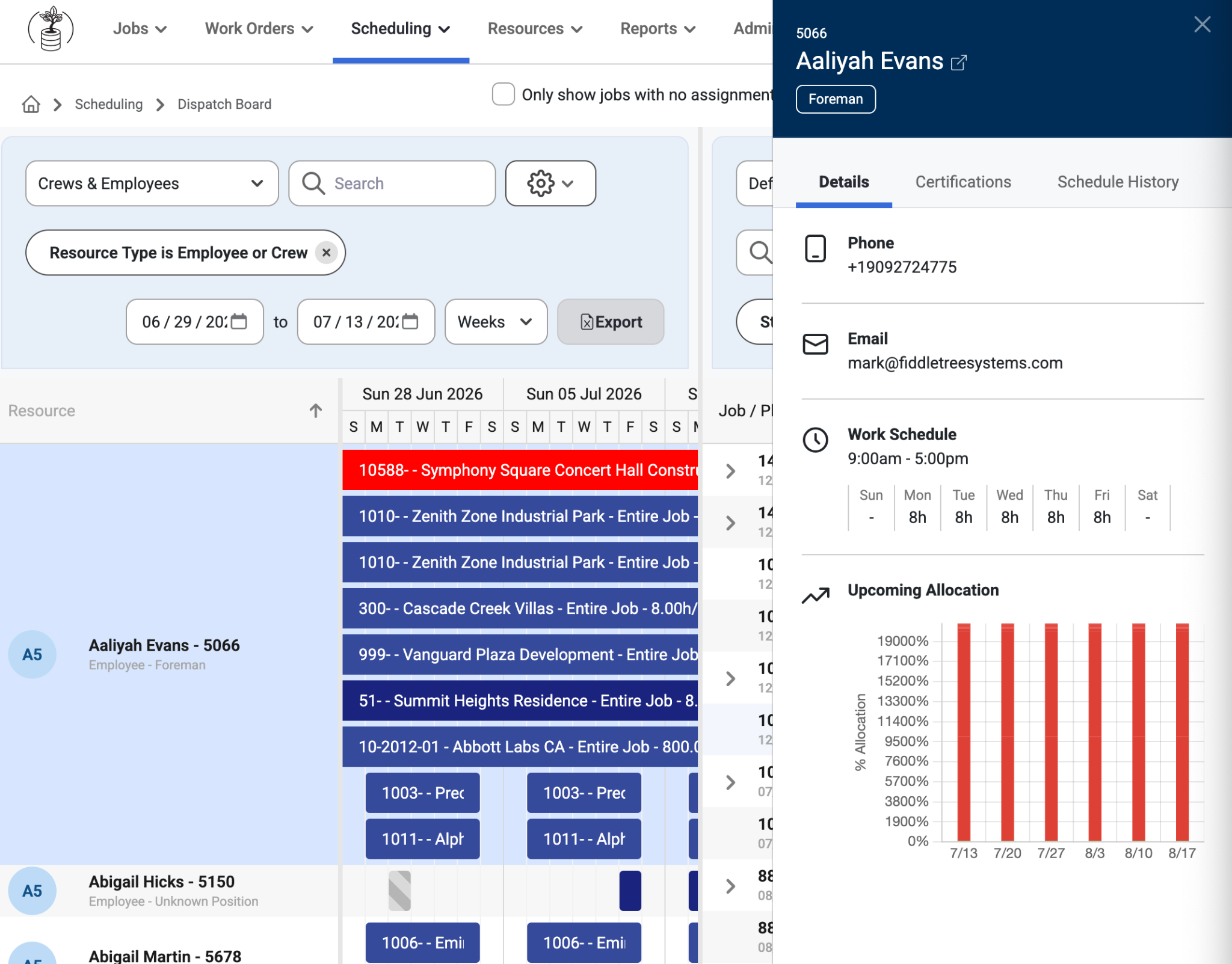
Key Behaviors:
Assignments are flexible and not locked to phase dates.
Past assignment dates cannot be edited.
Date ranges depend on the selected time view (daily, weekly, monthly, yearly).
Default assignment durations adjust based on the selected view (e.g., 5 days, 2 weeks, 1 month, or 1 quarter).
Users can also view PTO requests and daily assignments
Note: To change settings for viewings on this page, go to Admin > Organization> Settings. The lists of settings to Enable or Disable will affect how data is shown.
An option to auto-lock the previous daily scheduling after 12am has been added to the Dispatch Board settings. Read about Dispatch Board Settings, here: Dispatch Board Admin Settings
Grid Filters
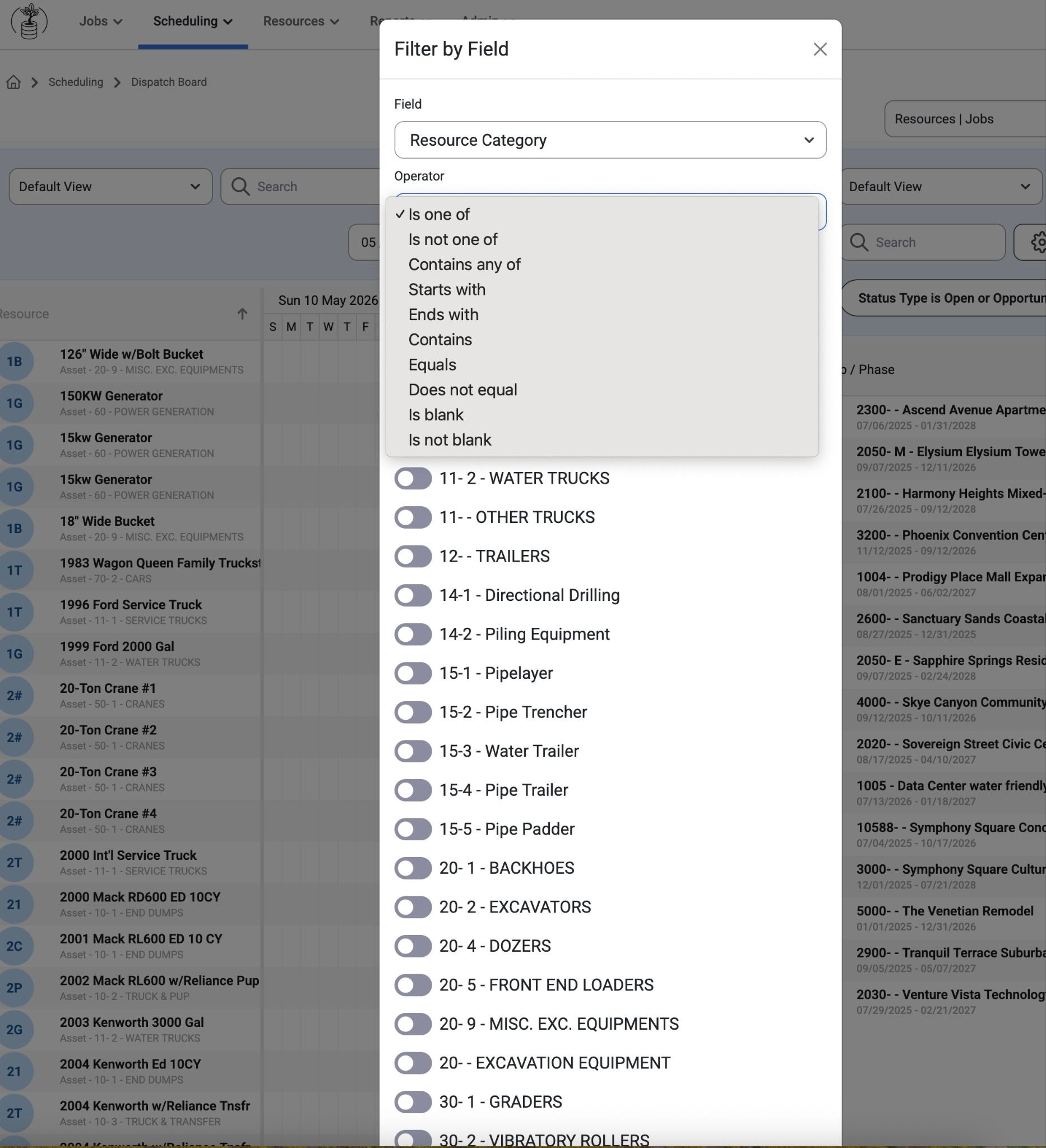
In the ‘Filter by Field’ modal, tenants can use the toggles to select Operators for Resource Categories. There are many options.
Was this article helpful?
That’s Great!
Thank you for your feedback
Sorry! We couldn't be helpful
Thank you for your feedback
Feedback sent
We appreciate your effort and will try to fix the article