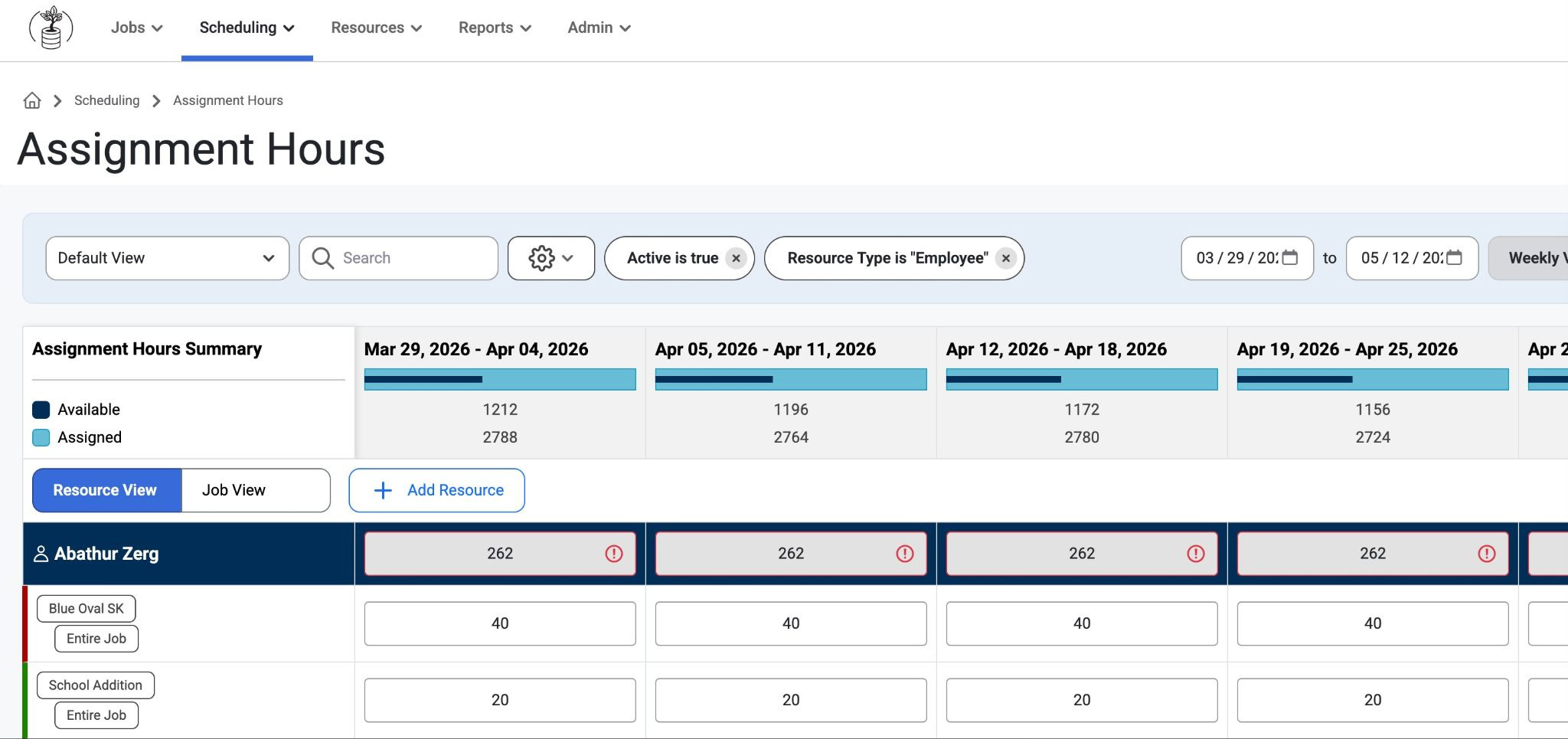
This page is a way to do hourly overrides on long-term assignments. It also helps users track how many hours each resource is assigned to jobs or phases over a selected day or week. This page only shows employees with long-term assignments. In order to see an employee, a long-term assignment will first need to be added to see them. This can be created in Admin > Employee Setup > Positions where admins can create a schedule type for each employee. From there, admins can create each employee's labor type and work schedule in admin settings.
Global Summary Bar:
Shows a daily or weekly overview of available vs. assigned resources, with filters to view specific groups.Resource View:
A grid that breaks down assigned hours by resource, job/site, and phase.Each resource may appear multiple times if assigned to multiple jobs.
Over-allocations are highlighted (e.g., red cells).
Editing & Assignments:
Users can add new job phases directly from this page.
Assigned hours can be edited inline.
Phases created here are locked as “Custom” and can only be edited on this page.
This allows the users to override the number of working hours per day or per week, which can also be enabled/disabled in Admin>Organization>Settings
Was this article helpful?
That’s Great!
Thank you for your feedback
Sorry! We couldn't be helpful
Thank you for your feedback
Feedback sent
We appreciate your effort and will try to fix the article