Labor Forecasts
To navigate to the Labor Forecasts page in Jobs List, select ‘Jobs’ on the top navigation bar and click ‘Jobs List’ from the drop down menu. Here, users can view a grid list of Jobs by Site Name, Job Number, Jobsite Business Groups, Status, and Address.
Click into any Job to view additional details for that site and navigate to the ‘Labor Forecasts’ page. This is how admins can create short-term labor forecasts by specialty.
These settings can be adjusted by Tenant Admins. Read about it, here: Tenant Settings
How To Use:
The top of the page has filtering options by Labor Type and (like Roofers, Electricians, Sheet Metal or Superintendent). Select a date range by Beginning Week day and End Week Day.
The Defaulted Date Range End Date is based on the latest of Assignments End Date, Labor Forecast Date, and Job End Date.
The start date of the date range will default to the day after the Last Refresh Date. If there is no last refresh date, the start date will default to the Job Start Date.
Summary
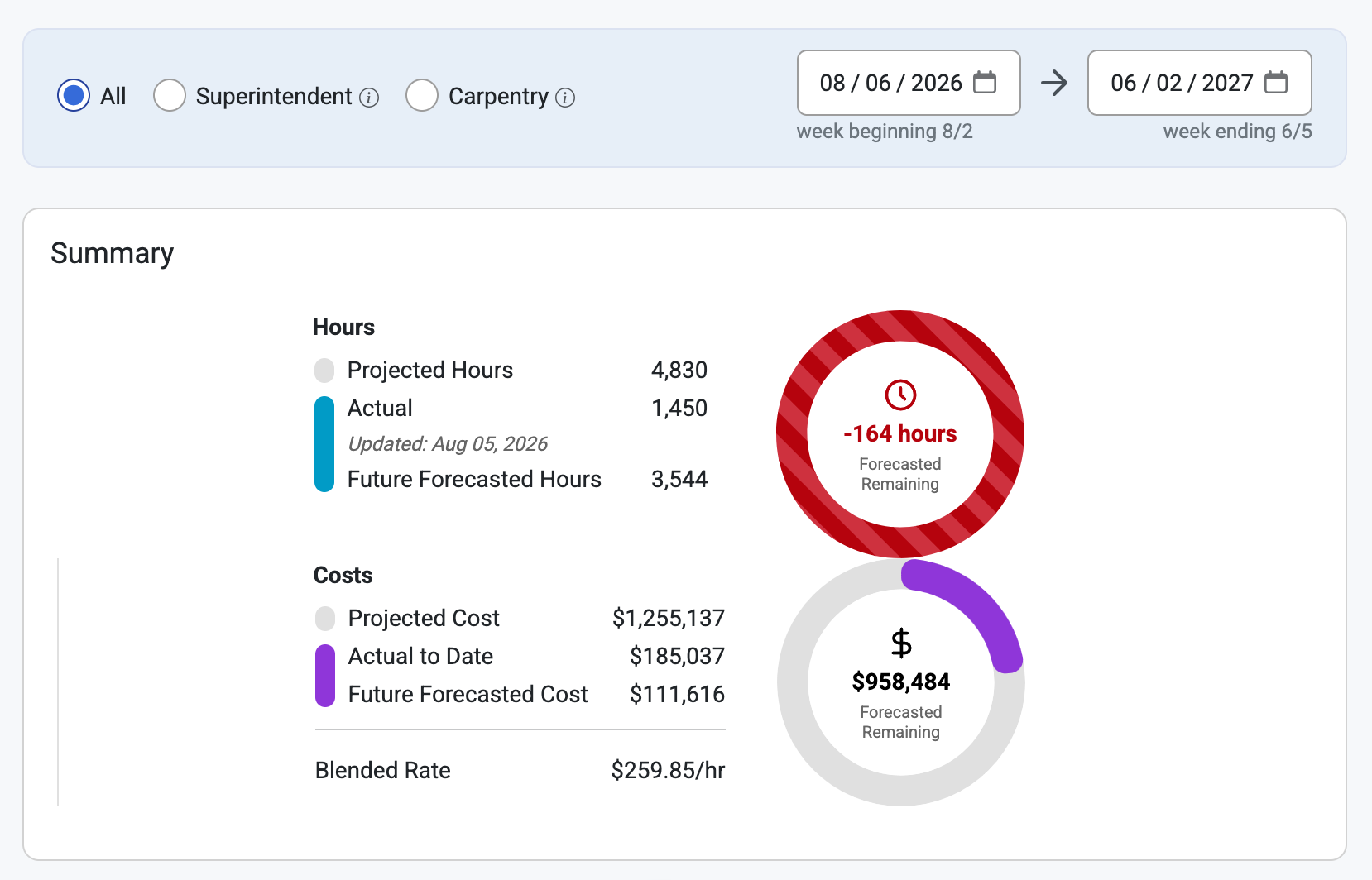
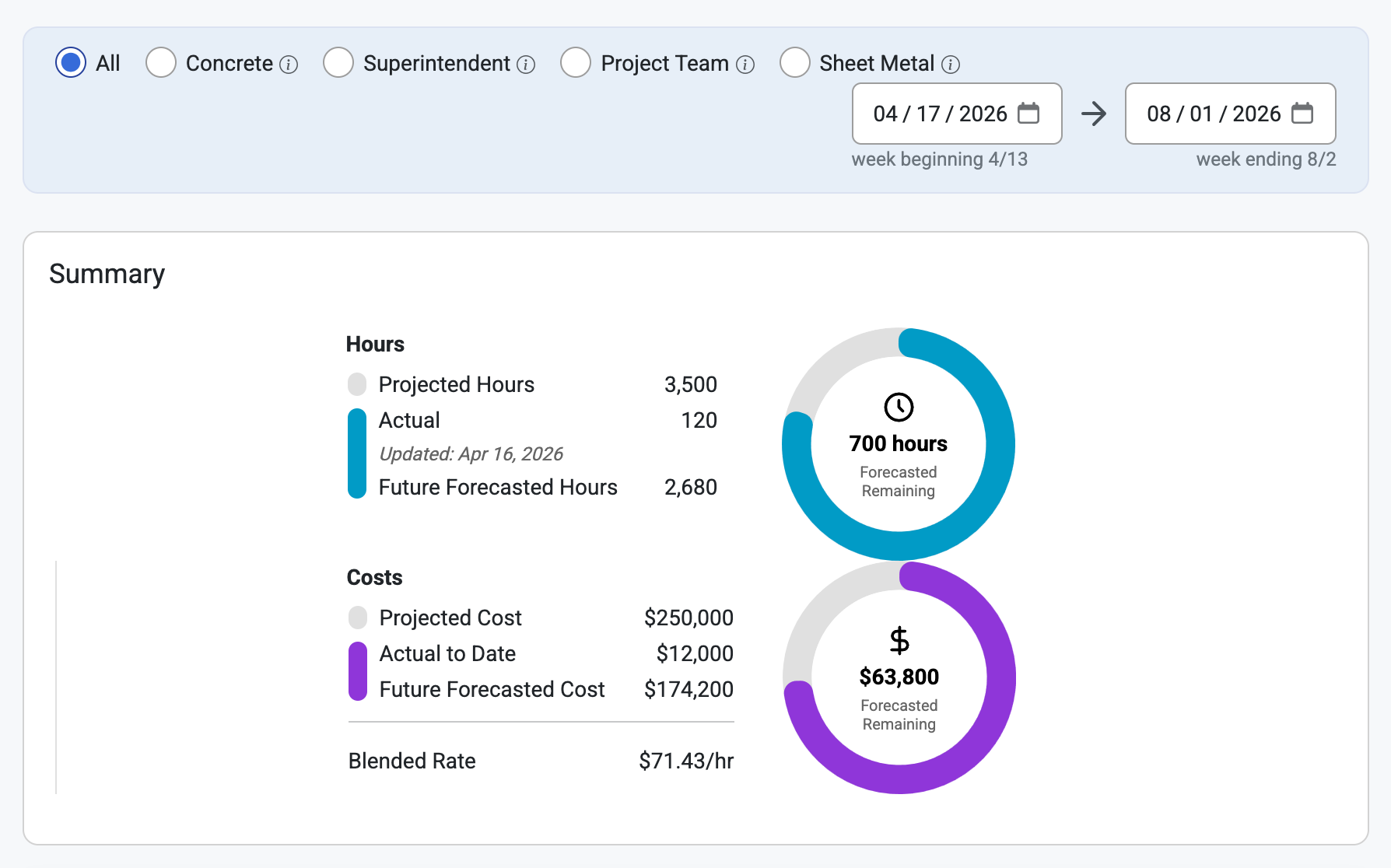
The Summary Table shows a Budget Summary Donut (also located in Jobsite> Projections). This will show the jobsite at an overall project level.
These Donuts show a Summary of Hours and Costs in their Projected, Actual, and Future Forecasted values as well as a Blended Rate.
In Labor Forecasts these summaries are based on a Beginning and End Date, whereas in Jobsite Projection they are only based on a Beginning Date.
In order to keep the ‘By Labor Type’ totals consistent across Labor Forecasts and Cost Projections, a new setting prohibits users from entering a projection end date that falls before the forecast date.
If the selected date range excludes any data from the results, a warning message will appear by the date range toggle.
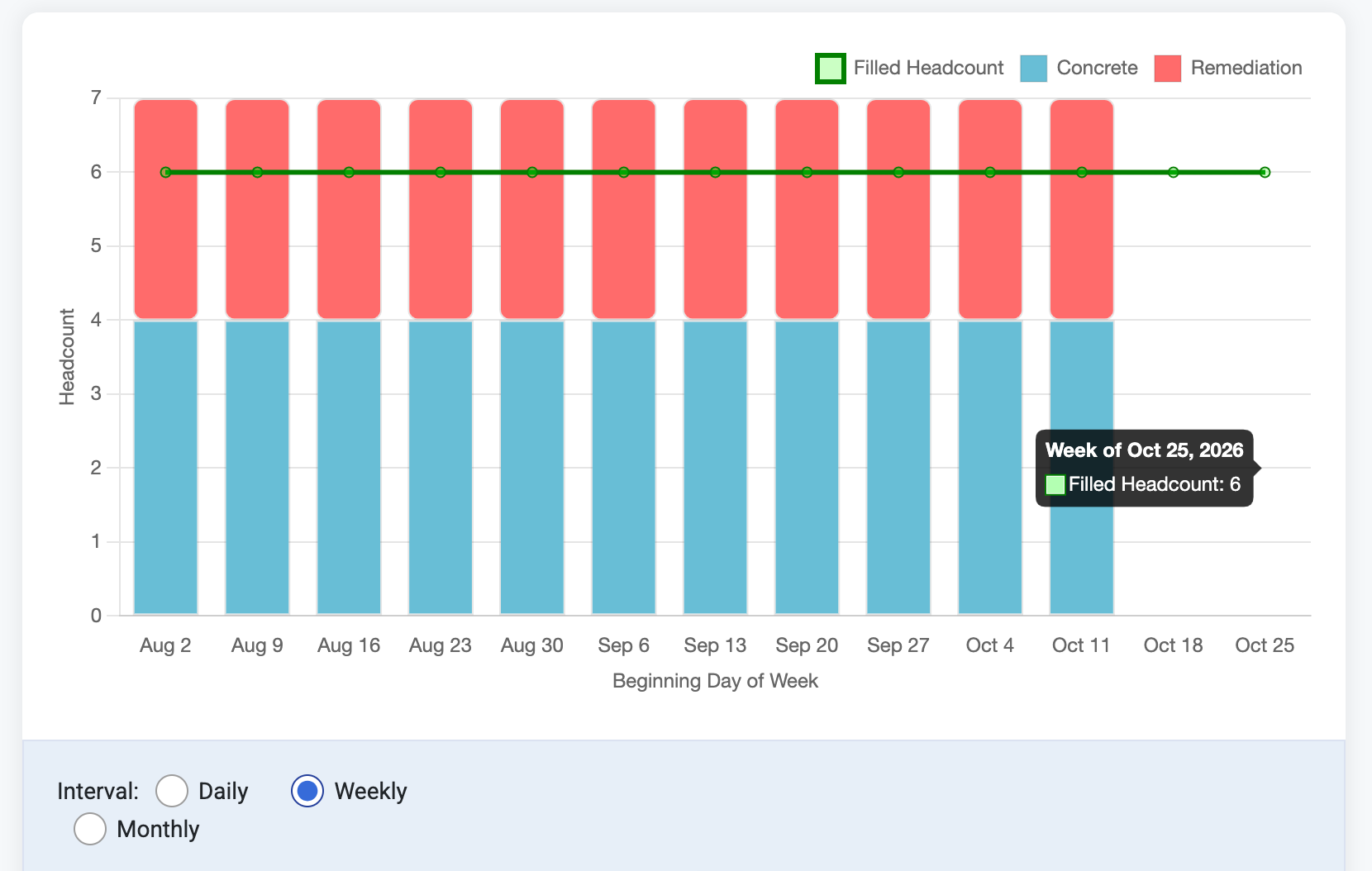
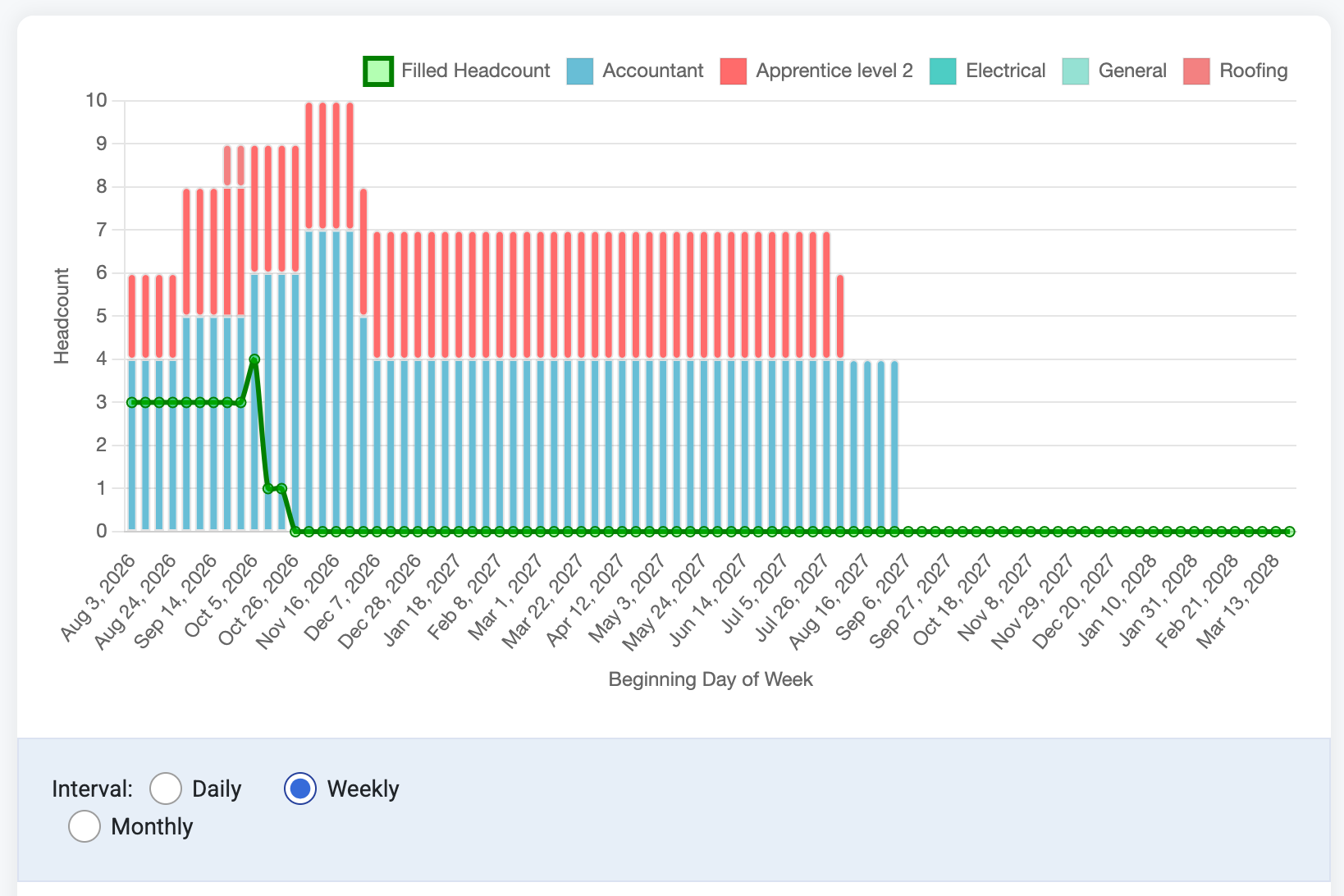
Below the Donut Summary is a Histogram that shows a Filled Headcount of Different Labor types vs a selectable interval of time (Daily, Weekly, or Monthly) over a selected period of time.
Color-coded labor types will appear on the histogram as (Carpentry, General, Mechanical, etc..) as well as the Filled Headcount.
Hover the mouse over different points of interest to see Dates and Number of Labor Types in a point of time.
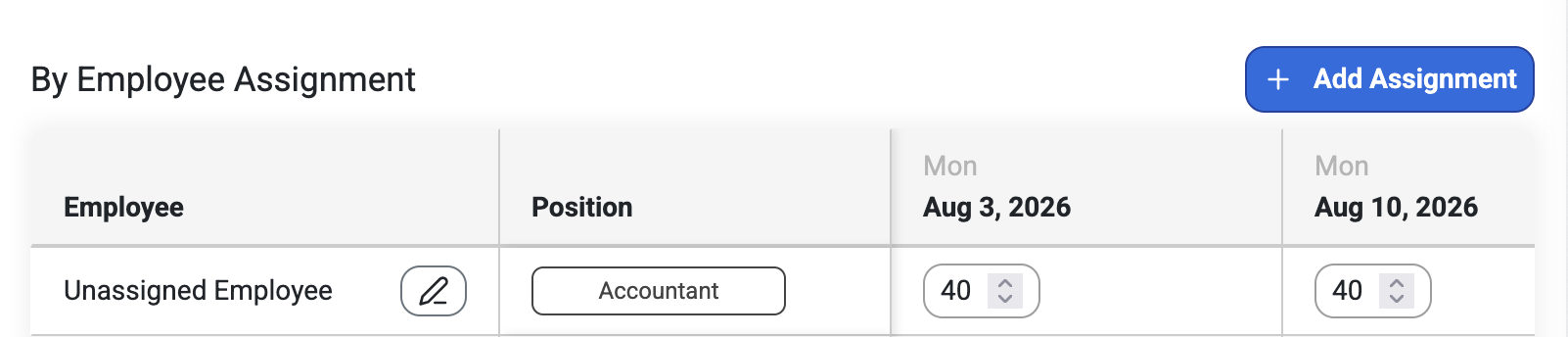
By Employee Assignment (long-term)
This page shows a chart of Employees, Positions, and dates by week.
Users can Edit or Delete employees from this page by clicking the pencil icon.
Users can edit assignment hours directly from this page by clicking the arrows next to the values in the Date columns..
Select ‘+Add Assignment’ to create a New Assignment.
Select ‘Find’ to search for employees that are close to jobsites as well as their allocation, position, availability, and certification status.
Employees can be filtered by color-coded groups like Job, Equipment, and Crew.
The Resource Recommendations Map offers admin users the ability to see the Distance an employee is from as Job.
Only available for ‘Can View Sensitive' permissions.
Select ‘Assign & Close’ when finished searching and assigning.
Select ‘Save & Close’ to finish creating the Assignment.
By Labor Type (short-term)
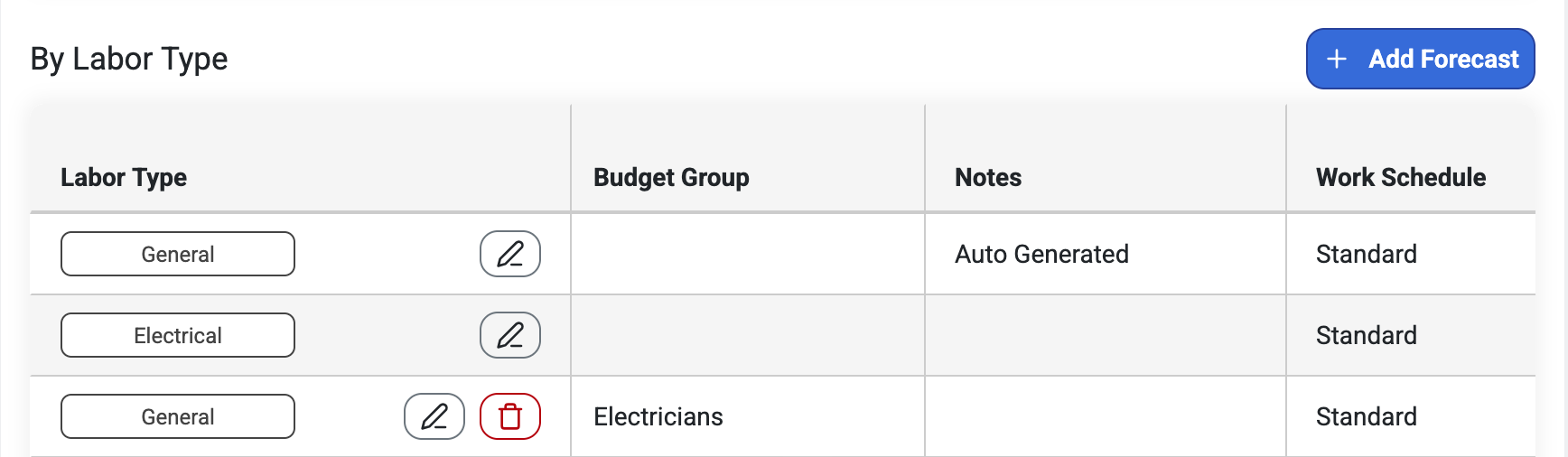
This chart shows Labor Types and their Budget Groups, Notes, Work Schedule, Rate, Totals, and Dates by the week.
Users can Edit or Delete labor types directly from this page by clicking the pencil icon.
Select ‘Add Forecast’ to Create a New Labor Forecast.
When selecting a Distribution method, users can distribute this Labor Forecast by Select Hours or by Bulk.
Distributing by Bulk only allows an input of workers per day.
Distributing by Hour provides more inputs such as:
Hours to Distribute
Distribution Curve type and Rounding options
Peak workforce amount
The week of Peak workforce
The Week of Workforce Decline
Select 'Initialize' when finished.
Was this article helpful?
That’s Great!
Thank you for your feedback
Sorry! We couldn't be helpful
Thank you for your feedback
Feedback sent
We appreciate your effort and will try to fix the article