Job Phases
This is where admins can set up construction phases on individual projects. Users can only select phases from what has been created because they will only show up if they've been created from a tenant-level.
Creating/Adding a Job Phases
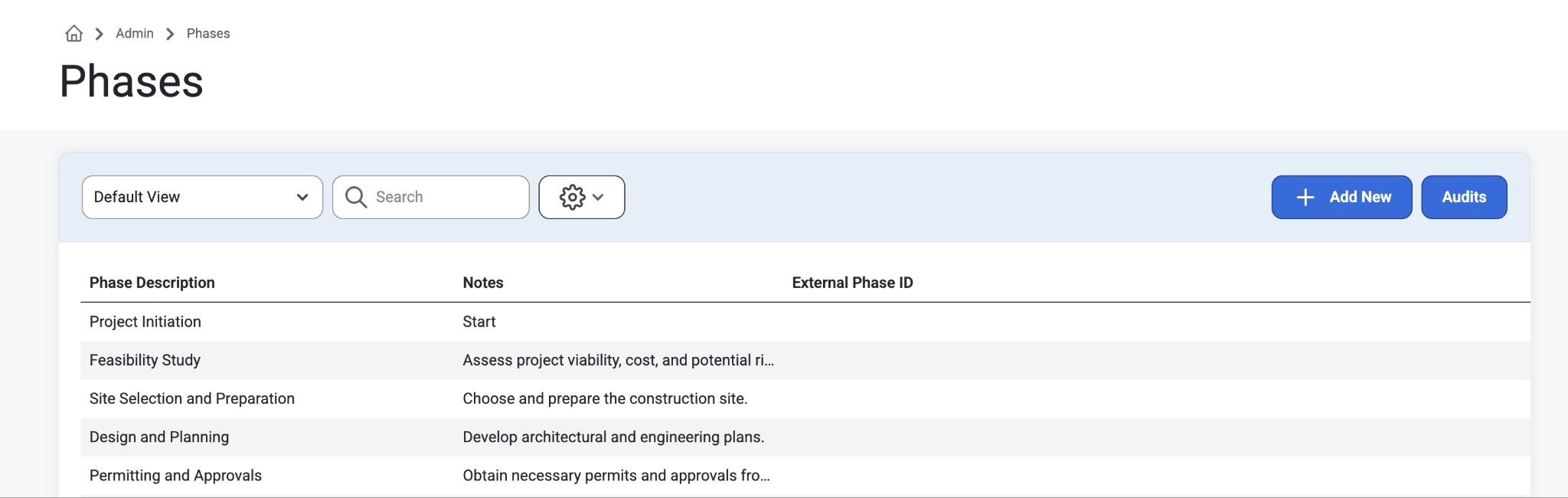
Job Phases can be created in Admin>Job Setup>Phases
Select “Add New” to create a Phase Description with Notes and an External Phase ID.
Selecting the “Audits” button will show the Job Phase Audit Date, Table Name, Column Name, Old/New Value, Employee Name, and Audit Type.
Adding Phases to a Job
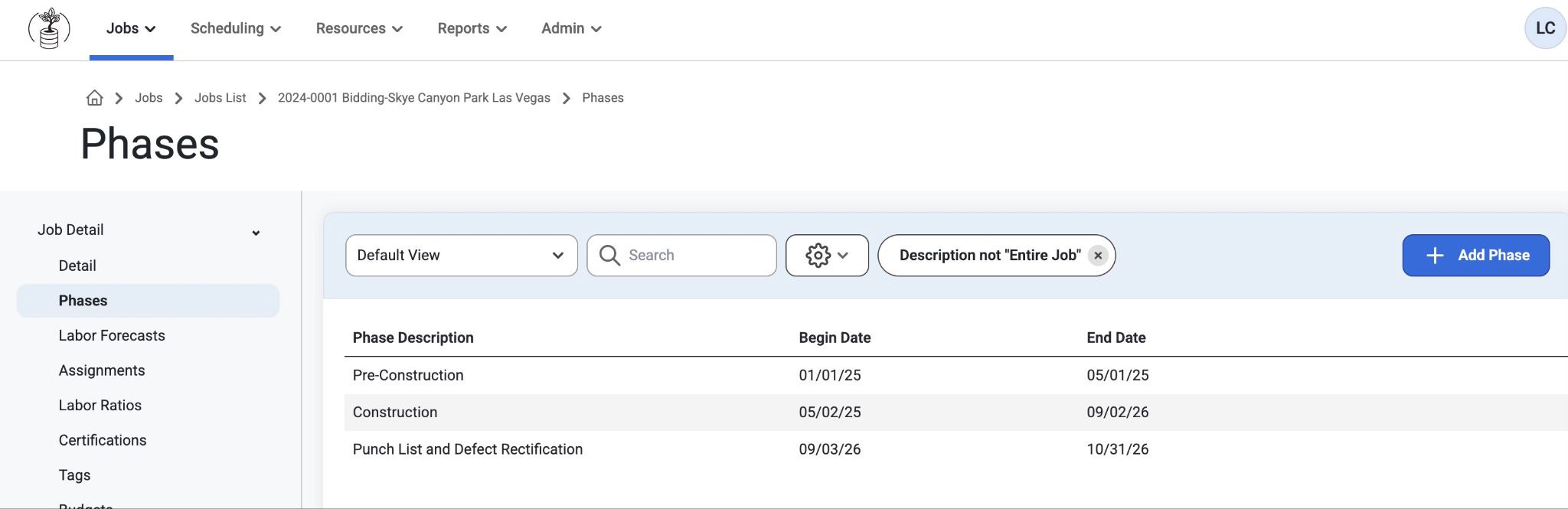
To Add Phases to a Job, go to the Job List page Jobs > Jobs List >Phases.
Click on a job from the Jobs List and on the left side a list of details will appear.
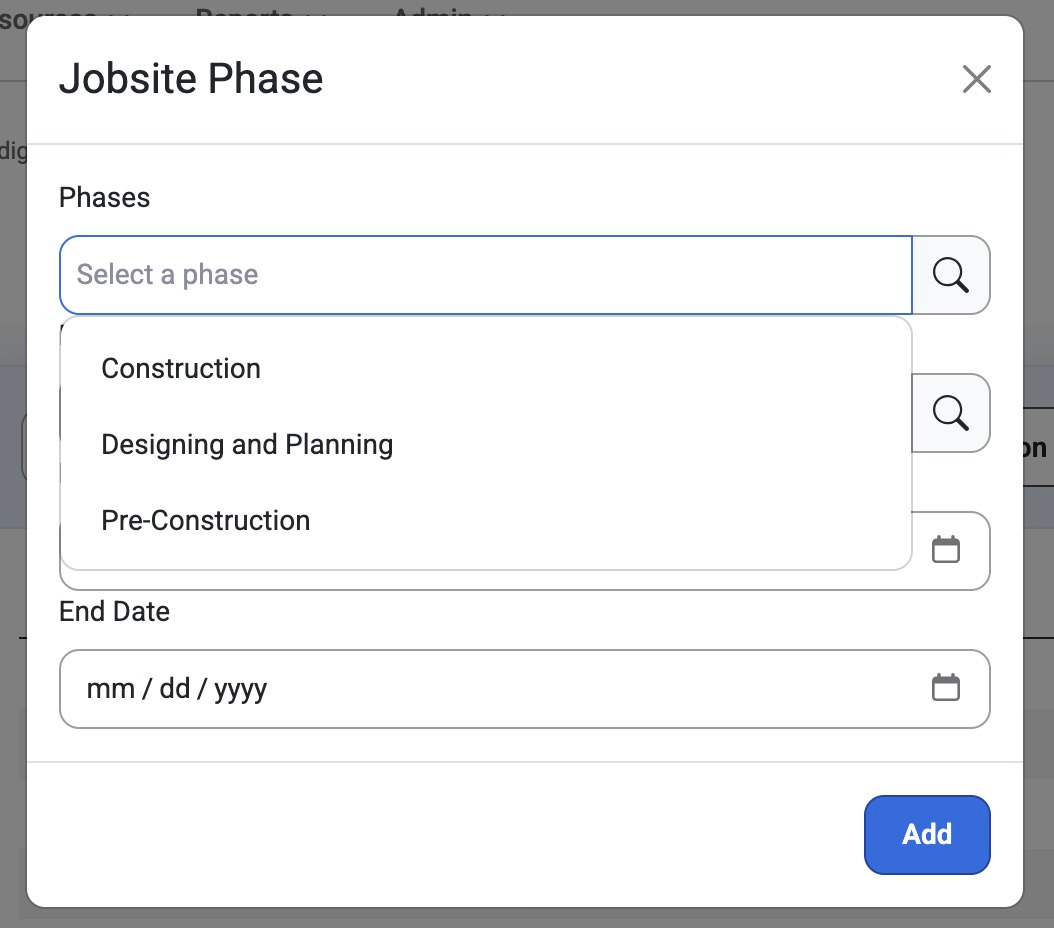
Select “Phases” and “Add Phase”
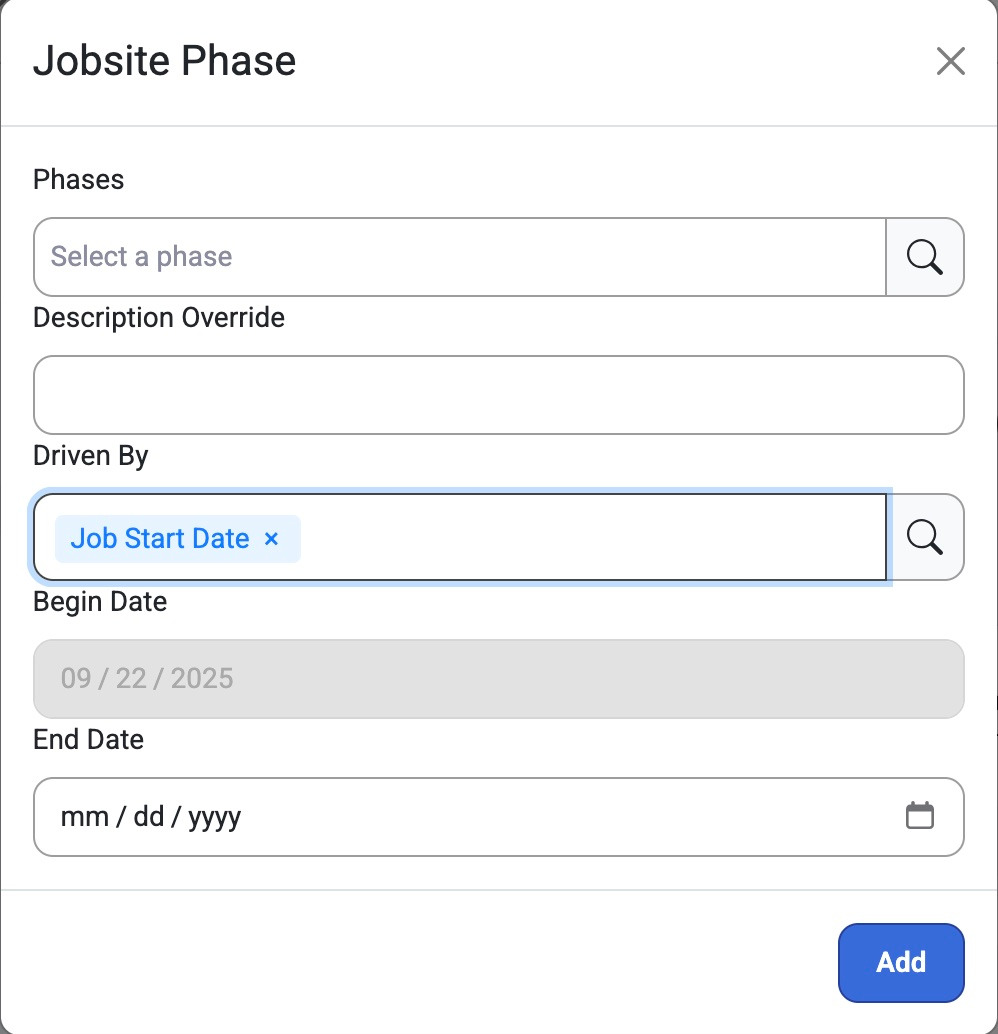
Users can add a Phase Description, Begin Date, and End Date.
Users can add multiple Drive-By Phases
Anytime the Job Start Date is updated, it will auto-update this Phases Start Date.
Where Are Job Phases Seen ?
When creating a Long Term Assignment, users can assign Resources to a specific Phase. The Assignment will match the Start and End Dates of the Phase assigned.
On the Job Gantt, Resource Allocation Gantt, Dispatch Board, and Assignment Hours page, Jobs expand into their individual Phases.
Job Phases is a way users can set up construction phases on individual projects. However, users can only select phases from what has already been created from a Tenant level. Be sure to create Job Phases in Admin > Job Setup > Phases before adding phases to a Job.
Labor Forecasts with Phases:
When phase dates are updated, the projected resources and short-term assignments will slide to new dates.
If this setting - "Labor Forecast - Allow Labor Forecasts by Jobsite Phase" is enabled, Labor can be forecasted to specific Jobsite Phases and the phase dates.
This will lock the forecasts to the dates and if those dates are changed, the labor forecast and any Daily Scheduling assignments will adjust accordingly.
If the duration of assignment is extended, it will automatically add the last used forecast and daily assignment.
Was this article helpful?
That’s Great!
Thank you for your feedback
Sorry! We couldn't be helpful
Thank you for your feedback
Feedback sent
We appreciate your effort and will try to fix the article