Phases:
Purpose: Construction phases can be added to each opportunity/job and are used for splitting up the phases of construction into smaller segments of time. This allows you to create assignments that are tied to the specific dates of the construction phase which helps auto adjust the dates of any assignment if the construction phase dates are changed.
Permissions: Assign construction phases to Jobs on the Jobs > Phase Page. Normal users can only add phases that are already created by an admin.
Note: The "Entire Job" phase is auto generated by the system if the Job has a Start and End date
Tags:
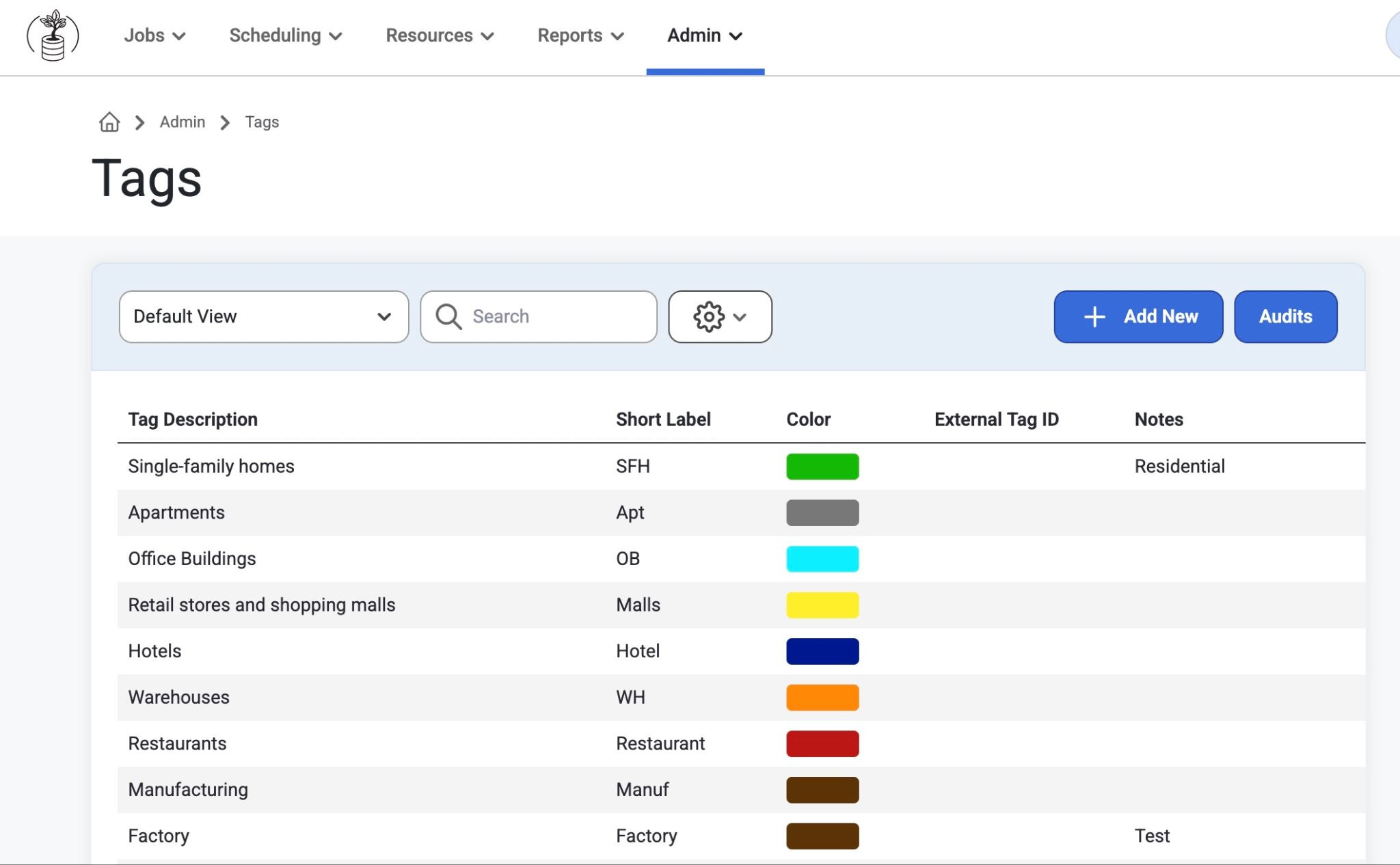
Purpose: Use tags to categorize jobs and improve searchability/filterability which contributes to building employee work histories and enhancing resource recommendations.
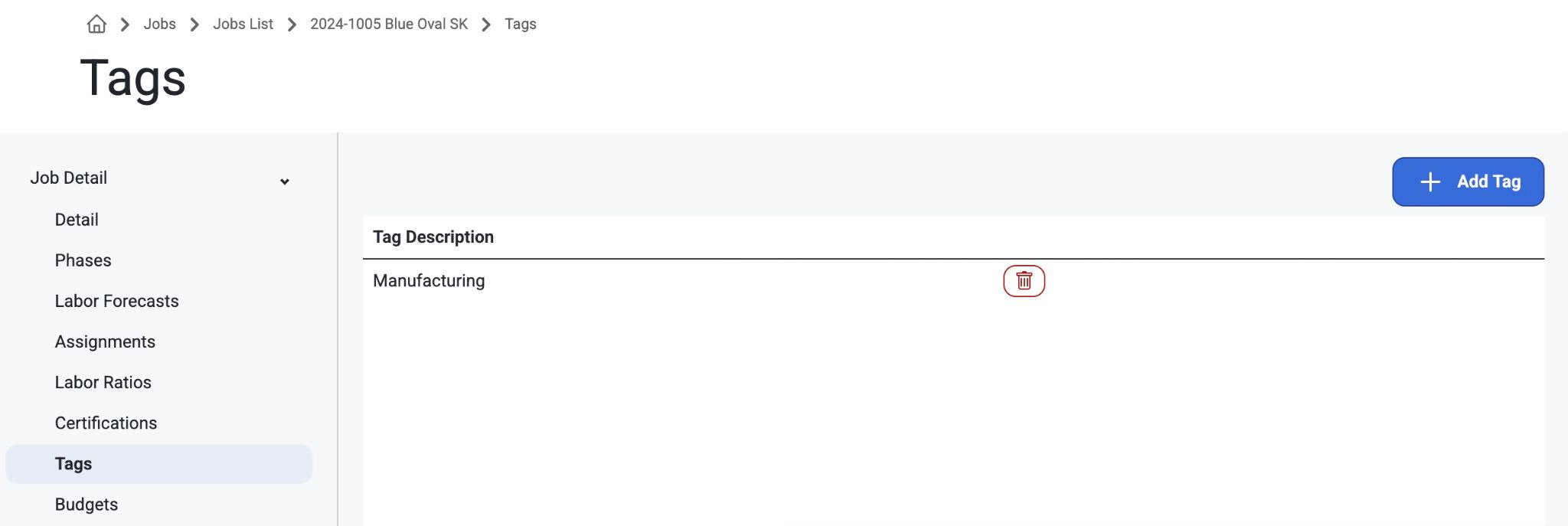
How to add a tag to a Job:
Within the Jobs List, select a Job and navigate to the Job Tags page.
Use the "Add Tag" button.
In the window that appears, select the preferred Tag to add to the Job.
Or, Select ‘Add New’ to create a new tag.
Work Schedule:
Purpose: Used for creating specific working schedules.
How to:
Use the "Add New" button.
Enter a Schedule Description, select a Start and End Time, and enter the number of hours an employee with this schedule should work on each day.
You can then apply this Work Schedule to a specific resource or assignment by selecting the "Work Schedule" dropdown.
Notice the "Default" Work Schedule
Only one Work Schedule can be the default.
If there is a default work schedule, when jobs are imported and the work schedule is NULL, users can assign the default work schedule.
When a work schedule is assigned as default, the user will be prompted if they would like to push this to all Jobs without a Work Schedule assigned.
Statuses:
Purpose: Used for creating statuses that can be applied to Jobs.
How to:
Use the "Add New" button.
Select a Status Type from the dropdown.
Name the Status. e.g. Opportunity - Billing, Opportunity - Review, Open - Construction etc.
Budget Groups:
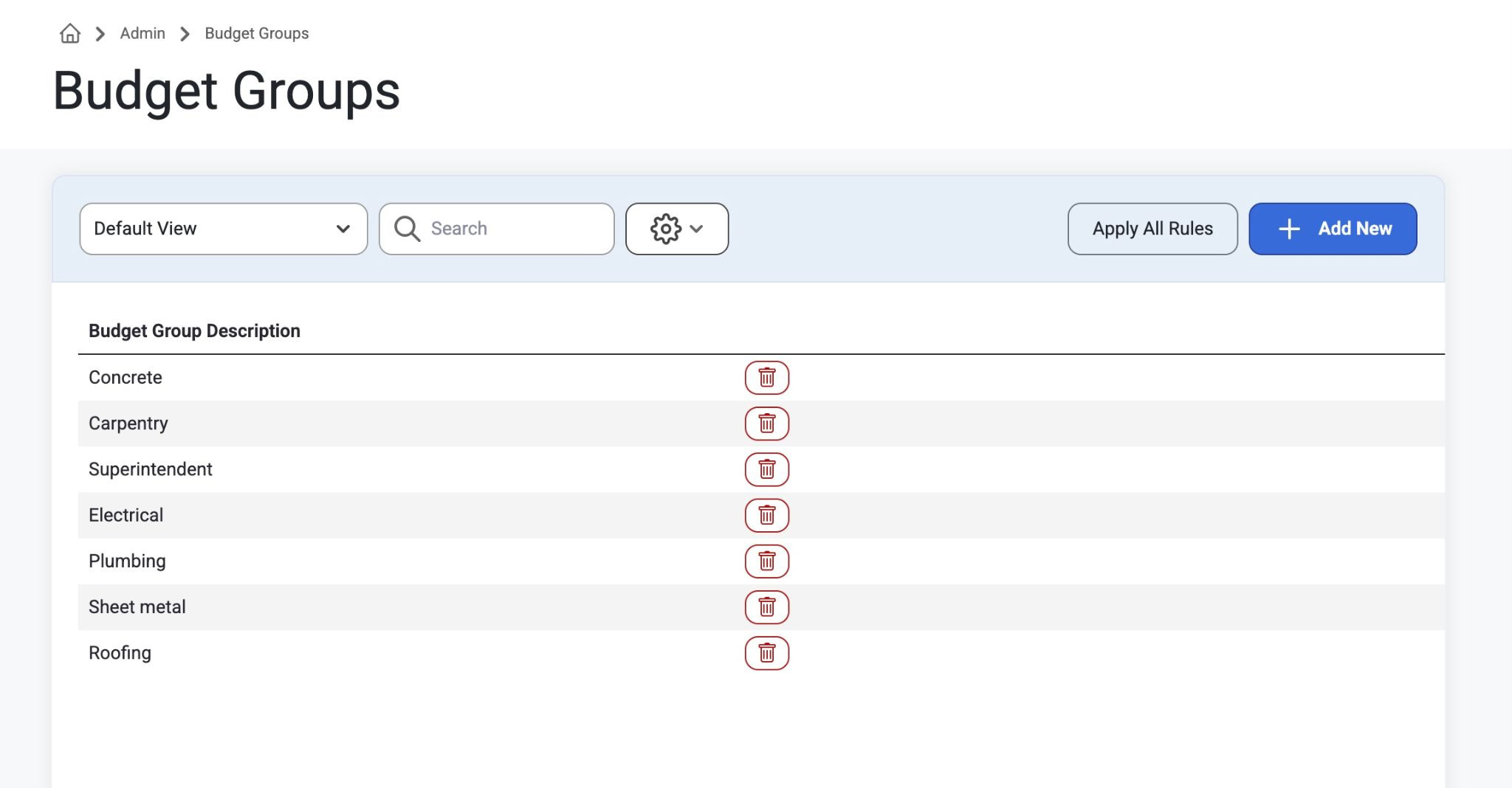
Purpose: used to organize budget groups descriptions where users can view the details, labor types, positions, and asset categories for each budget group (mechanical, electrical, plumbing, etc..)
How to:
Click on a Budget Group Description Name
Select one of the following tabs:
Details
Labor Types
Positions
Asset Categories
Use the “Add” button to create a new one.
Users can also select “Add New” Budget Group.
Notes:
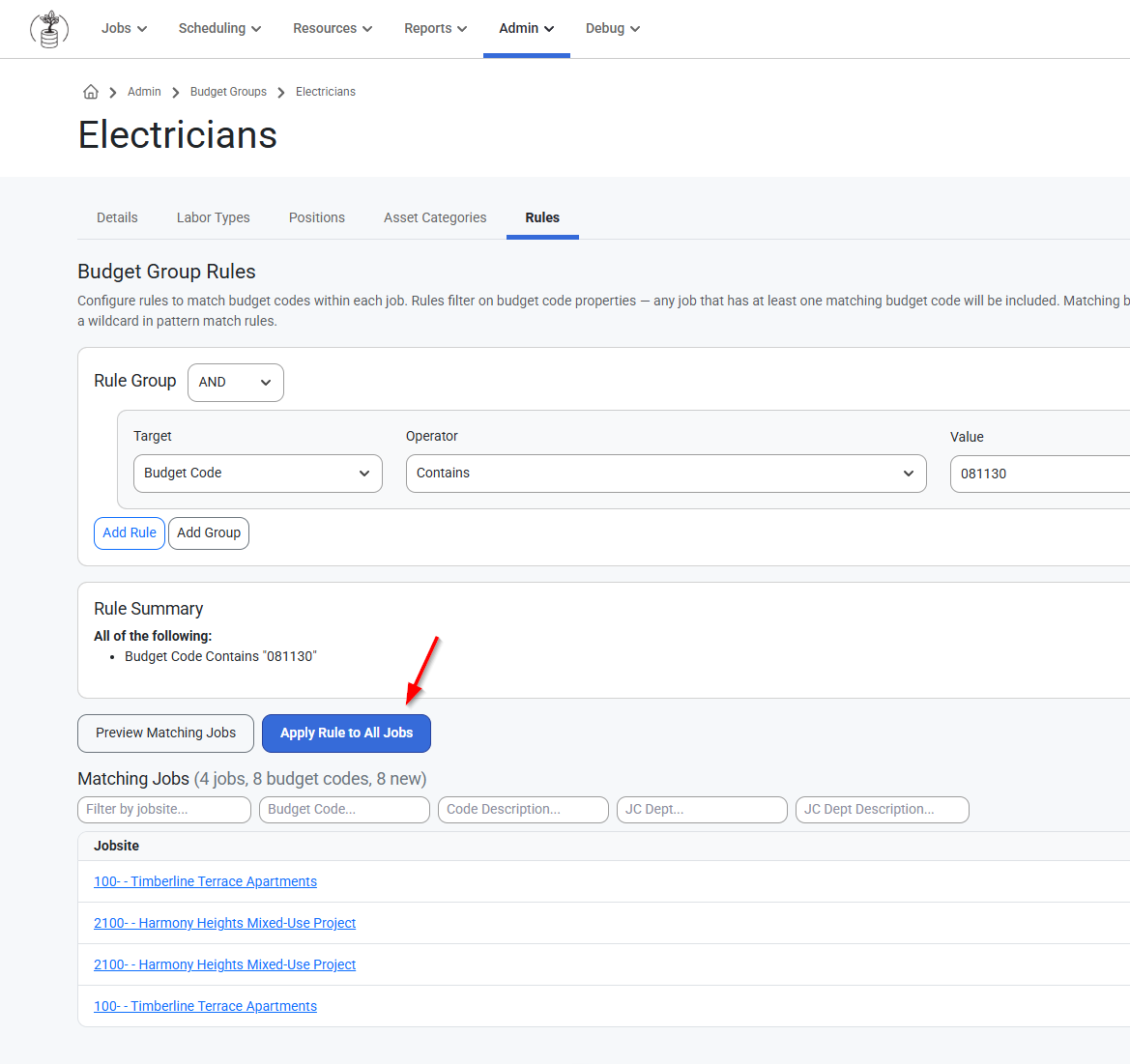
Notice the ‘Apply All Rules’ option to update all jobs with matching criteria.
New Rules tab allows users to create rules for splitting budgets for all jobs based on Phase Code format, Phase Description, JC Department Code, and/or JC Department Description.
This setting allows the organization of employees and budget codes across the platform.
Was this article helpful?
That’s Great!
Thank you for your feedback
Sorry! We couldn't be helpful
Thank you for your feedback
Feedback sent
We appreciate your effort and will try to fix the article