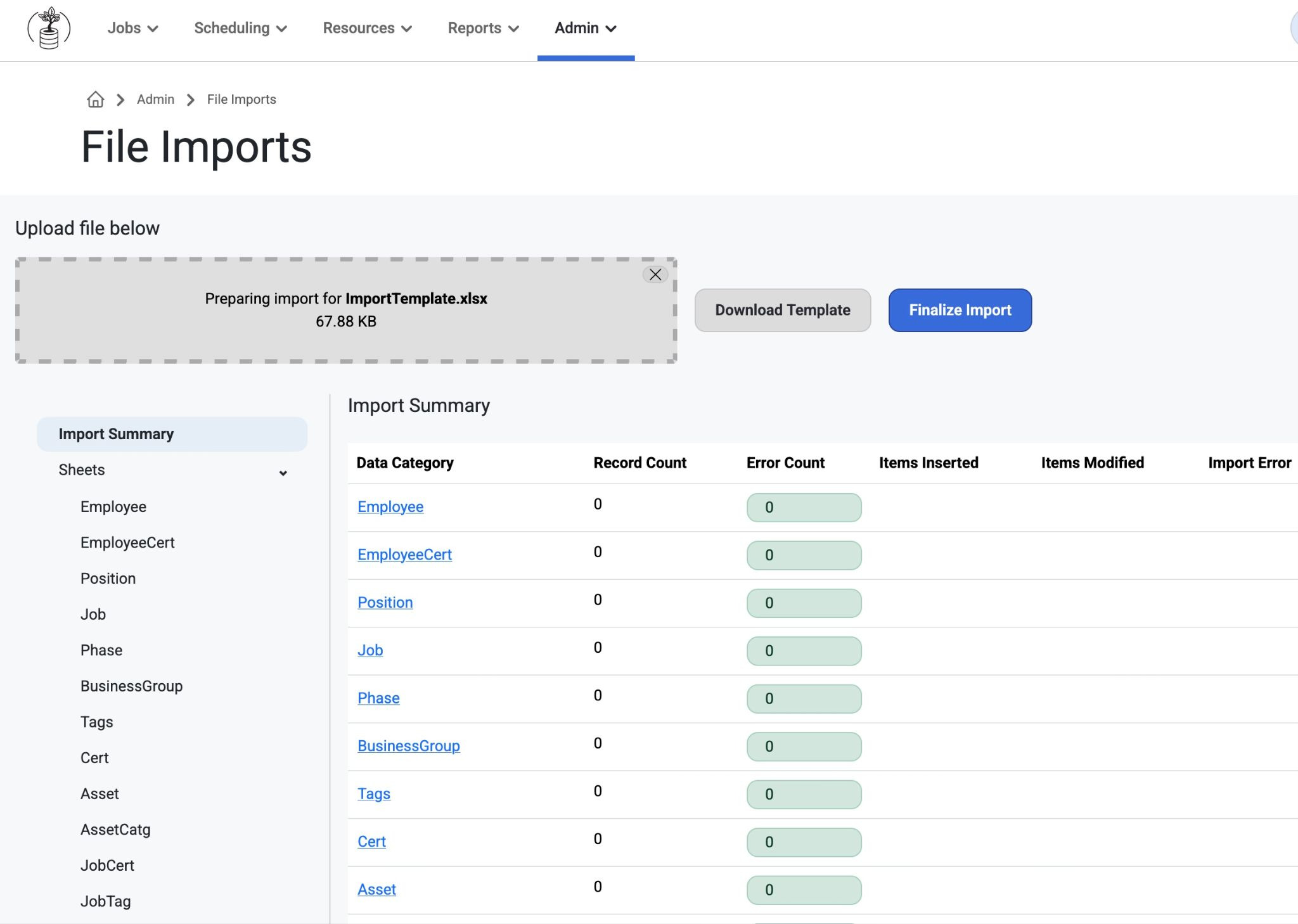
File Imports:
Purpose: Used for importing your resource planning data from your other ERP, accounting, HR, or construction management systems.
How to:
Download the Import Template under “File Imports”
Add your data into the template mapped to the correct columns
Import the template with your data
Review for any errors and re-import if necessary
Finalize Import to add/update the data into the system
Notes:
If the Vista sync is configured for a company's environment, File Imports is not necessary.
If there is a failure in an import, the specific data lines causing the lag will not be imported.
Import Settings:
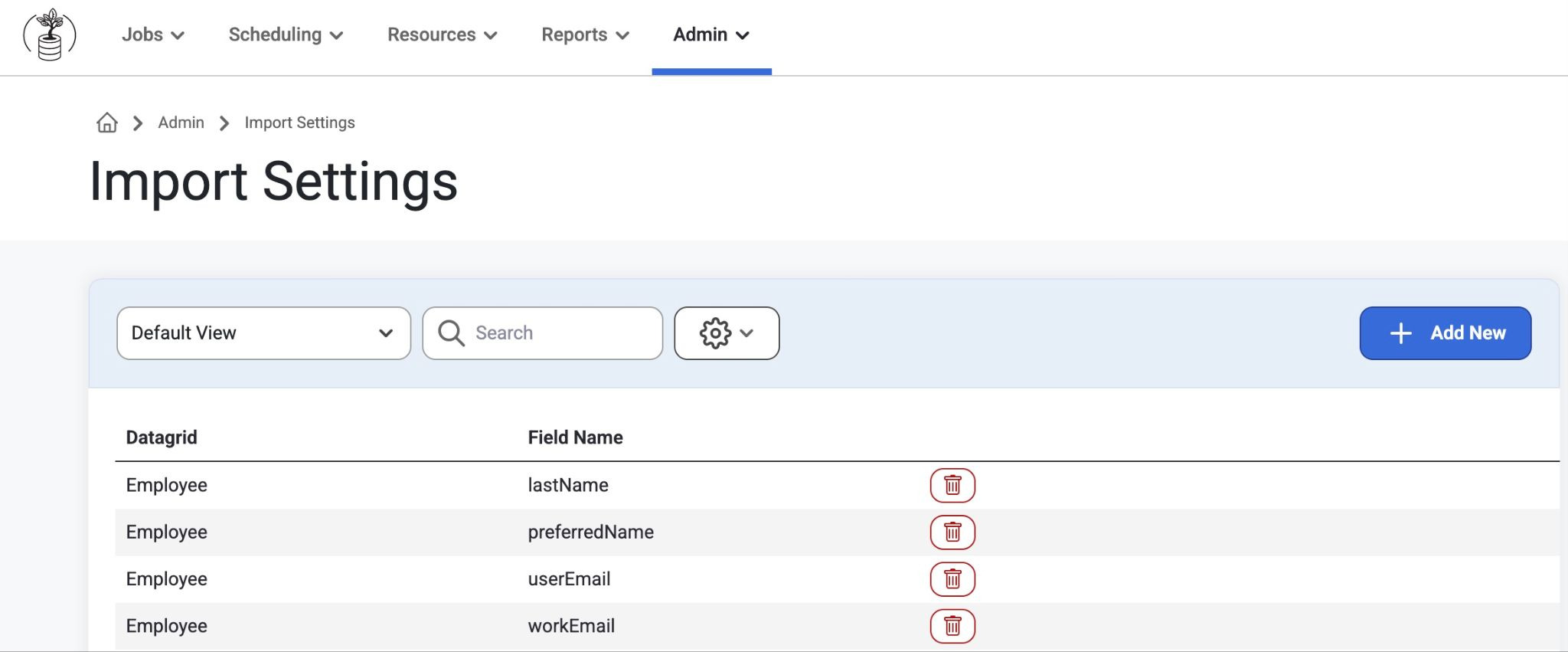
Purpose: This page allows users to list the specific fields they would like updated with each import and sync from their other applications. By default, there are no fields listed meaning that new data will be inserted once on import, but there will never be updates to it.
How to:
Select "Add New"
Select a datagrid, such as Employee, Crew, Asset, Job, Labor Type, or Time Off.
Select what information to update in that datagrid each import/sync.
Phase and Job Phase imports are now supported.
Exceptions to this are the following areas that will always be updated on every import/sync.
Jobsite Budgets
Jobsite Budgets By Month
Jobsite Revenue
Jobsite Revenue By Month
Job Actual Hours
Job Departments
Cost Types
Jobsite CO Header
Jobsite CO Detail
Customer Name Field
Data Purge
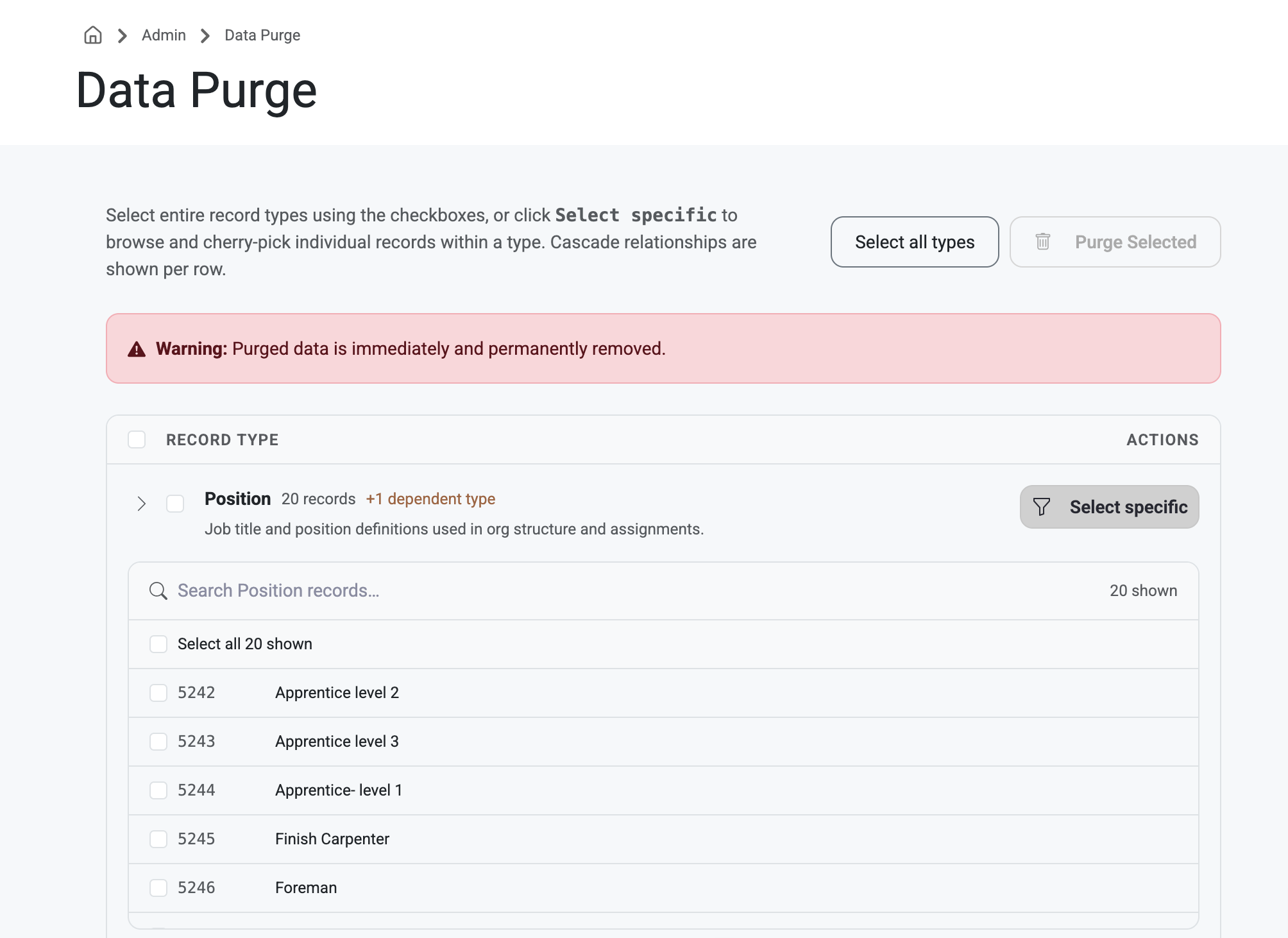
This is a new page that can be found in Admin Tenant Settings under Imports and Integrations.
Purpose: This page allows admin users to select data and delete it completely from the system. This is beneficial for admins who aren't using all the settings and want to declutter their views.
How to: After navigating to the Data Purge page, admin users can select the checkboxes next to record types and select specific filters of deletion. Once the desired records are selected, a progress bar will show at the top of the page, clarifying to the admin which records have been selected.
Click ‘Purge Selected’ to Delete. Note: Once permanently deleted, these features will no longer be available.
Added Different Details to Specific selection records table
Jobsite Budget
Job Number - Sitename - Phase Code - Phase Description - Cost Type - Cost Type Description
Jobsite Revenue
Job Number - Sitename - Contract Item - Contract Item Description
Projection header
Job Number - Sitename - Month/Year
Request
Job Number - Sitename - Phase - Begin/End Dates - % Allocated - Resource Type - Resource Category - Assigned Resource or Unassigned
Time off
Employee Name - Employee Number - Leave Request - Day - Hours
Daily Assignment
Day - Job Number - Site Name - Forecast Labor Type Description - Assigned Resource
Jobsite Budget By Month
Job Number - Sitename - Phase Code - Phase Description - Cost Type - Cost Type Description - Month
Jobsite Revenue By Month
Job Number - Sitename - Contract Item Number - Contract Item Description - Month
Jobsite Change Order
Job Number - Site Name - Change Order ID - Change Order Description
Jobsite Budget Group Detail
Job Number - Sitename - Budget Group Description - Record Type - Record Description
Integrations:
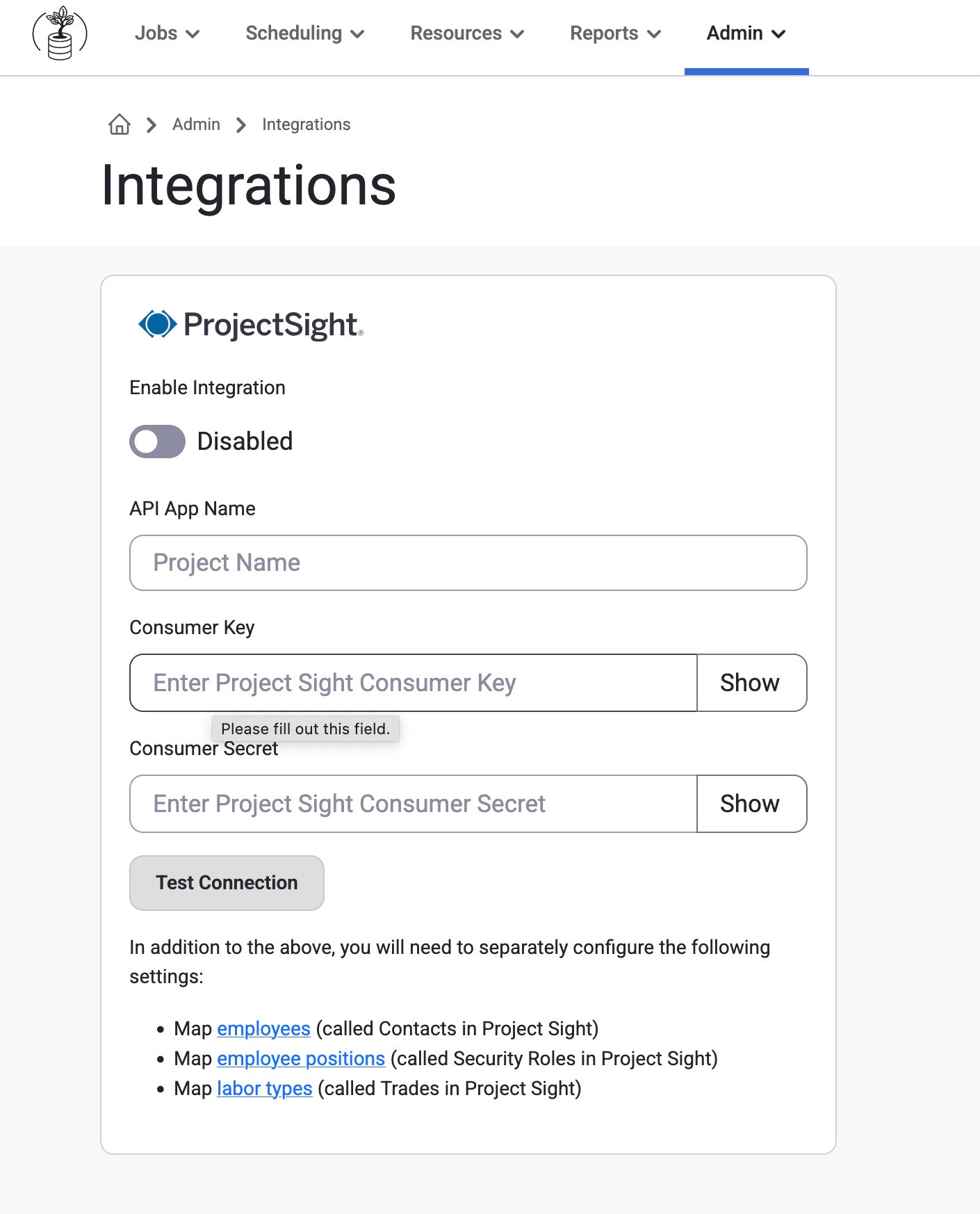
Purpose: This configuration panel lets admins connect and sync company data to ProjectSight so that data can flow between them automatically.
Note: If the customer is not using ProjectSight, then disregard this section.
How To:
Enable Integration (toggle)
Turning this on activates the connection
API App Name
A label users give this integration (e.g., company or project name)
Consumer Key & Consumer Secret
These are API credentials provided by ProjectSight
They act like a username/password for system-to-system communication
Show button
Lets users reveal the hidden credentials
Test Connection
Verifies that the provided credentials work and the systems can talk to each other.
Once enabled, the system will pull specific data from ProjectSight so they can be mapped to the records in Resource Planning.
On Employee records, admins will see a ProjectSight page where they can map Resource Planning Employee records to ProjectSight Users
On the Job records, admins will see a ProjectSight page where they can map Resource Planning Job records to ProjectSight Jobs
On the Position records, admins will see a ProjectSight page where they can map Resource Planning Positions to ProjectSight Security Roles and/or Class
On the Labor Type records, admins will see a ProjectSight Page where they can map Resource Planning Labor Types to ProjectSight Trade
Once these records are mapped, Resource Planning will do the following:
Each morning at 12AM, Resource Planning will send a Daily Report to ProjectSight listing the Employees and number of hours worked based on the assigned schedule in Resource Planning
When a new long-term assignment is made to a position that is linked to a ProjectSight Security Role, Resource Planning will assigned that ProjectSight User to the selected job for the Security Role linked to the Position.
This is important if you have tight Project Sight security down to the Job level instead of the Portfolio level.
API Docs:
This tab shows the Application Programming Interface (API) which is the set of rules that allows the software to communicate, share data, and provide seamless integration of the tools and systems used in construction workflows. Projection Spread has been recently optimized.
Instead of using the Out-of-the-Box Vista Sync, customers can configure custom integrations using these resource planning APIs.
Example:
Sending data from a data lake to resource planning.
Additionally, Get APIs are available for the following areas:
Employees
Jobs
Assets
Resource Segments
Projection Headers
Projection Details
Projection Spreads
Projection Categories
Labor Forecasts
Asset Forecasts
Change Order Export
Unit Correction Export
Cost Projection Export
Revenue Projection Export
Recent API Updates have improved the user experience. There is a new date/time field on the Tenant table: “Last Data API Sync.” Anytime there is an API data sync, this field will update to the time that sync ran.
API’s:
Added more details to the Projection Snapshot Export
Parameters
External Jobsite ID
Job Number
Projection Header
External Jobsite ID
Long Term
External Jobsite ID
Allocation %
Short Term
External Jobsite ID
External Asset Category ID
External Labor Type ID
Budget Group Description
Budget Code (only for assets)
Added new fields for the breakdown of budget code to snapshotted data.
Job Number
Phase Code
Cost Type
Cost Type Desciption
Projected Resources: Additional Data returned
Fields added to Returned Data
External Jobsite ID
Labor Type (if NULL-Labor Type Description=General)
Work Schedule Daily Hours
Override Rate
Override Schedule Description
Override Schedule Daily Hours
Phase Description
Budget Group Description
Export APIs:
Now has additional functionality and parameters in Cost Projections
Cost Projection Exports
Revenue Projection Exports
Change Order Exports
Unit Correction Exports
Cost Projection Header Fields (optional parameters)
Status
Month
Job
Projection Header ID
Available to Export
Status
Month
Job
Projection Header ID
Was this article helpful?
That’s Great!
Thank you for your feedback
Sorry! We couldn't be helpful
Thank you for your feedback
Feedback sent
We appreciate your effort and will try to fix the article