User Groups is a newly added page under 'Admin' from the main navigation bar. The page is for creating user Groups.
Certification Notifications
Create Certification Rule
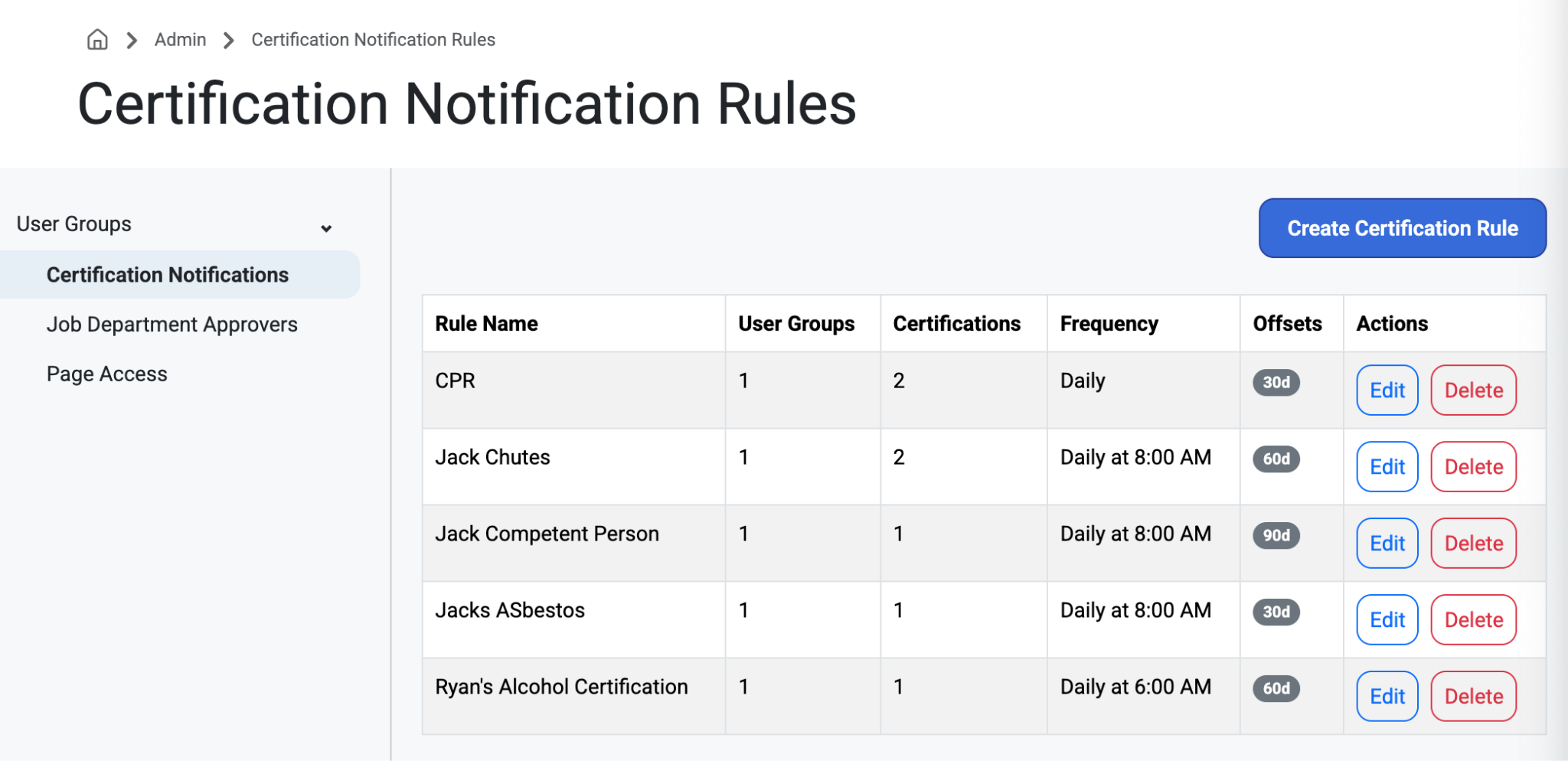
The ‘Offsets’ column displays how many days remain until that certification expires.
Type in a Rule Name
Select User Groups, Certifications, Notification of Offsets (30,60,90 days), Frequency (daily, weekly, monthly), and the Time to be notified of the expiration.
Select ‘Save.’
NOTE: Users set up with Certification Groups will be notified by email of expiring certifications for active employees.
Job Department Approvers
Create Approver Rule
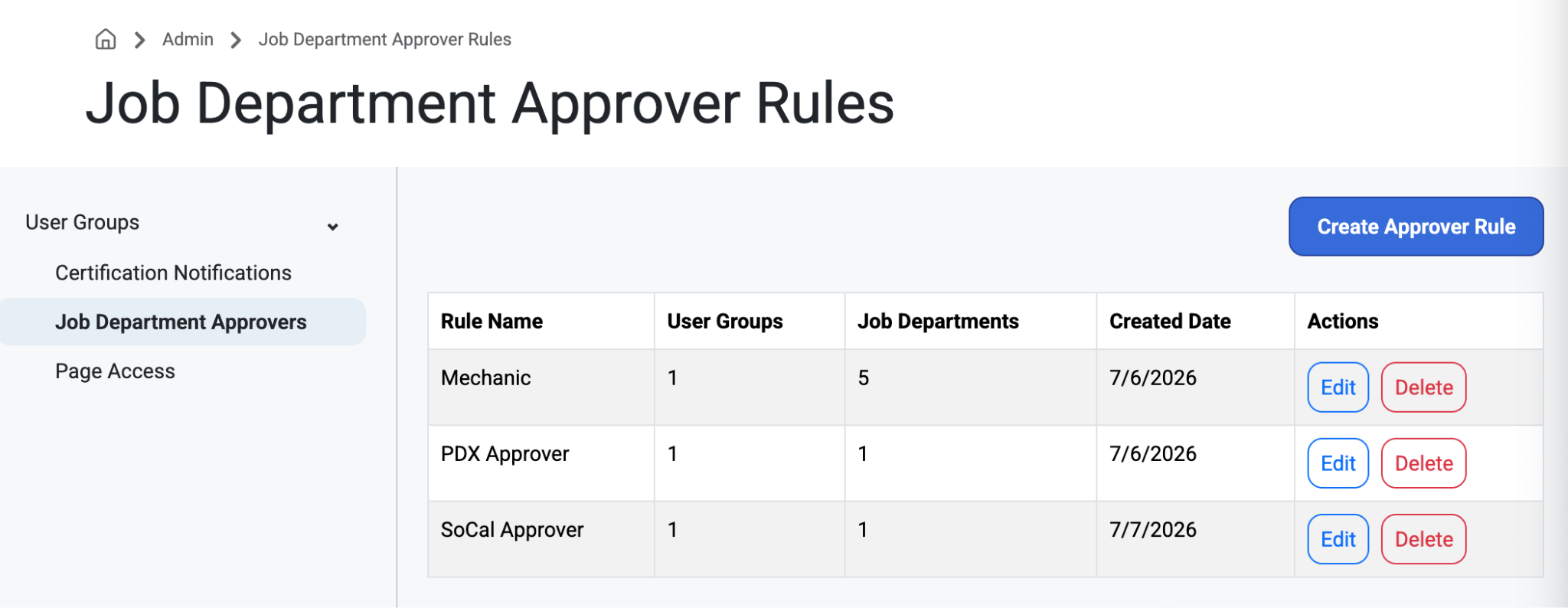
Type in Rule Name.Select User Groups and Job Departments
Note: Users in the selected groups will automatically become approvers for the selected job departments. These changes take effect immediately.
Select ‘Save.’
Page Access
Create Page Access Settings
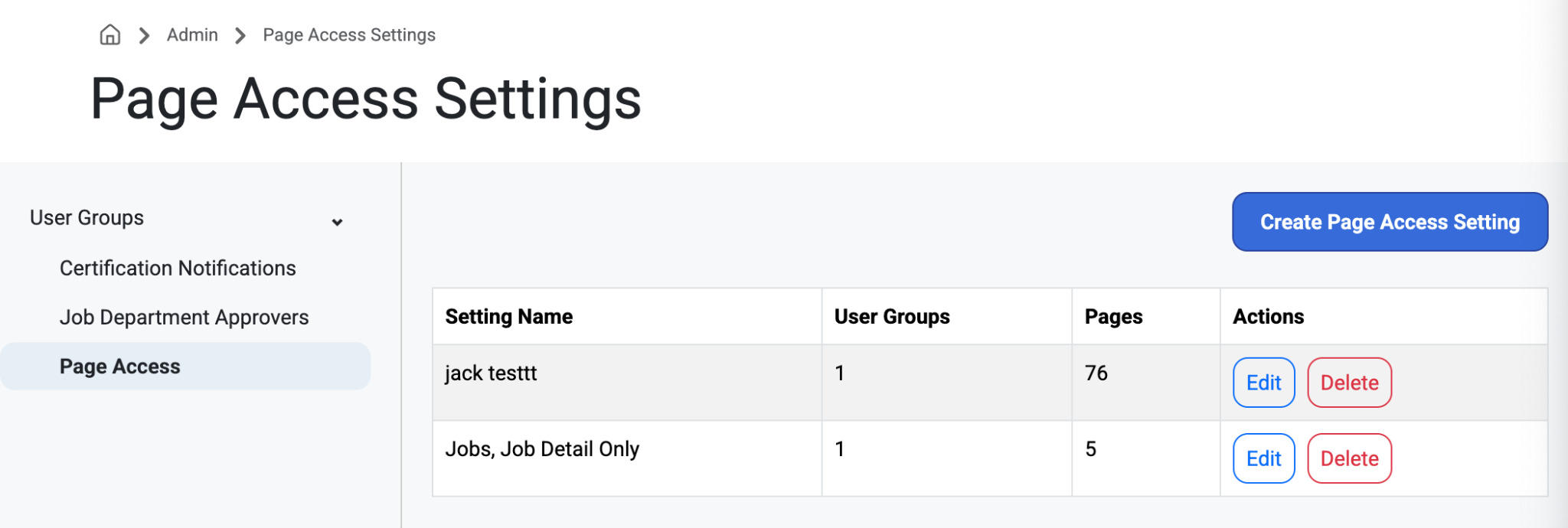
Type in a Setting Name
Select User Groups
Select Pages and their subpages to be Accessed:
Jobs
Work Orders
Scheduling
Resources
Detail (Employee, Crew, Asset,Job)
Reports
Select ‘Save.’
How to: Select ‘Create User Group’ and Enter a Group Name. Select or search the members you want to add to the group from the list and select ‘Save.’
These groups allow for assigning employees with more accurate certifications, jobs, and page access. When sending notifications, users have the option to select which time and day the emails should go out, which is based on local time.
Was this article helpful?
That’s Great!
Thank you for your feedback
Sorry! We couldn't be helpful
Thank you for your feedback
Feedback sent
We appreciate your effort and will try to fix the article