Organization
Settings:
Recently updated Admin>Organization>Settings has settings by category and allows customers to easily find and enable/disable settings for specific pages. Navigate to this separate article for details in Setting Updates:
Direct Link: Admin Settings
Notification Records
Purpose: Used for viewing all messages sent through Resource Planning.
How to:
Emails will appear with the Email Recipient, Email Subject, and Created Date. If you scroll to the right, you can view the sender, status of the message, Recipient Employee, Sent Date, and Delivery Status.
Text Messages will appear with the Phone Number and full Text Message. If you scroll to the right, you can view the sender, status of the message, Recipient Employee, Sent Date, and Delivery Status.
Error Logs
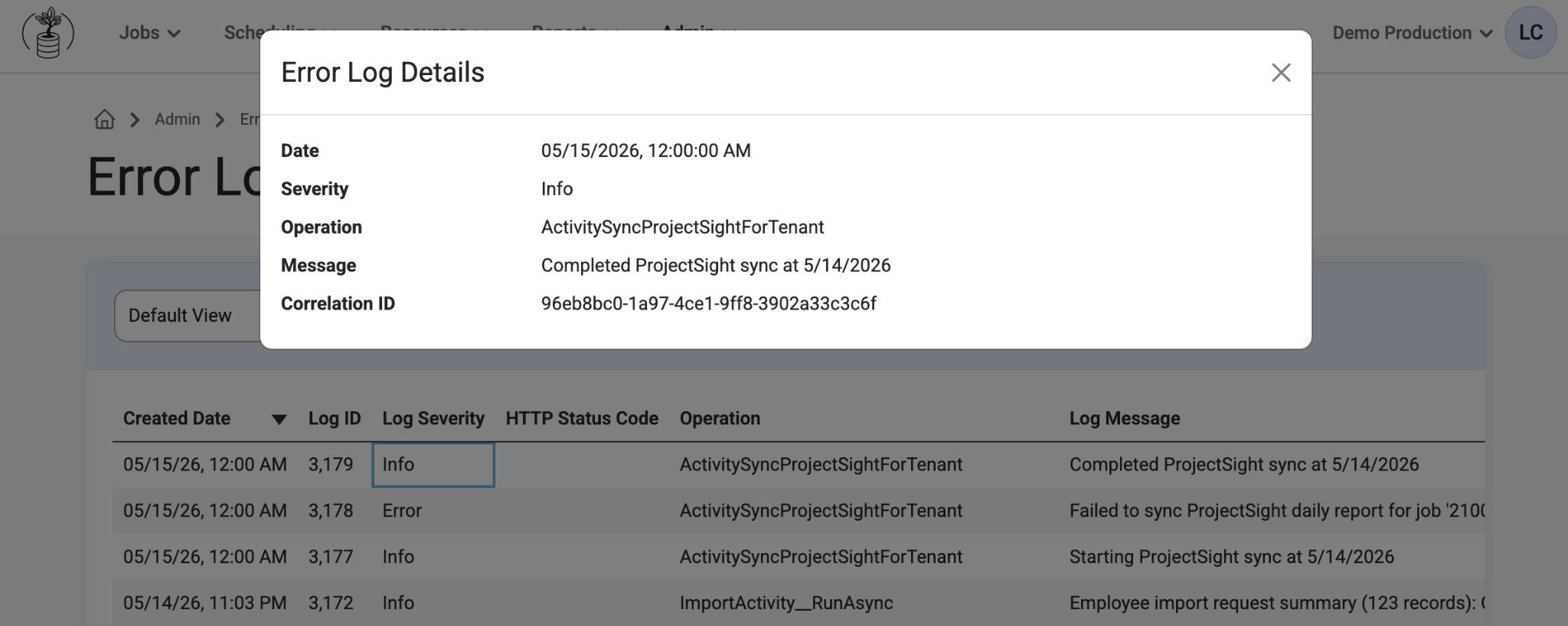
Purpose: This page is designed to view system error logs
How to:
Click into the grid to view details.
Business Groups:
Purpose: Each Resource and Job must be assigned to a single Business Group. They are used for filtering resources, assignments, and jobs. Permissions to these Business Groups are assigned in Setup > Permission Groups to control user visibility.
Required: For Resource and Job setup; can be added from Vista.
Note: Organize by regions or company divisions to simplify resource allocation and job assignments. If there are resources that a company will never use, they can be removed and deleted.
Users:
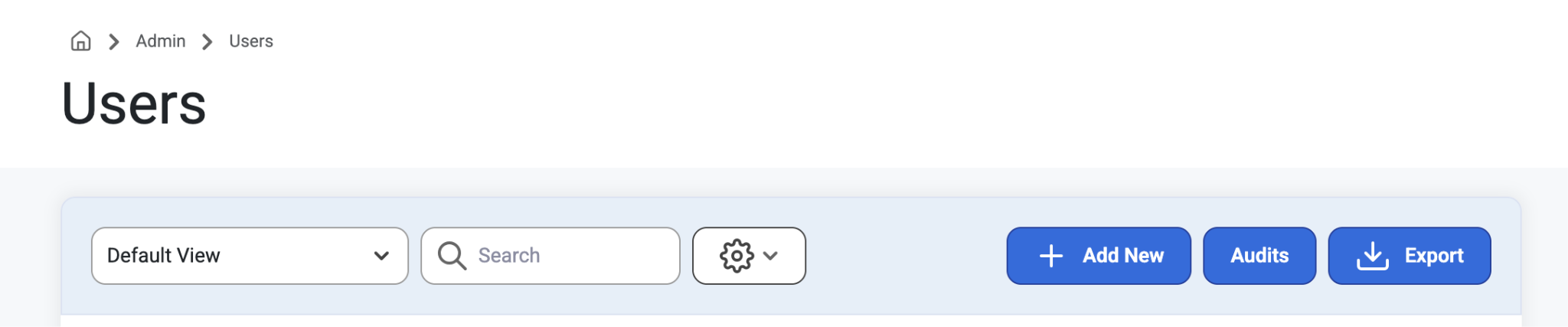
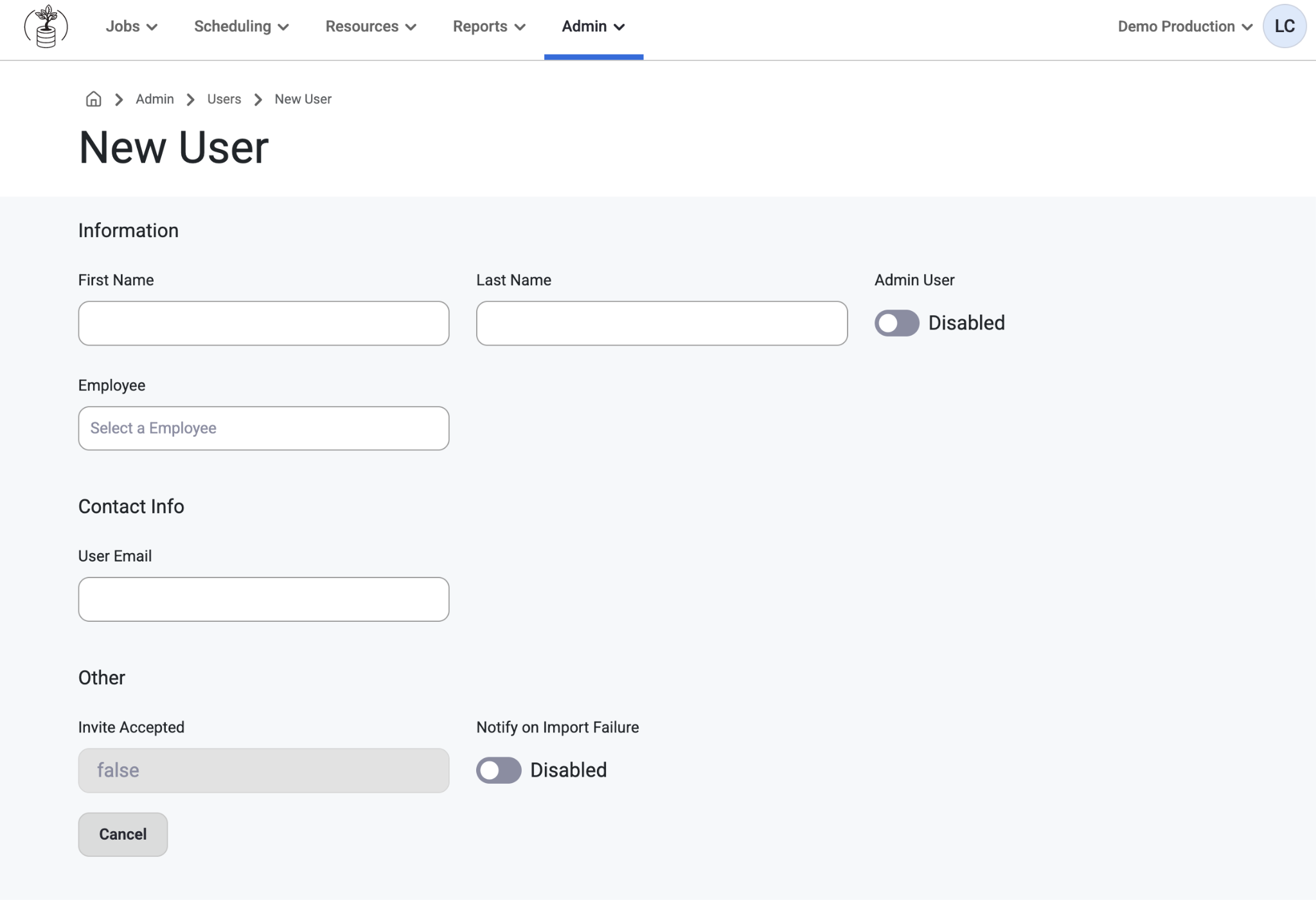
Purpose: Add and invite new users so they can view/create/edit the schedules and assignments. After a new user is invited into the system, they will receive an email inviting them to sign up.
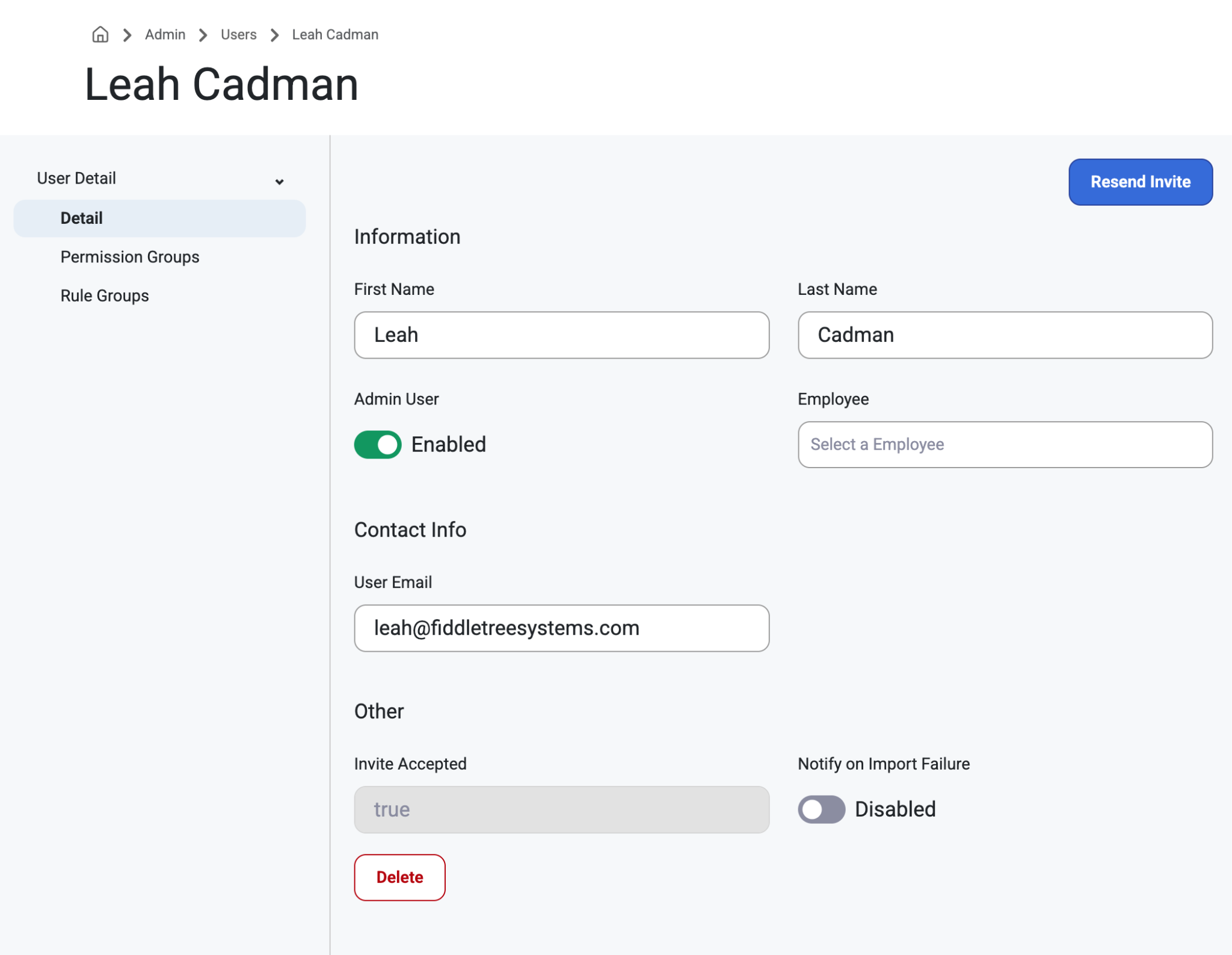
User Detail
When adding new User records, selecting an employee will default the first name, last name, and email.
The email invitation to give admin access is sent from Microsoft on behalf of Fiddletree Systems. Be sure to check junk or spam folders as it may be blocked by email filters.
These emails can be sent at a chosen local time.
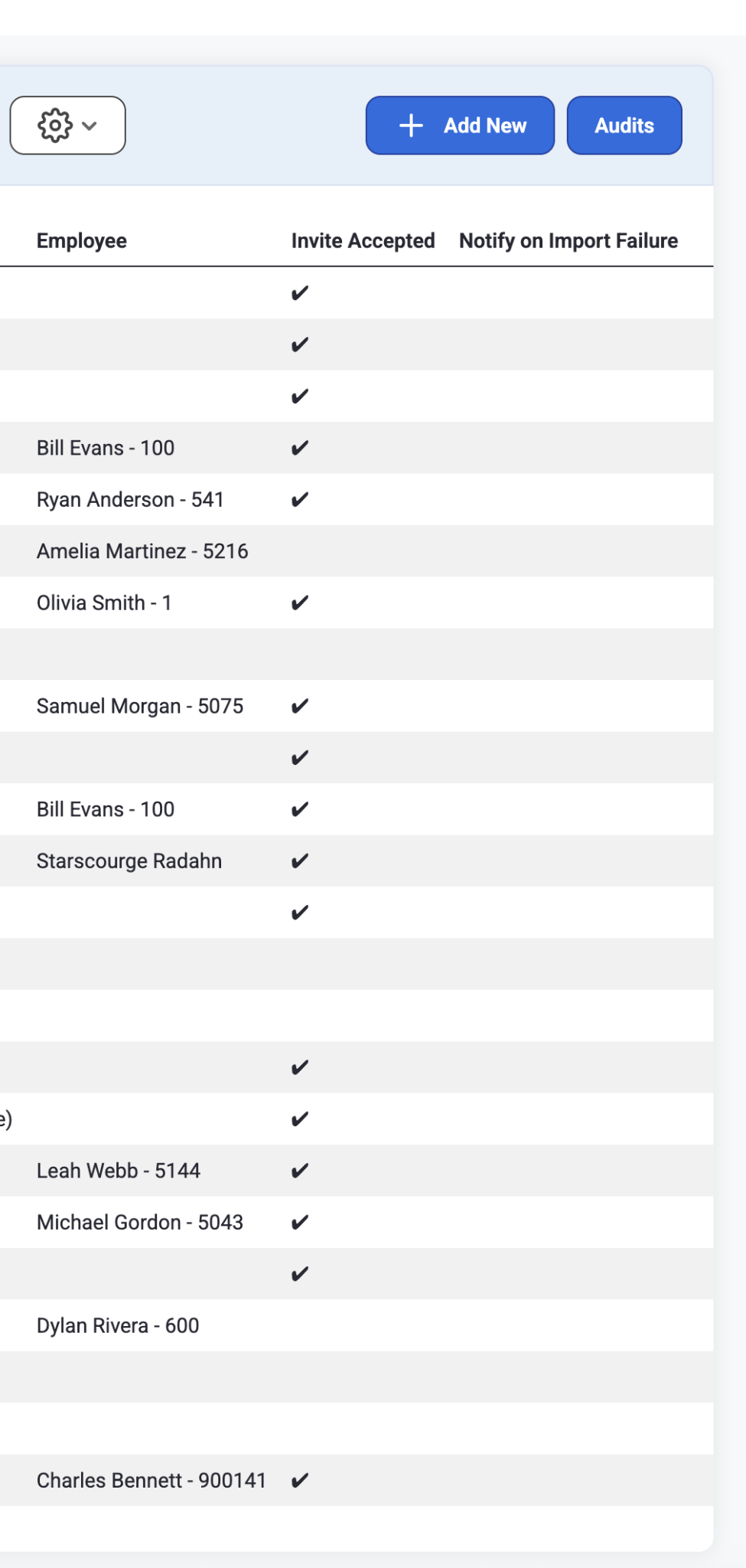
Users can enable a feature ‘Notify on Import Failure’ that will send an email if there was a failure to import. This setting is Disabled by default.
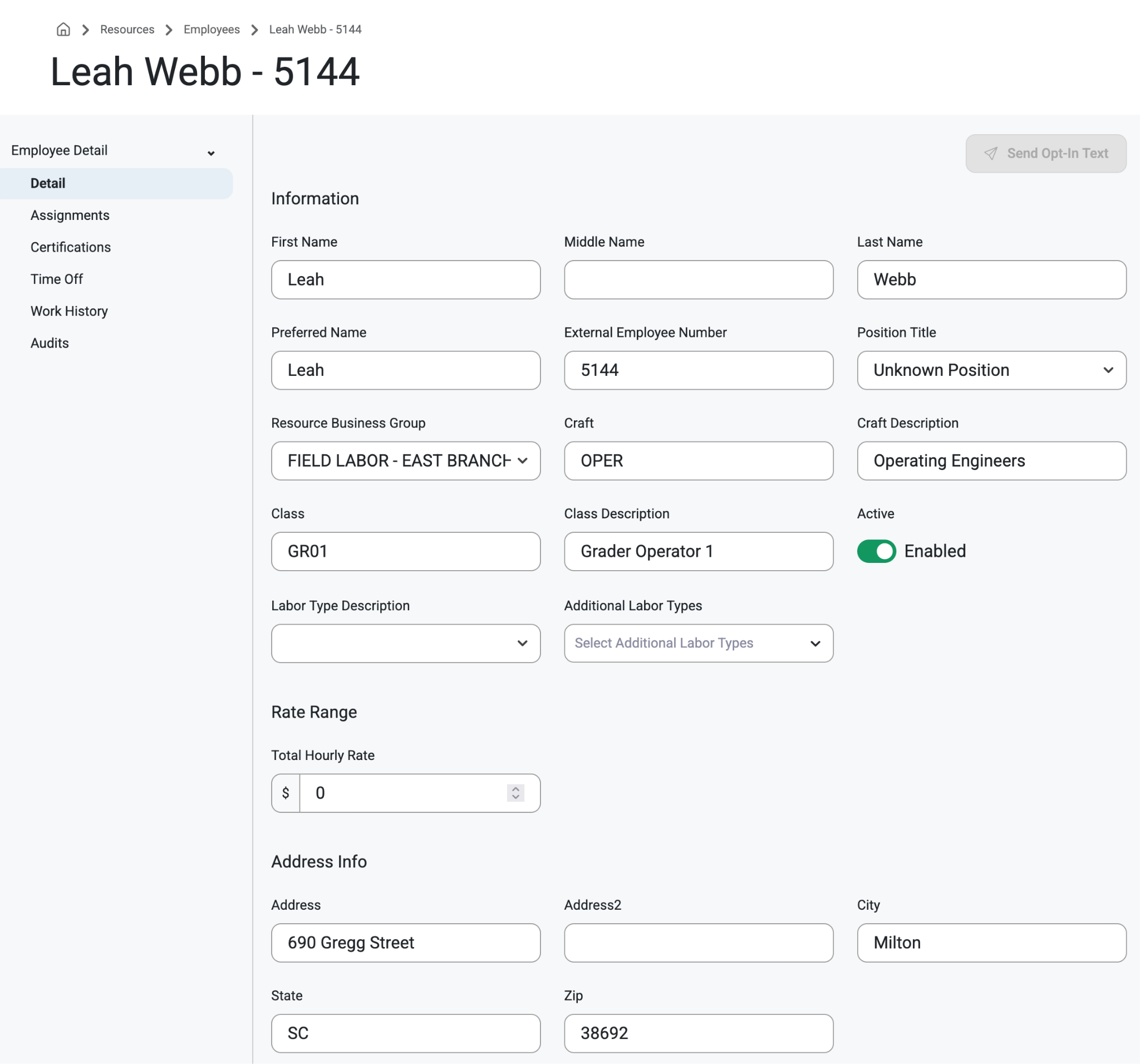
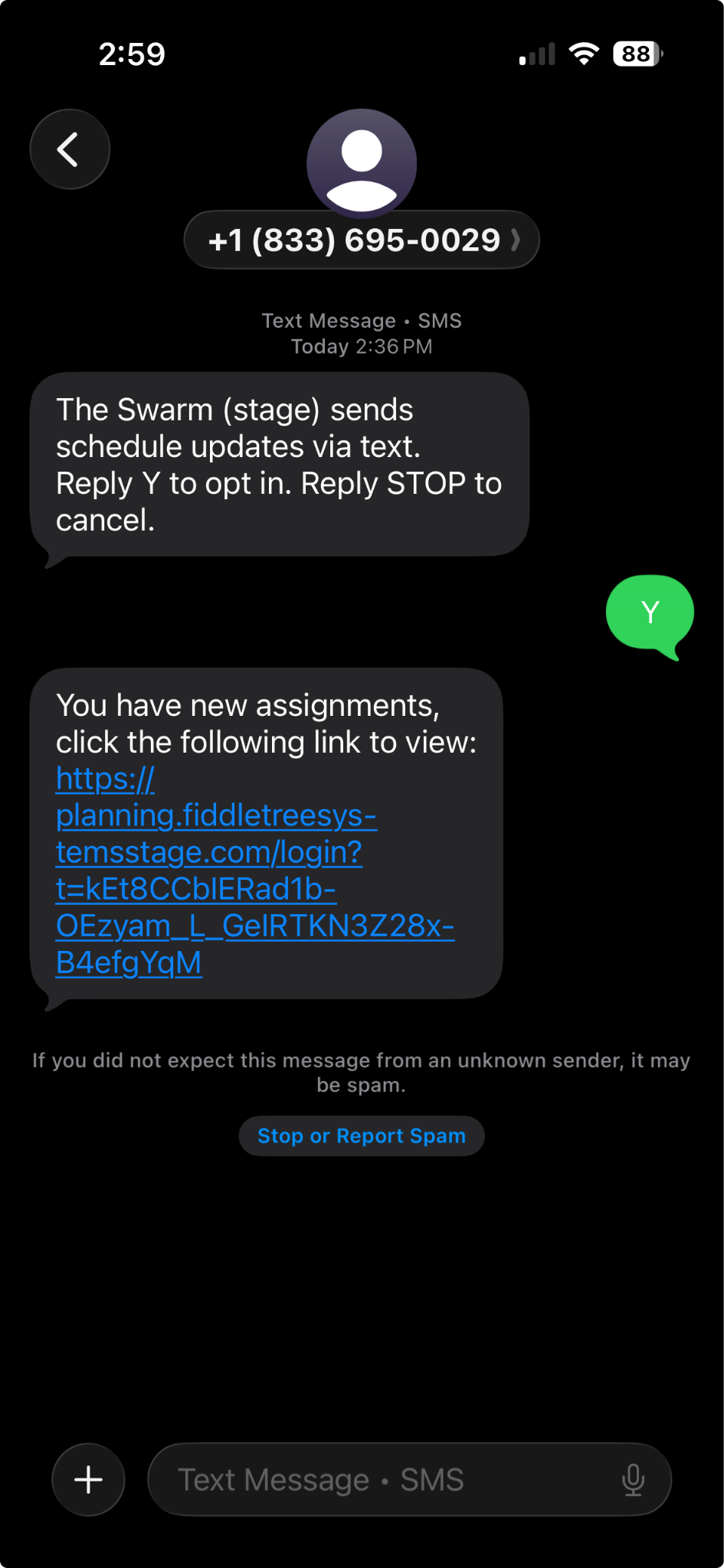
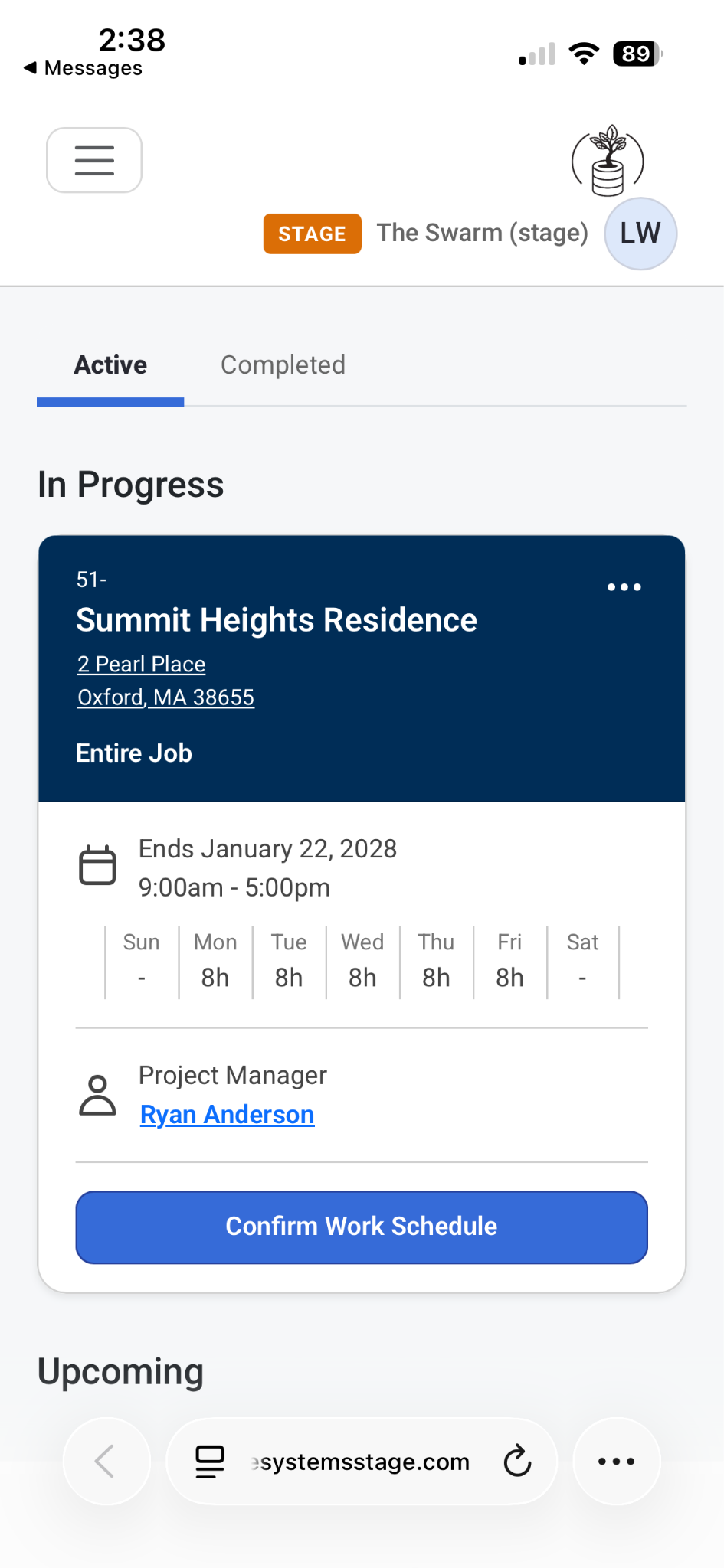
When a user is notified by Invitation they will receive a text to confirm consent to SMS text messages and then receive a Magic Link that allows them to get Schedule Updates and Confirm their work schedules.
This information can also be accessed through Resources>Employees>Assignments
Users also have a column the gridlist with the option to put an Invitation checkbox so that admins know they have accepted the invitation
Employee Imports will automatically link users to Employee records.
The ‘Export’ button exports all User records and the data shown in the grid.
Permission Groups:
Admins have full access to all setup pages in the system.
All users will need to be assigned to a Permission Group to get access to resources and jobs.
Anyone with a check under ‘Admin User’ has access to everything under ‘Admin.’
Tenant Admins can Create or Assign New Permission Groups that have their own customizable settings and views.
New Modal for adding a user into a permission group from the user itself.
A New User dropdown has been added. This drop-down list is alphabetical and includes a ‘type-to search’ feature.
The Users assigned grid now includes the feature to Add a user email column and allow sorting by User name or Email.
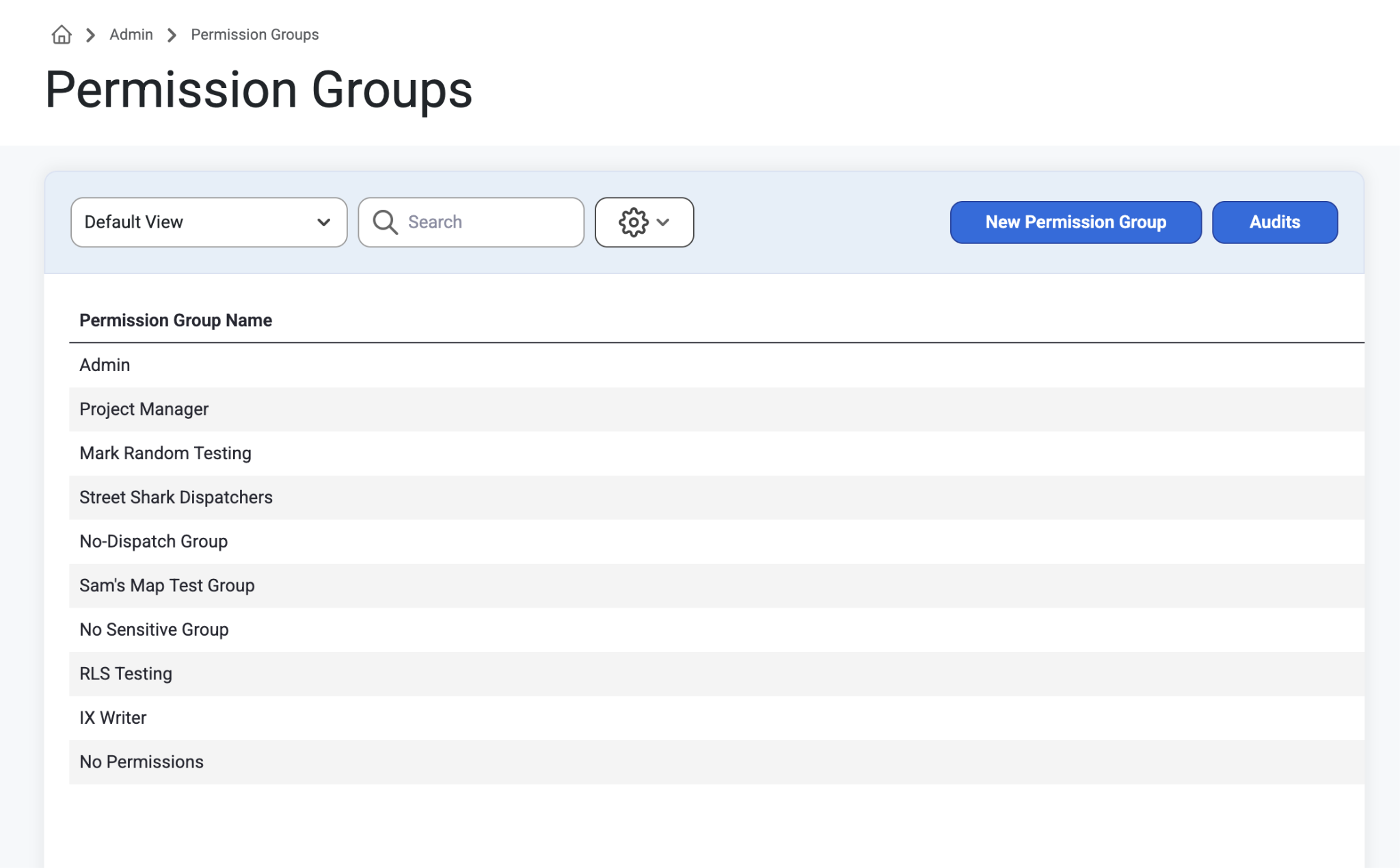
Purpose: Used for filtering resources, assignments, and jobs.
Set up in Setup > Permission Groups to control user visibility.
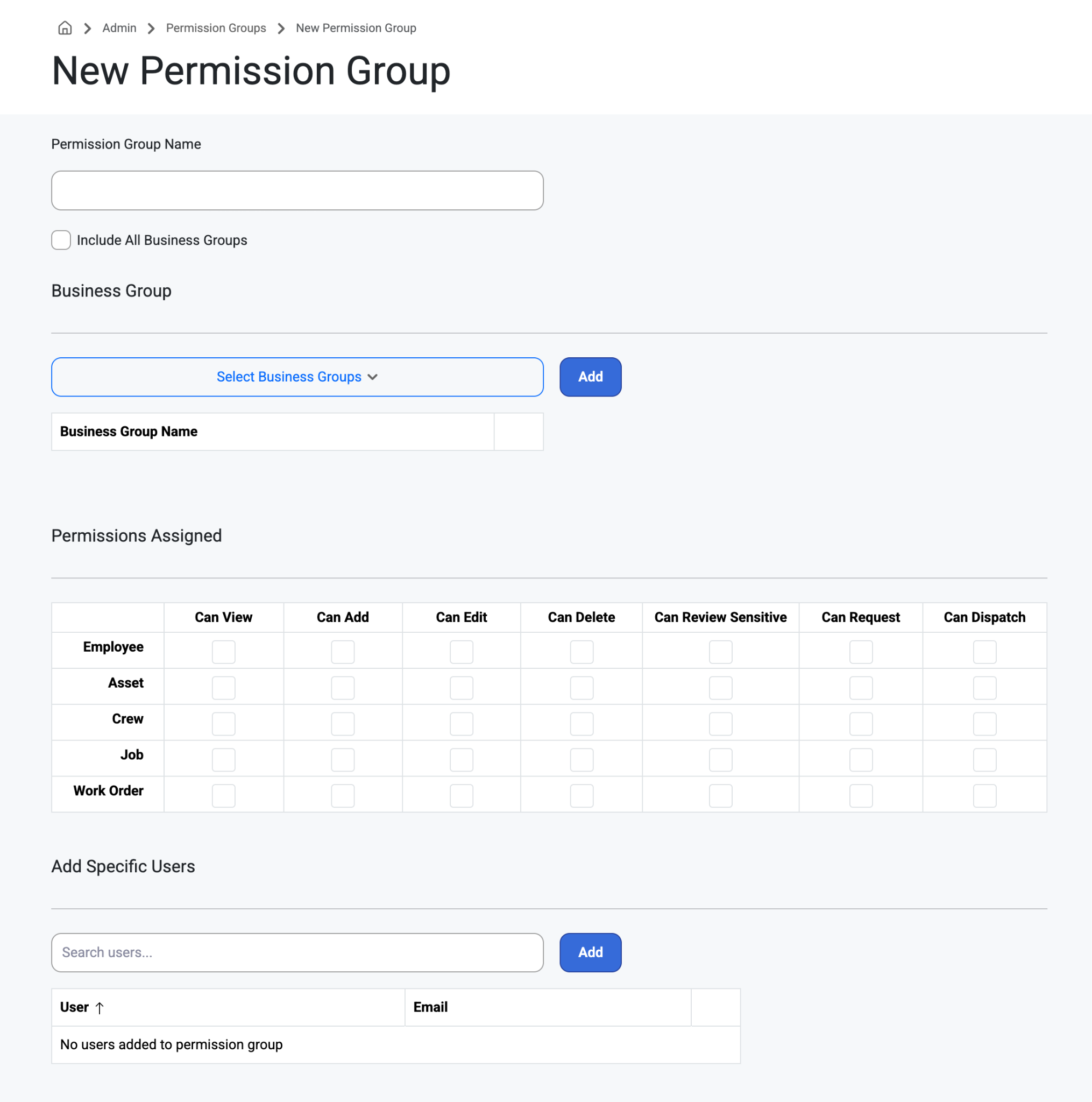
Assign/Setup new group:
Select the New Permission Group button.
Name the permission group or select ‘All Business Groups’
If enabled, all Business Groups will be automatically added to this permission group. This group is mainly used by Tenant Admins.
Select Business Group(s) you'll be sharing permissions for or click ‘Select All’
Define access permissions per Employee, Asset, Crew, and Job.
Can View
Allows users to see the records that are selected
Assignments will follow the Job permissions. This means that users that only have Can View permissions for Jobs will see all assignments that are for that Job even if the user doesn't explicitly have permissions for Employees, Crews, or Assets.
Can Add
Controls the add buttons for detail records.
Can Edit
Allow fields to be edited on already existing records.
Can Delete
Allows users to delete the records that are selected.
Can View Sensitive
Allows users to see personal details:
Total Hourly Rate
Address and Address line 2
User Email
Personal Phone
*Also gives access to the Job Budgets and Cost Projections as well as other various budget estimations like change orders.
Can Request
Allows users to make requests for these records
Can Dispatch
Allows users to assign resources to requests
Assign users to the appropriate Permission Group(s).
The settings can be changed or updated by tenant admins at any time and will apply automatically upon clicking ‘Save.’
What these groups see when ‘Can View Sensitive’ is selected:
Employees & Crews
Total Hourly Rate
Address and Address line 2
User Email
Personal Phone
Crews can only see Work Phone and Work Emails in the Assignments Grid.
Job
Projections, Change Orders, Contract Items, Budget By Month, Revenue By Month, and Budget Variance jobsite pages.
Admin > Renamed Rules Groups page to User Groups and Added Page Access subsection
This page allows admins to further limit which pages a user sees within Resource Planning and Cost Projections.
Link the User Group page here: User Groups
Status Maps:
Purpose: Shows employee time off requests and status of that request whether it be Approved, New, Declined, or Rejected.
Only Active Time Off statuses as ‘On Leave’ or ‘Committed’ are shown in Daily Scheduling.
If a Time Off request goes from Approved or New to Canceled or Declined, it will not remove the badge.
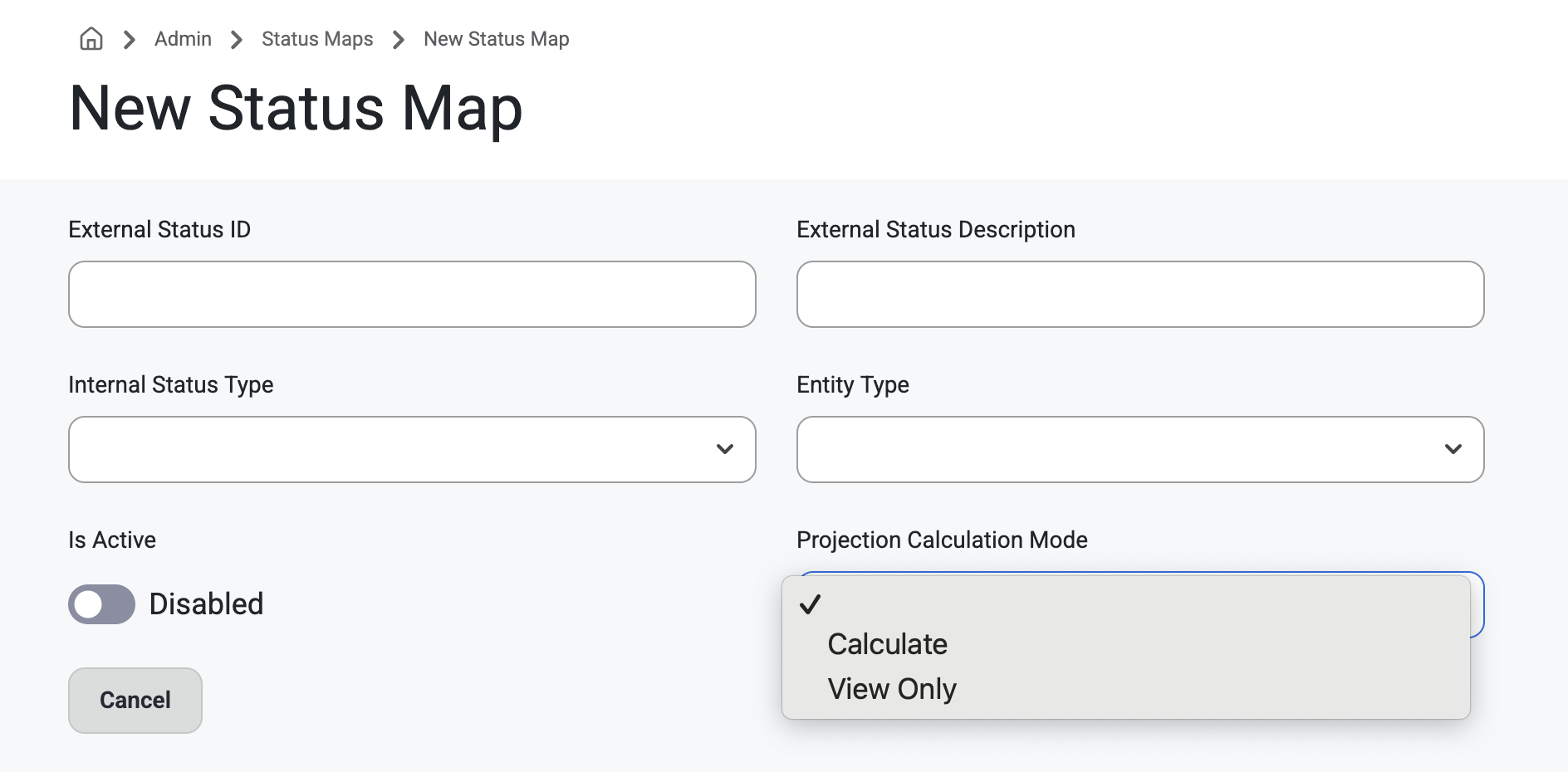
Status Maps now has the ability to view and edit Projection Calculation Mode. This means that when adding a new Status Map, users have the option to include Projection Calculations, or a View Only mode.
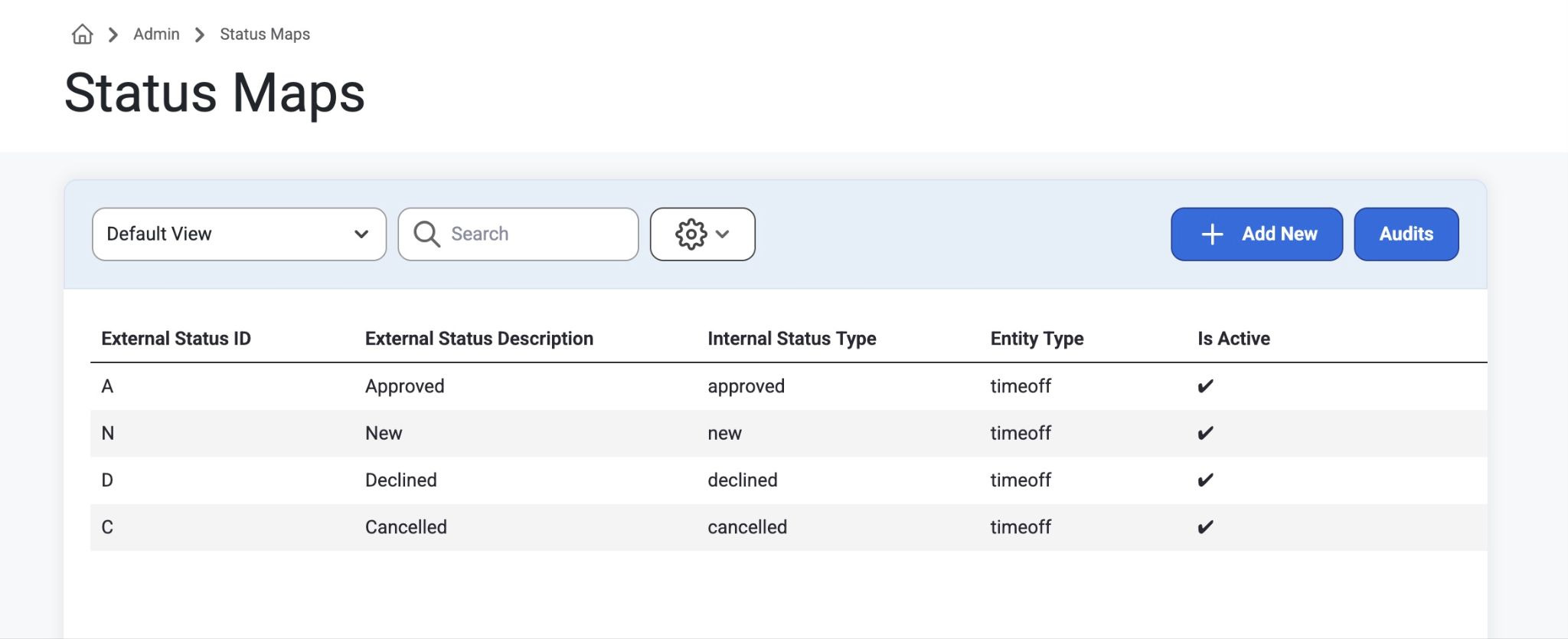
How-To: Select ‘Add New’ to create.
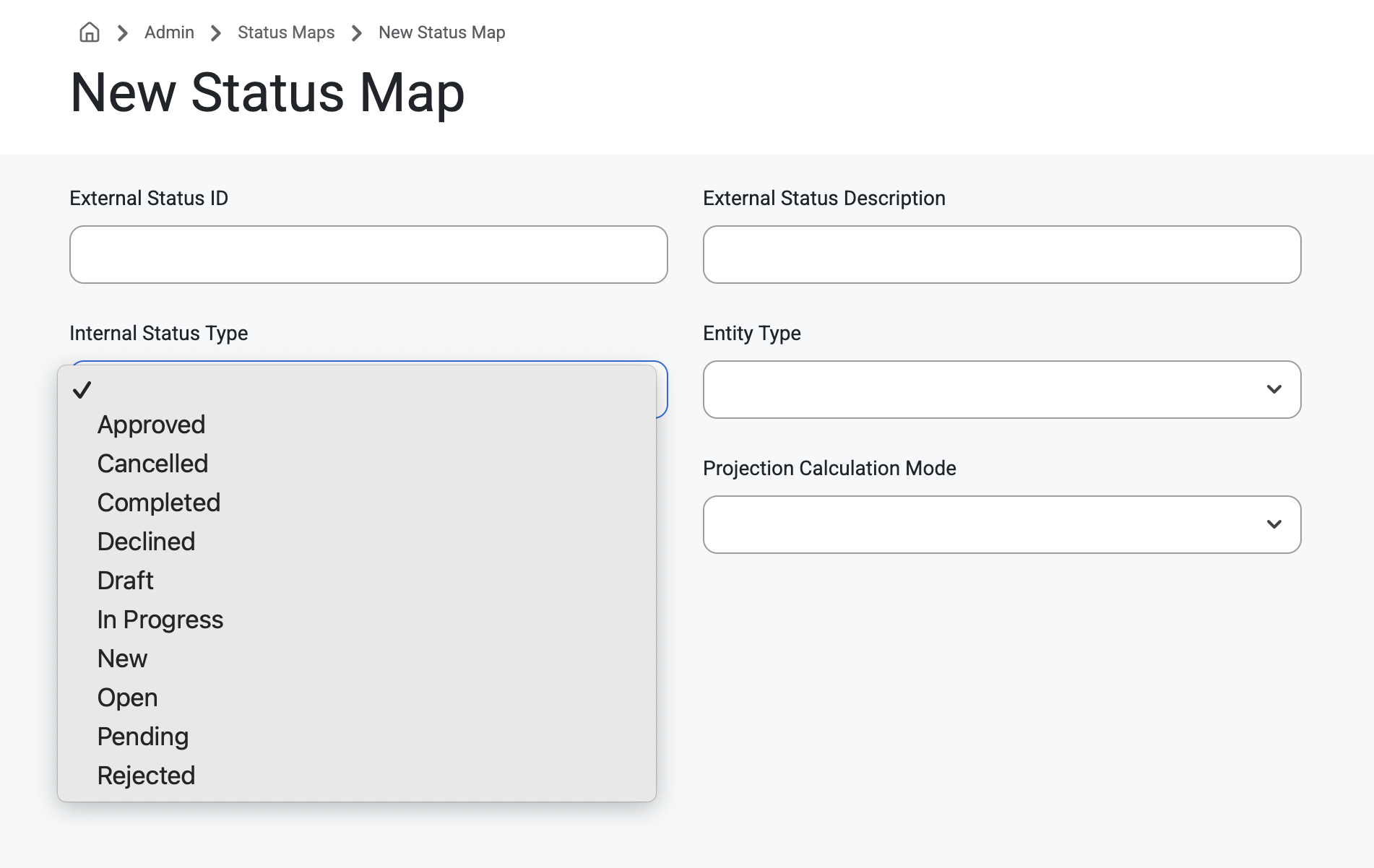
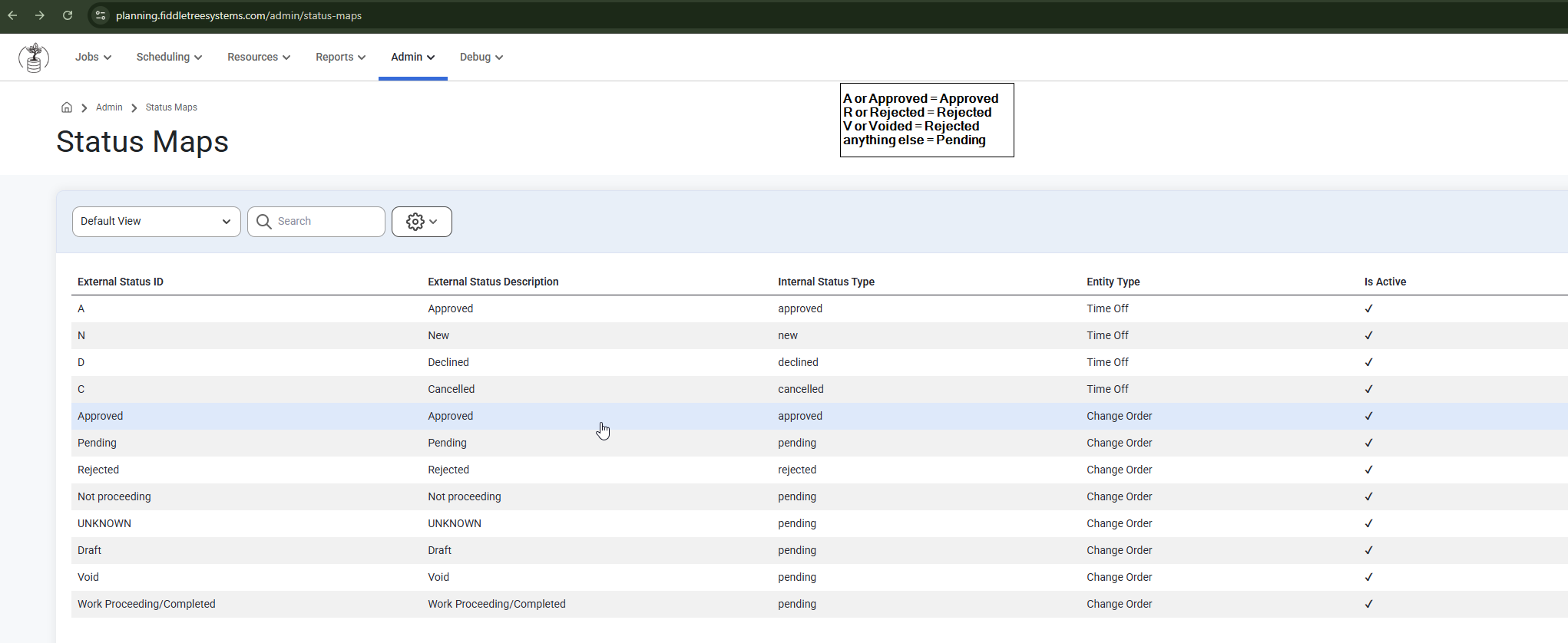
Change order statuses are also stored in Status Maps as Approved, Pending or Rejected and are added via Imports.
The system will assign the Change Order status to the Internal Status Type based on the Change Order Status IDs sent via Import / API.
How the Import Works
For Change Orders the software auto maps certain Status to internal codes.
For example, Each Status Code has an Internal Status Type and Meaning
Internal Status Types and Their Code Meanings:
approved
Change Order has been approved
A
Approved
rejected
Change order has been rejected
R
Rejected
Change order has been cancelled (treated as rejected)
C
Cancelled
pending
Change order is pending approval
Any other value
When a User goes to Jobsite>Change Orders they can see a gridlist of change orders for that specific job or add a new change order for that specific job. Read more about that, here: Jobsite>Change Orders
Was this article helpful?
That’s Great!
Thank you for your feedback
Sorry! We couldn't be helpful
Thank you for your feedback
Feedback sent
We appreciate your effort and will try to fix the article