Resource Allocation Gantt
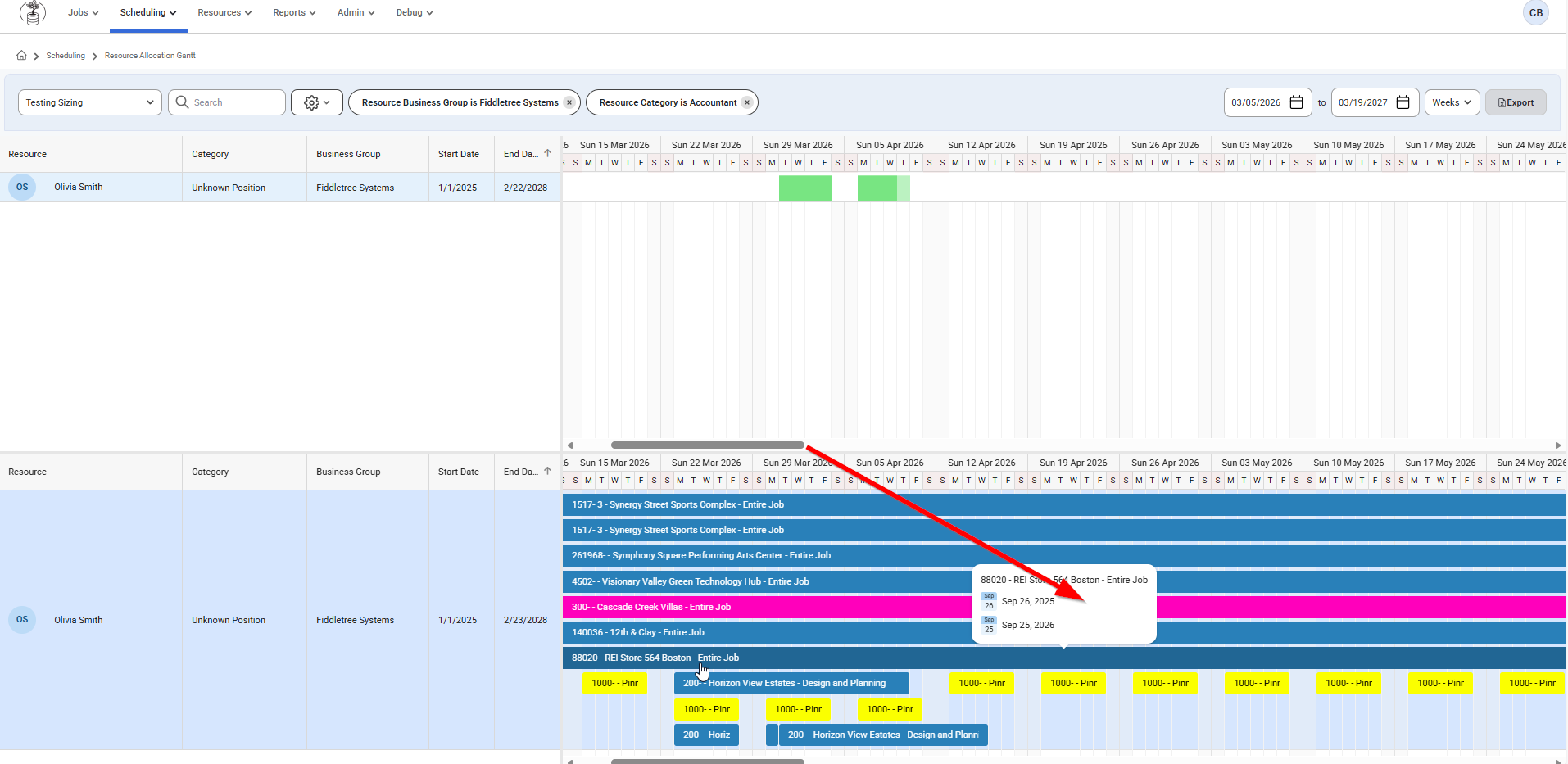
This page allows users to view all Resources and how allocated they are to assignments. Long-term assignments are seen on top and below has the specific assignment. This Gantt shows all users set up for short-term and long-term scheduling.
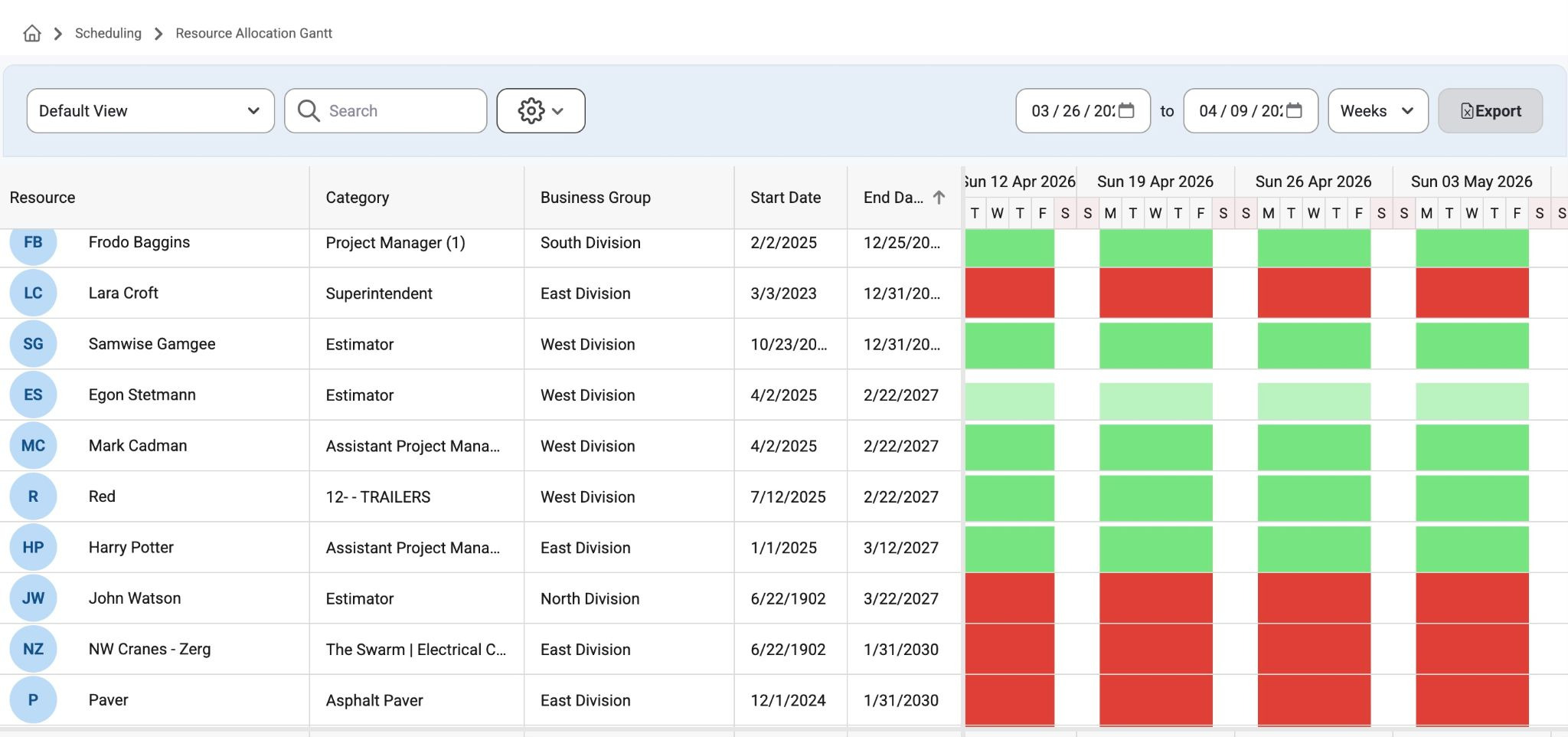
The top section will show white space where a resource has open availability, light green bars on each day if they are less than 100% allocated, darker green bars if they are 100% allocated, and red bars if they are over allocated.
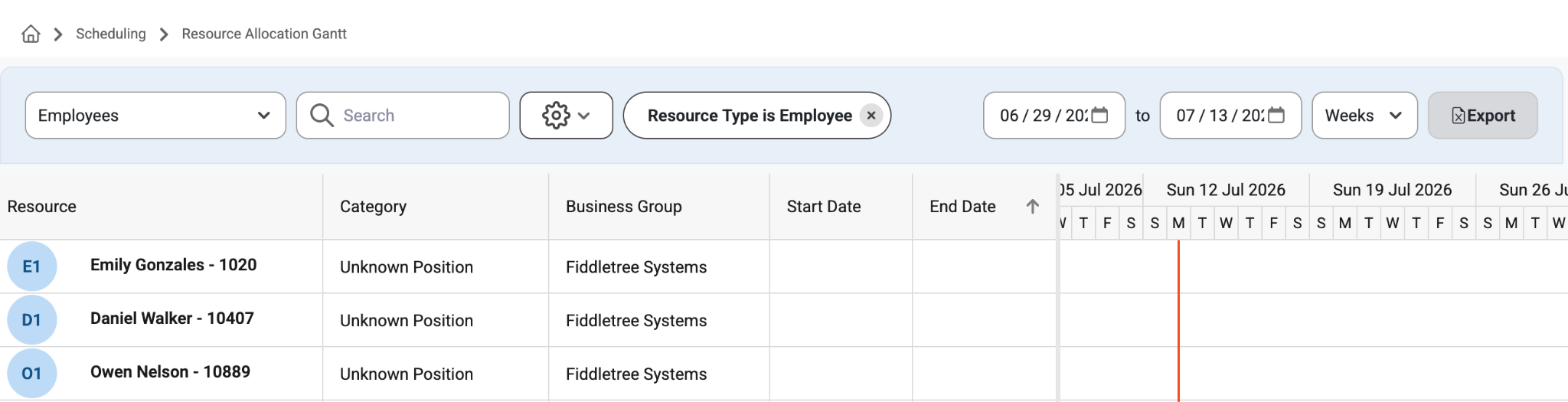
Organize and filter the view by Resource Type (Schedule, Employee, Crews, Mechanical, Project Manager, etc..)
The bottom section will show the specific assignments for the resource selected in the top grid.
Notice the option to add/view the allocation % and position to the modal that appears when hovering over the assignment.
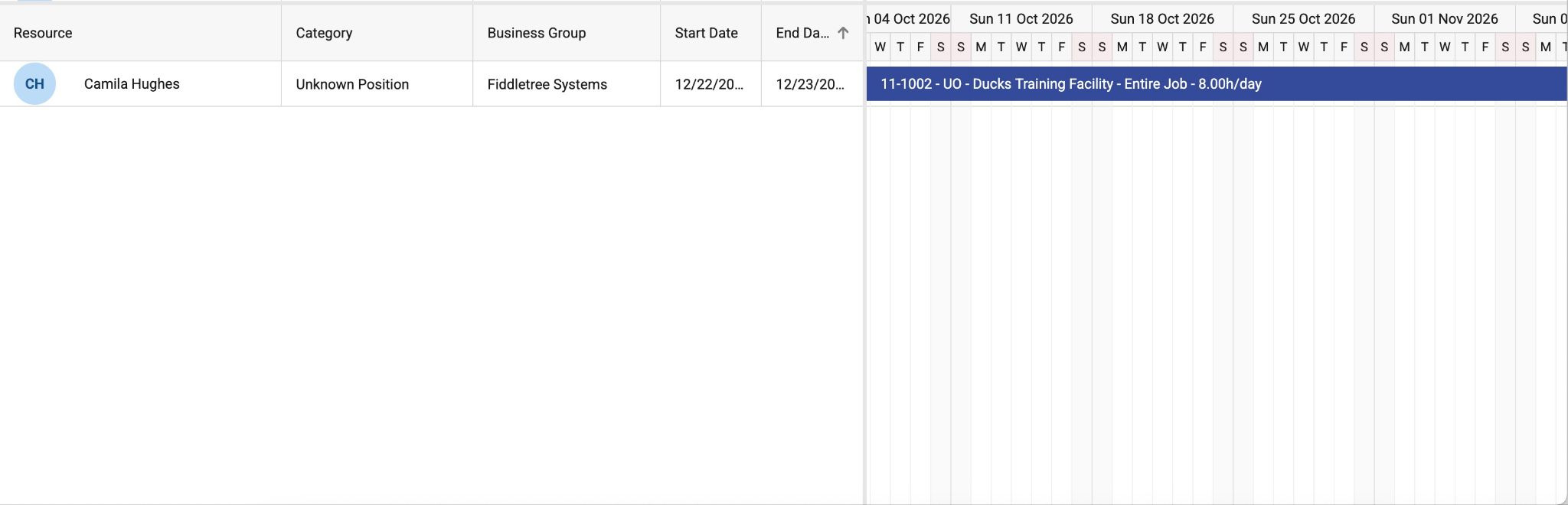
This page makes it easy to find which resources are available, not available, and over allocated and then drill into each resource to see their assignments to find out why they are overallocated and what they are assigned to.
Exporting: This information can also be exported to an Excel file by using the "Export" button at the top right of the page.
The exporter only exports data from the scheduler, so the user must first select a user to export data for.
Long-term assignments can be edited by right clicking on the assignment bars if the logged in user has ‘Can Request’ or ‘Can Dispatch Permissions’. Users can also right-click in the white space on a row to add a new assignment. Those settings can be changed in Admin>Organization>Permission Groups.
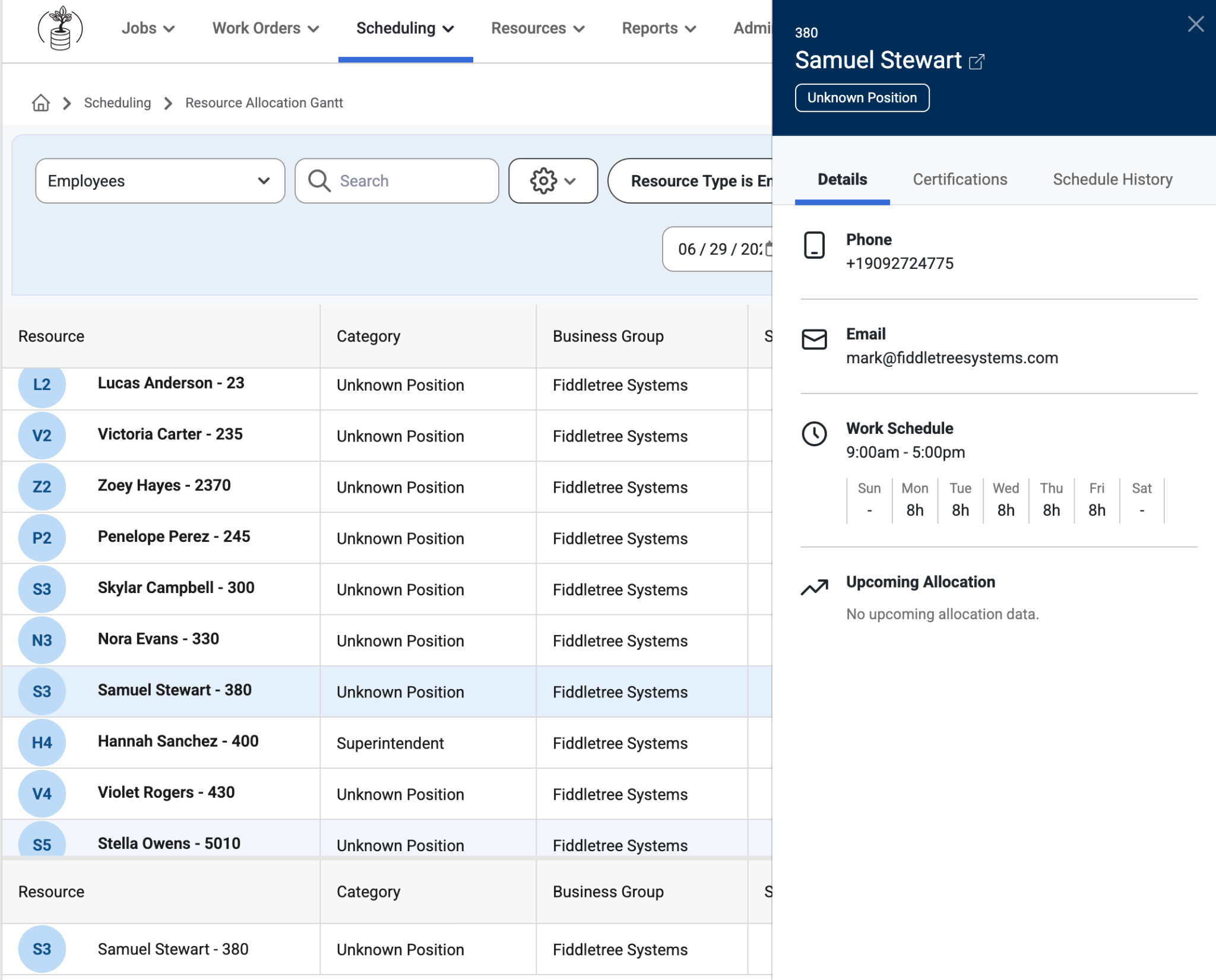
Employee Slide Out
When a user clicks on an employee a slide out to the right will show Details, Certification, and the Schedule History of that Employee.
Required certifications will show at the top (if any) and additional certifications will show at the bottom. If there are no required certifications on the job they will not be grouped in that order.
Certifications that expire in 31 days or less will appear in yellow text.
Upcoming allocations will be displayed at the bottom, if any.
Users can right click to open a new tab with the Employee Slide Out Links.
Read more about the Employee Slide out, here: Employee Slide Out
Was this article helpful?
That’s Great!
Thank you for your feedback
Sorry! We couldn't be helpful
Thank you for your feedback
Feedback sent
We appreciate your effort and will try to fix the article