Cost Projections Setup

Created by Mark Cadman, Modified on Wed, 28 Jan at 1:42 PM by Mark Cadman

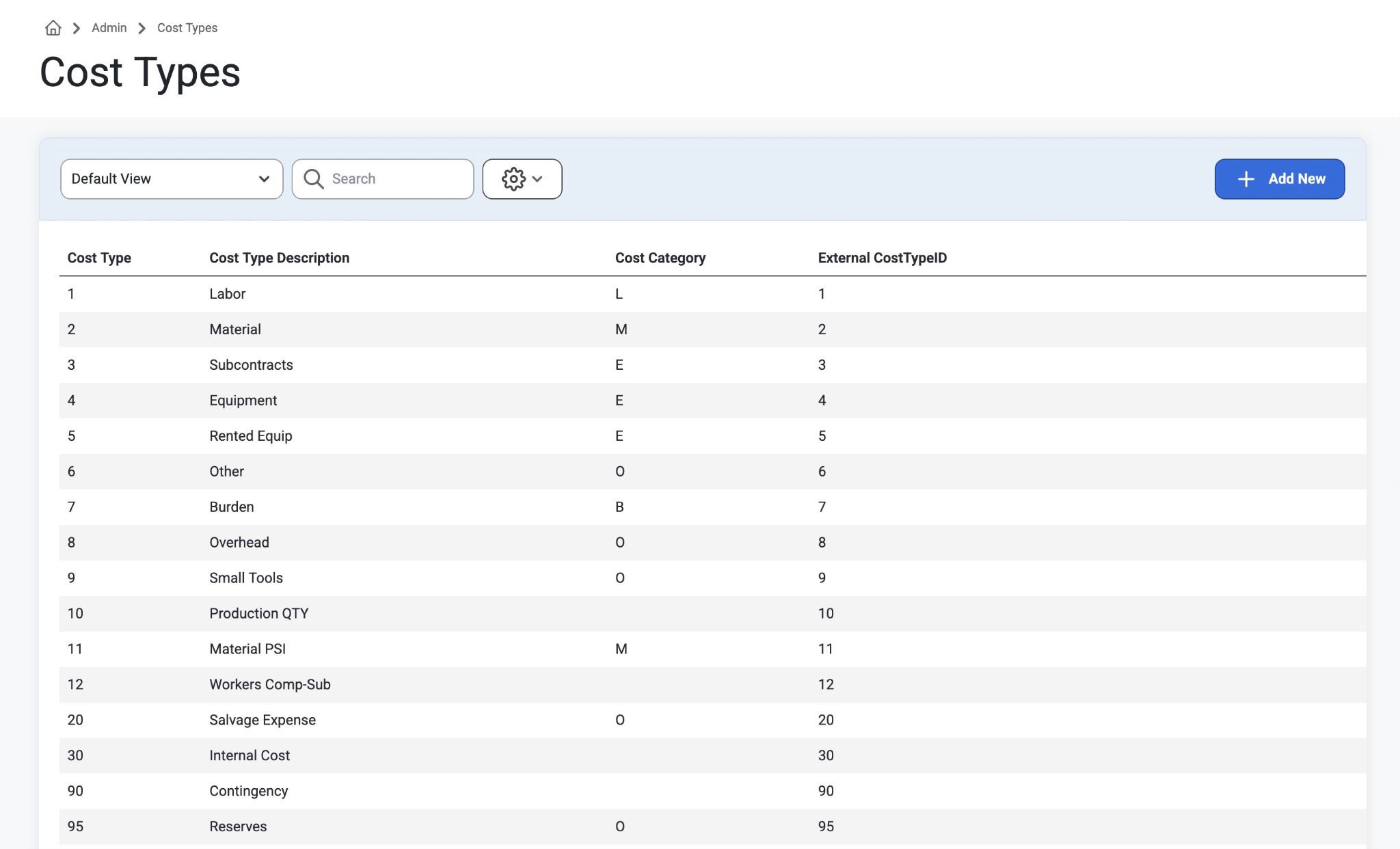
  • Admin > Projection Setup > Cost Types
    • This is where we will be storing the Cost Types we import from your accounting system (Vista, Spectrum, etc)
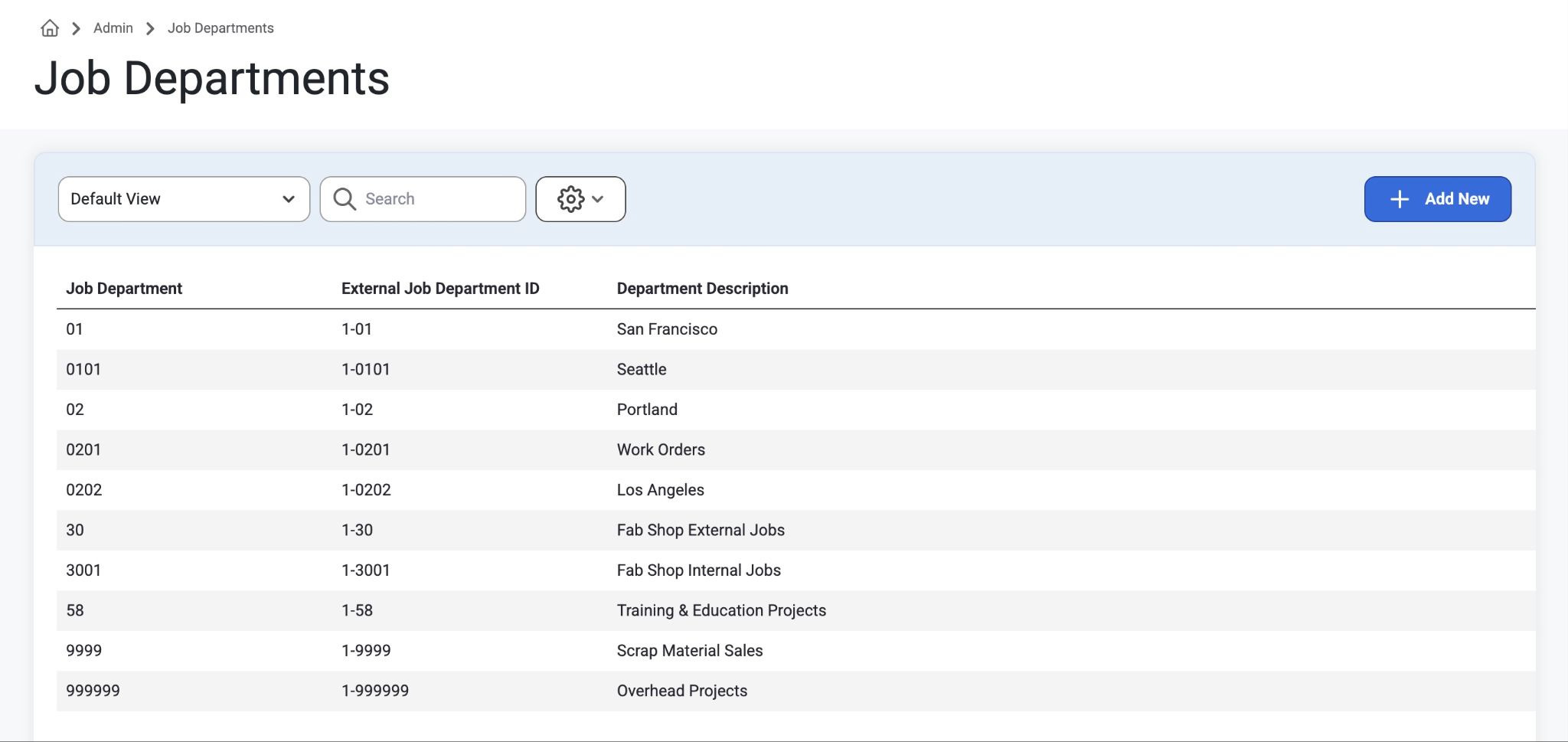
  • Admin > Projection Setup > Job Departments
    • This is where we will be storing the Job Departments we import from your accounting system (Vista, Spectrum, etc)
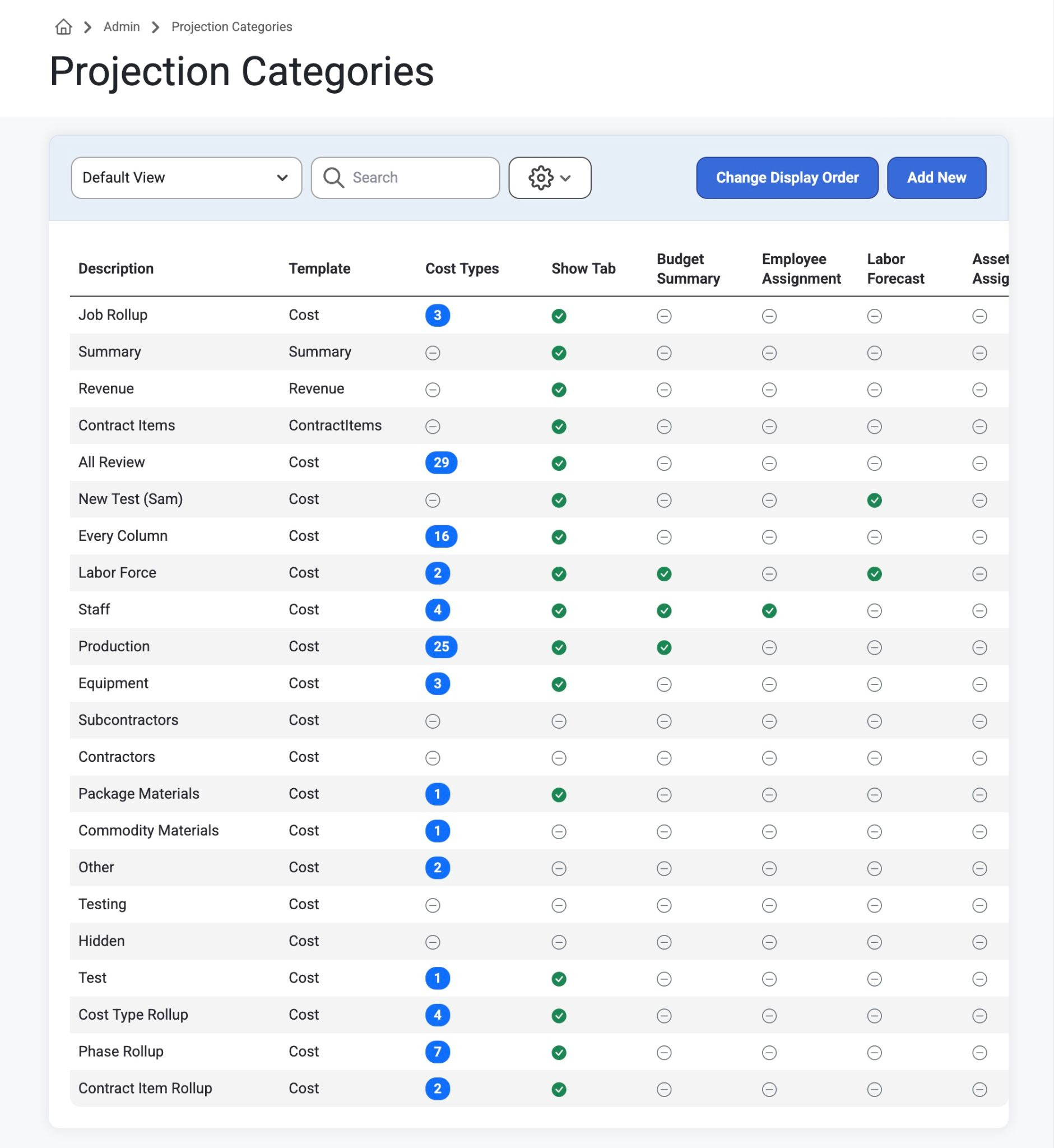
  • Admin > Projection Setup > Projection Categories
    • Projection Categories allow you to create tabs on the Jobsite > Cost Projections page for the purpose of splitting out the budget codes by Cost Types and you can customize what is available on each tab.
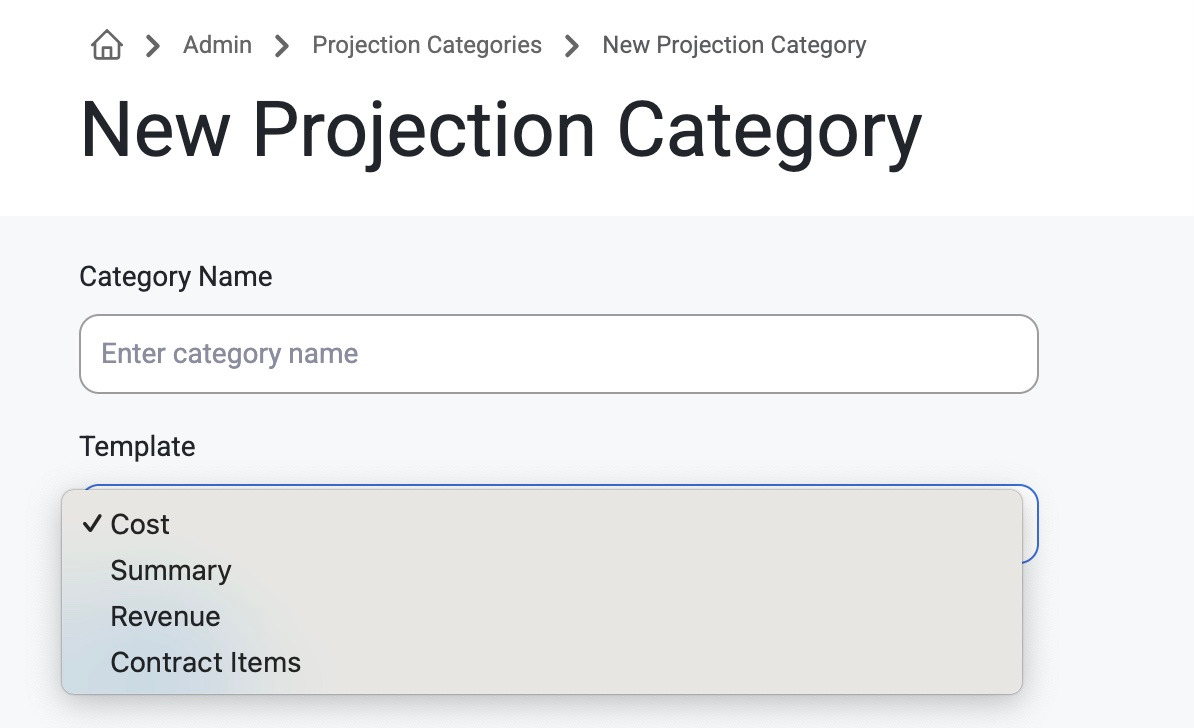
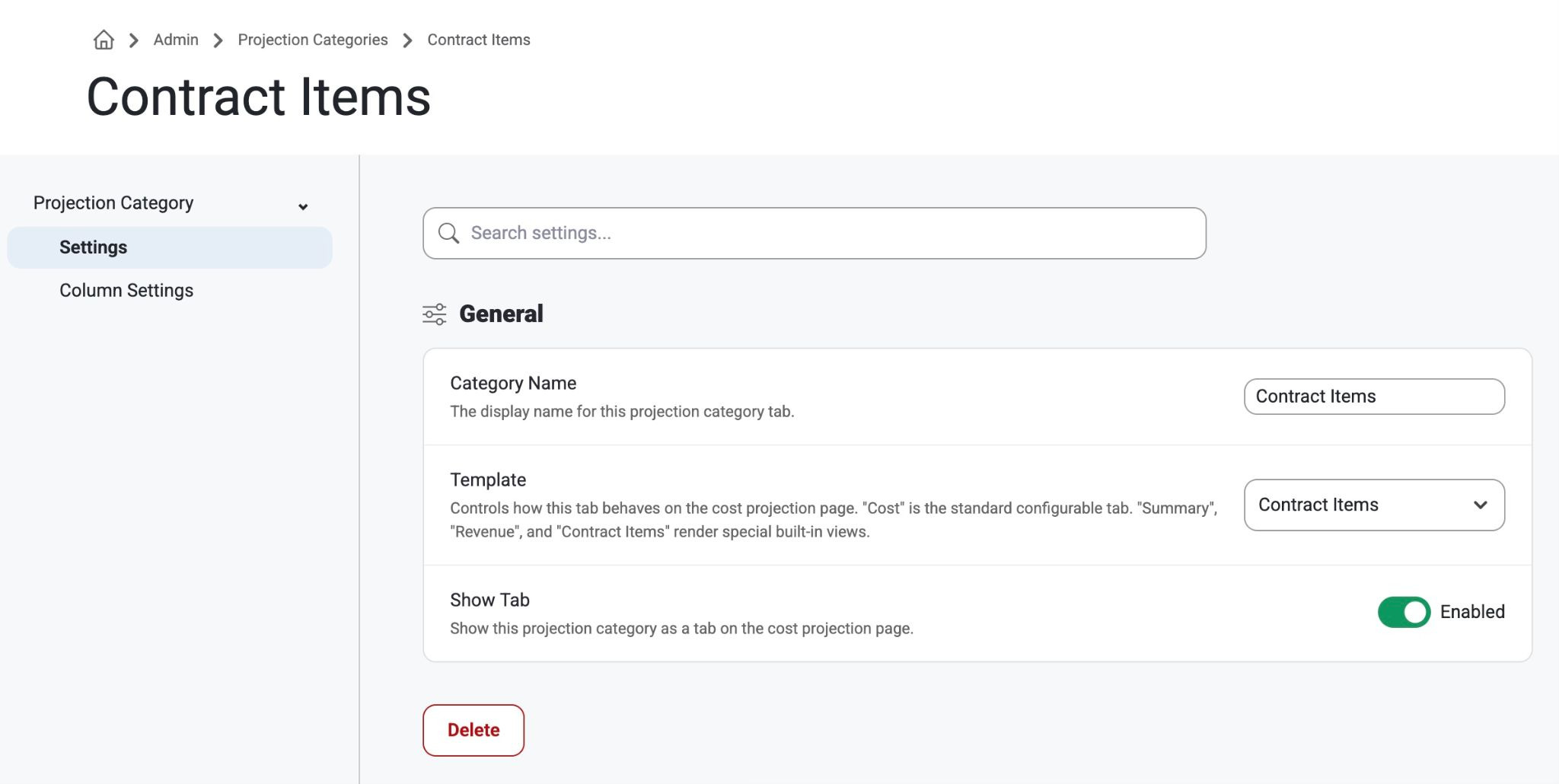
    • There are a few tabs that can be added that have special handling.
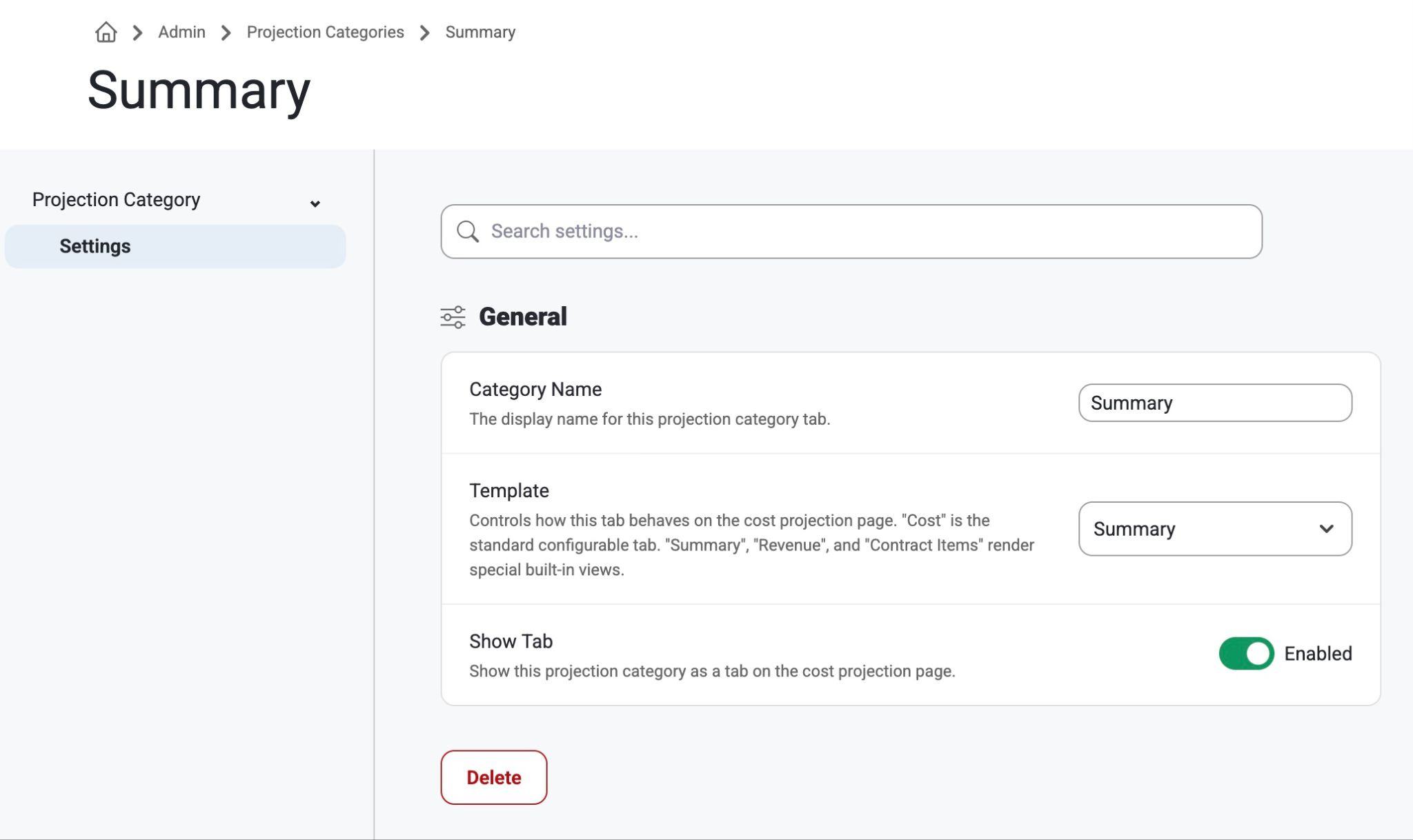
      • Summary
        • If this Projection Category exists, it will show Cost Projection summary information and KPIs
          • Make a Projection Category with this name and Hide if not needed
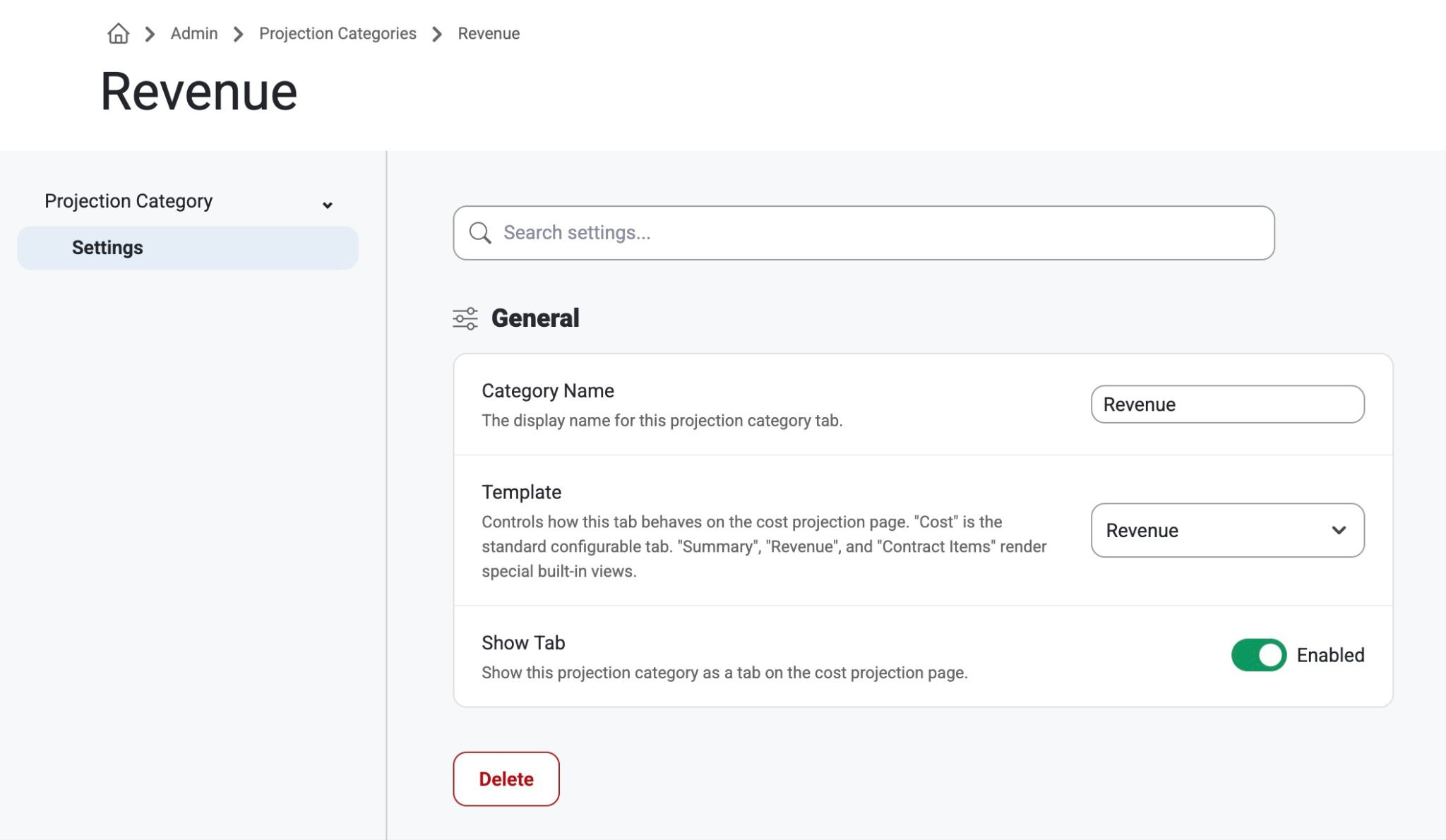
      • Revenue
        • If this Projection Category exists, it will show:
          • A breakdown of Job revenue by Job Department and a field to enter Potential Revenue Additions. 
          • A list of approved change orders on the Job and their amounts
          • A section at the bottom for Notices to Proceed / Potential Change Order
            • Users can add any records here that are not yet change orders if they need to.
            • Any of these records can be included in the cost projections revenue/cost amounts by checking the Include In Projection checkbox.
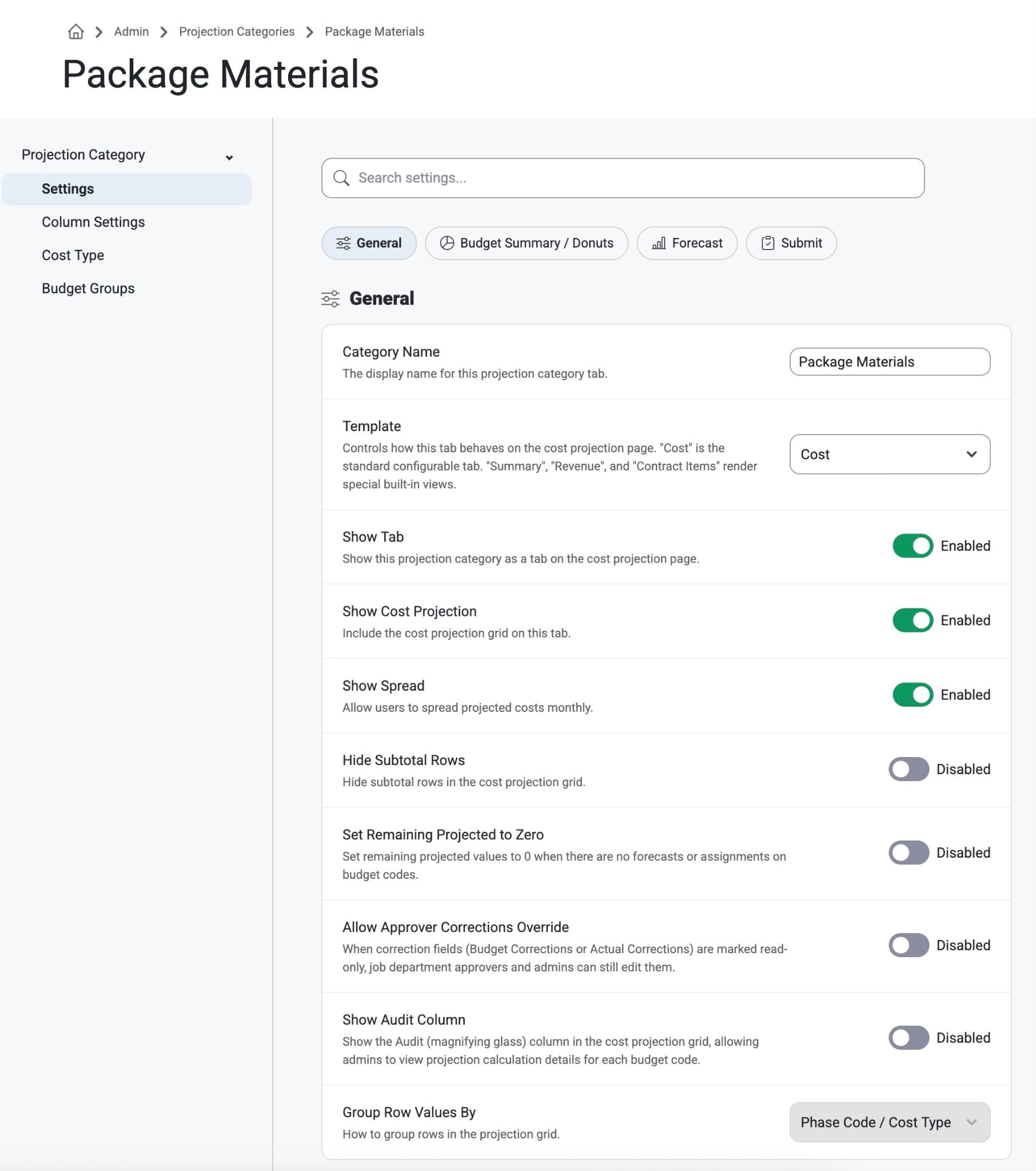
    • When setting up the Projection Categories, there are many options:
      • Detail:
        • Category Description
          • The name of the tab that will appear in cost projections
        • Display Order
          • The order this tab will show on the cost projections
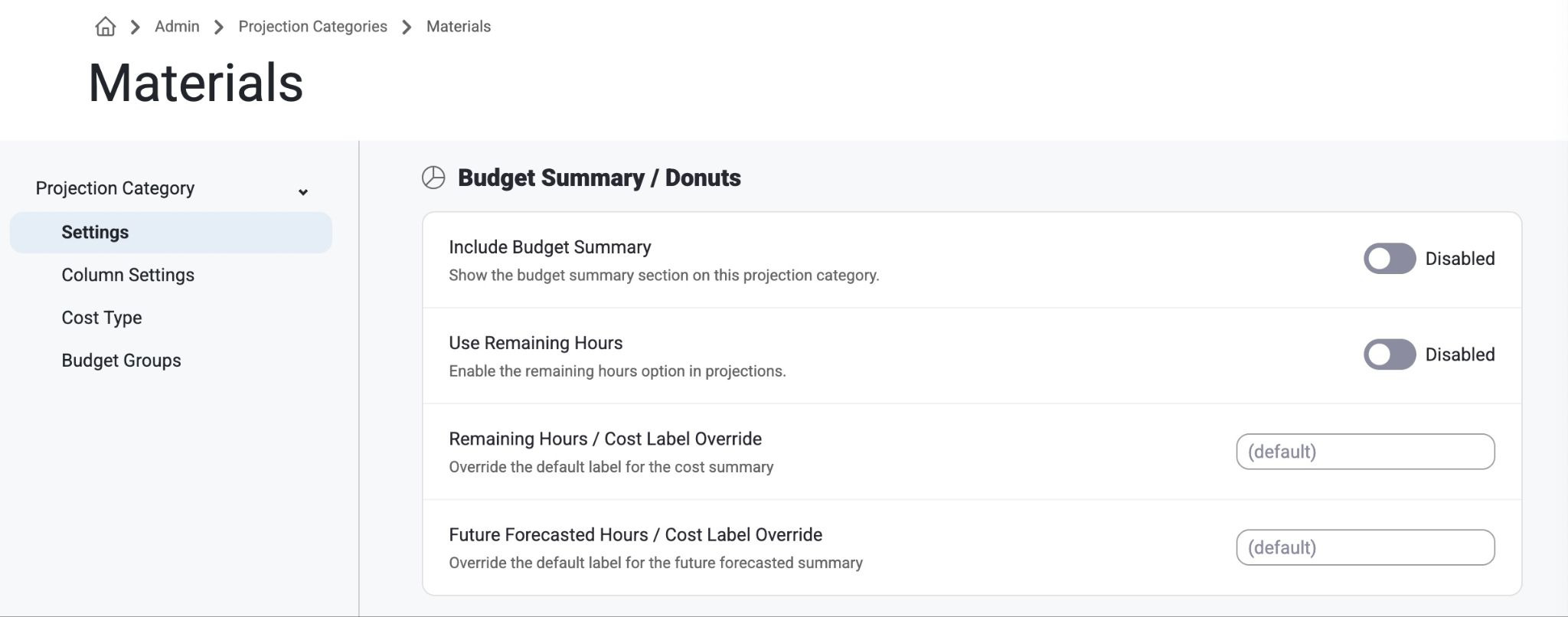
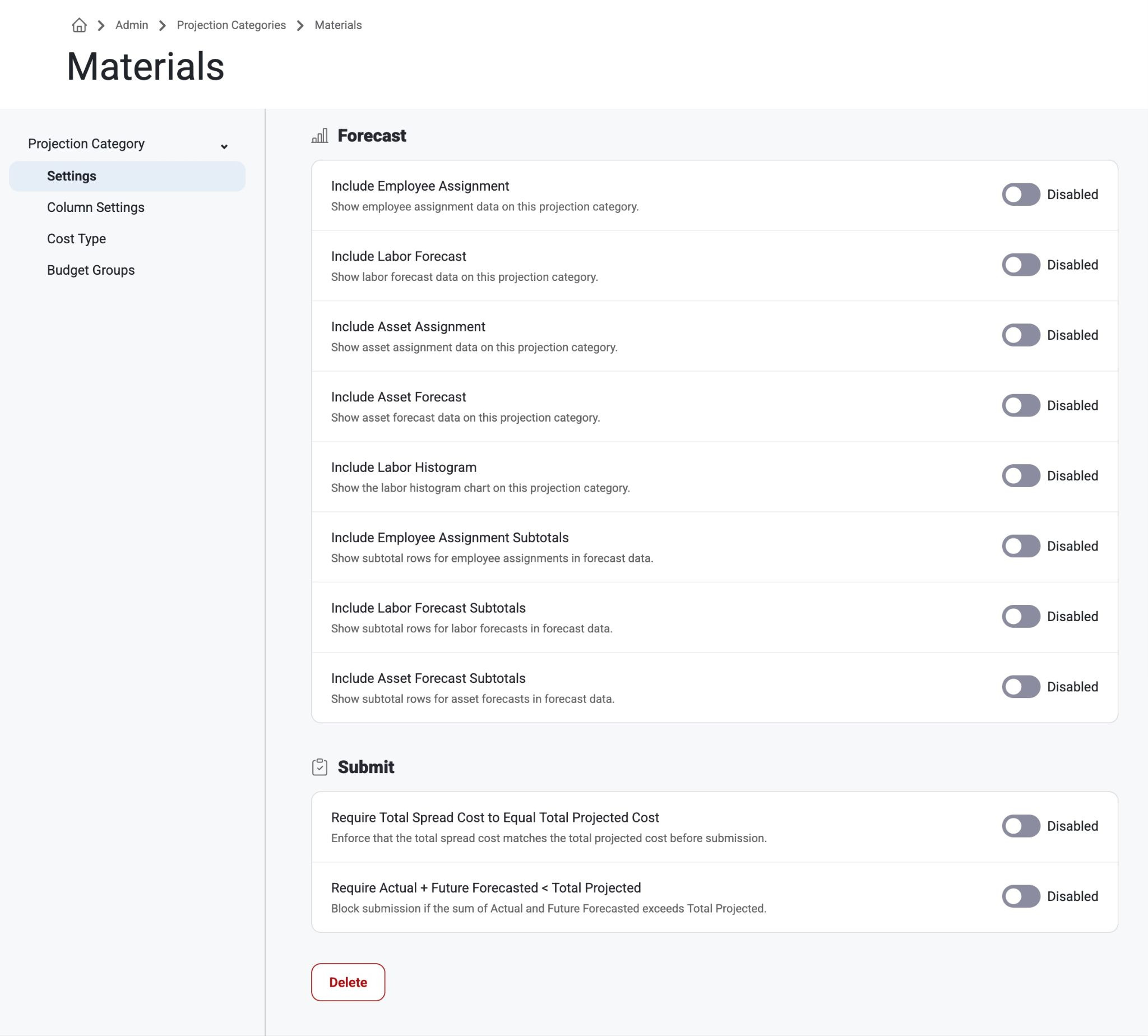
        • Include Budget Summary (for labor tabs)
          • If enabled, the tab will display the Budgeted Labor Hours Summary section. This summary section will show:
            • Total Projected Hours - Actual Hours - Future Forecasted Hours = Forecasted Remaining Hours
            • Projected Cost - Actual to Date Cost - Future Forecasted Cost = Forecasted Remaining Cost
        • Include Employee Assignment (for labor tabs)
          • If enabled, the tab will show all long-term employee requests and assignments on this job and their hours allocated per week
        • Include Labor Forecast (for labor tabs)
          • If enabled,the tab will show the employee labor forecasts by labor type on this job and their headcount allocated per week
        • Include Asset Assignment (for equipment tabs)
          • If enabled, the tab will show all long-term Asset/Equipment requests/assignments on this job and their hours allocated per week
        • Include Asset Forecast (for equipment tabs)
          • If enabled, the tab will show all Asset/Equipment labor forecasts by labor type on this job and their headcount allocated per week
        • Default Budget group
          • If you are using Budget Group filters on the tab, select the one you would like selected by default on the tab
        • Tab Visibility
          • Disabled this setting to hide the tab from the Cost Projections page
        • Include Monthly Spread
          • If enabled, the tab will show the Spread option which allows users to spread the Remaining Projected Cost by month for all future months on the project
      • Settings:
        • Show Cost Projection Section
          • Disabling this setting will hide all of the cost projection details from the tab
        • Use the other settings to hide or show any of the columns available on the tab
        • Unique columns that impact behavior
          • Budget Corrections
            • Budget Correction Units
              • Values added to this column will impact the Current Estimate Units  in the % Complete Units calculation and Total Projected Units calculation
            • Budget Correction Hours
              • Values added to this column will impact the Current Estimate Hours in the % Complete Hours calculation and Total Projected Hours calculation
            • Budge Correction Cost
              • Values added to this column will impact the Current Estimate Cost in the % Complete Cost calculation and Total Projected Cost calculation
          • Actual Corrections
            • Actual Correction Units
              • Values added to this column will impact the Actual To Date Units in the % Complete Units calculation and Projected Remaining Units calculation
          • Method
            • If this column is enabled for the tab, the Remaining Projected columns and the Total Projected columns will be read only. Changing the Method dropdown will then update the values in the Remaining Projected section.
              • Budget
                • If this is selected, the Remaining Projected Hours/Unit and Remaining Projected Cost/Hour will update to the the Budget (Current Estimate) numbers.  This will also update the following columns:
                  • Remaining Projected Hours = Remaining Projected Units X Current Estimate Hours/Unit
                  • Remaining Projected Cost = new Remaining Projected Hours x Current Estimate Cost/Hour
                  • Total Projected Hours = Current Estimate Hours + new Remaining Hours
                  • Total Projected Cost = Current Estimate Cost + new Remaining Projected Cost
                  • Total Projected Hours/Unit = Total Projected Hours / Total Projected Units
                  • Total Projected Cost/Hour = Total Projected Cost / Total Projected Hours
              • Actual
                • If this is selected, the Remaining Projected Hours/Unit and Remaining Projected Cost/Hour will update to the Actual To Date numbers.  This will also update the following columns:
                  • Remaining Projected Hours = Remaining Projected Units X Actual To Date Hours/Unit
                  • Remaining Projected Cost = new Remaining Projected Hours x Actual To Date Cost/Hour
                  • Total Projected Hours = Current Estimate Hours + new Remaining Hours
                  • Total Projected Cost = Current Estimate Cost + new Remaining Projected Cost
                  • Total Projected Hours/Unit = Total Projected Hours / Total Projected Units
                  • Total Projected Cost/Hour = Total Projected Cost / Total Projected Hours
              • Override
                • If this is selected, the user can make manual edits to the Remaining Projected Hours/Unit and Remaining Projected Cost/Hour.  If the user adds a manual override, it will also update the following columns:
                  • Remaining Projected Hours = Remaining Projected Units X new Remaining Hours/Unit
                  • Remaining Projected Cost = new Remaining Projected Hours x new Remaining Cost/Hour
                  • Total Projected Hours = Current Estimate Hours + new Remaining Hours
                  • Total Projected Cost = Current Estimate Cost + new Remaining Cost
                  • Total Projected Hours/Unit = Total Projected Hours / Total Projected Units
                  • Total Projected Cost/Hour = Total Projected Cost / Total Projected Hours
        • Cost Type:
          • The tab will only show budget codes that have cost types that are listed here
        • Budget Groups (usually for labor):
          • Add the Budget Groups that should be available on the tab.  
          • This will show a Budget Group filter on the tab that allows users to quickly filter the Budget Summary, Labor Forecast, Employee Assignment, and Cost Projection sections based on what is setup on the Budget Group.
            • Budget Group names are setup in Admin > Job setup > Budget groups
            • Budget Groups will also need to be added in Jobsite > Budget Groups.  Once they are added, you can assign each Budget Group the Labor Types, Employee Positions, Asset Categories, and Budget Codes that should be in this Budget Group.


Was this article helpful?

That’s Great!

Thank you for your feedback

Sorry! We couldn't be helpful

Thank you for your feedback

Let us know how can we improve this article!

Select at least one of the reasons
CAPTCHA verification is required.

Feedback sent

We appreciate your effort and will try to fix the article