Scheduling Assignments
Assignments is a page where admins can create long-term Requests and Assignments.
How to Add a Resource Request:
From the top navigation bar find ‘Scheduling.’ Select ‘Assignments’ from the drop-down menu.
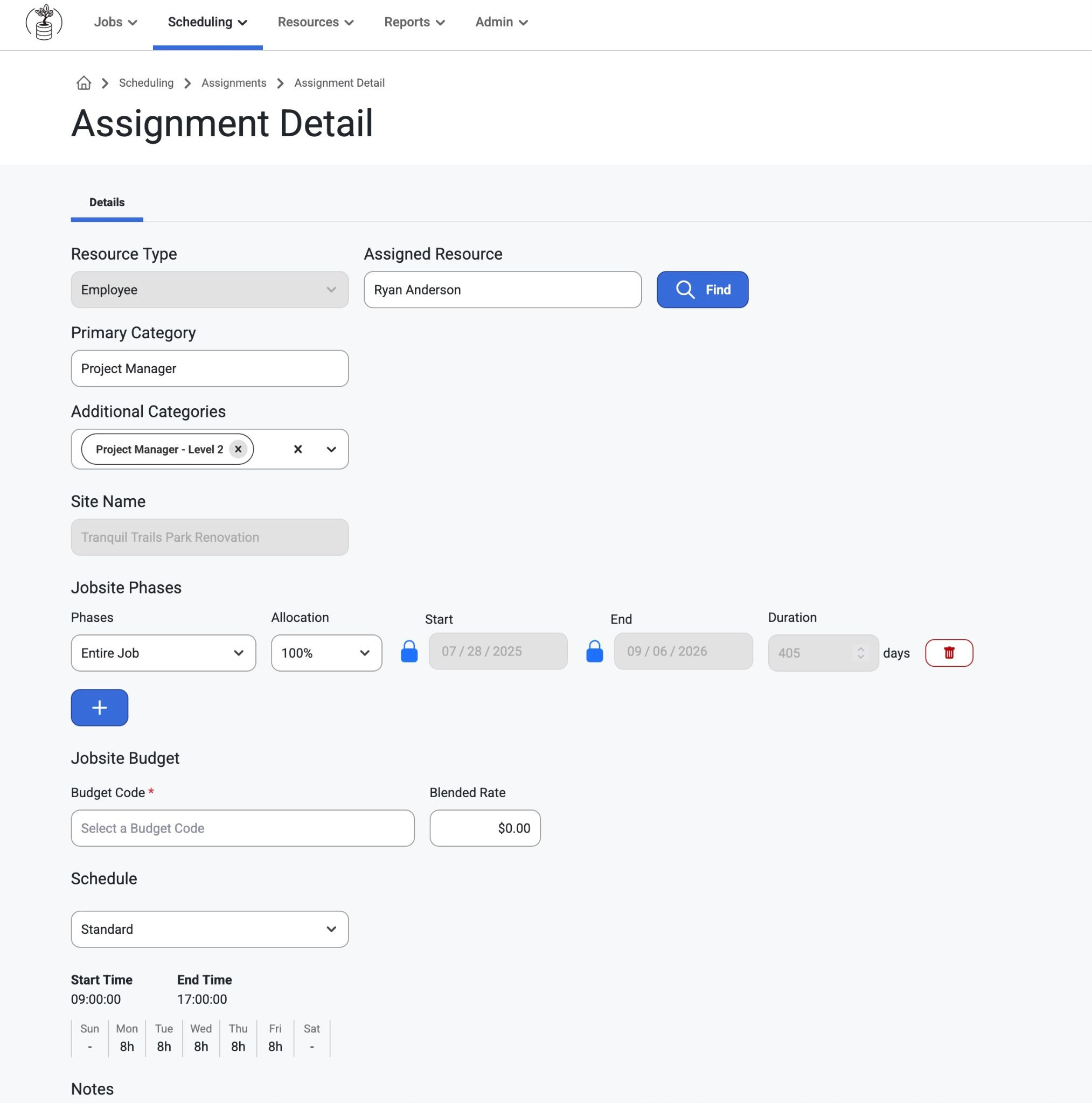
Select resource type (Employee, Crew, or Asset).
Here, users can create Assignment Details.
Choose a primary category and additional categories.
Assign to a job and phase, or set custom dates.
In the Assignment grid, Crew Lead and Employee emails and phone information will only show if the user has ‘Can View Sensitive' Permissions which can be configured in Admin>Organization>Permissions.
Learn about it here: Permission Groups
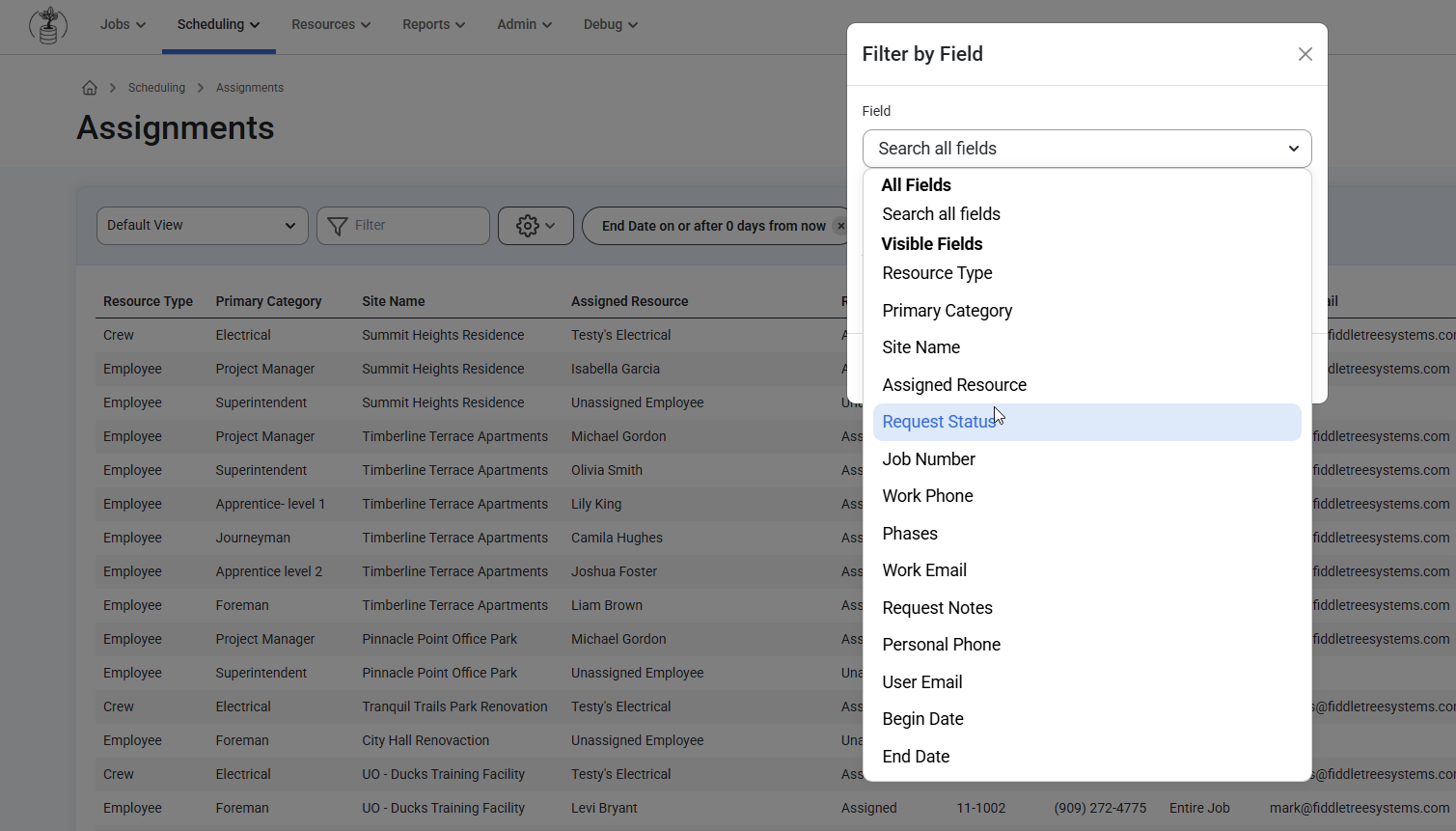
In addition, users can add a filter Status Type and Status Description of the Job/Opportunity of the assignment.
How to Assign a Resource:
Select the ‘Find’ button
Check marks will appear on what will be projected onto the Map
Map will visually show the distances of resources and the Jobsite of the assignment
Grid will list the resources, their categories, distance to site, other allocations at start date of request, total availability over the duration of the request, and if they have the certifications required for the job.
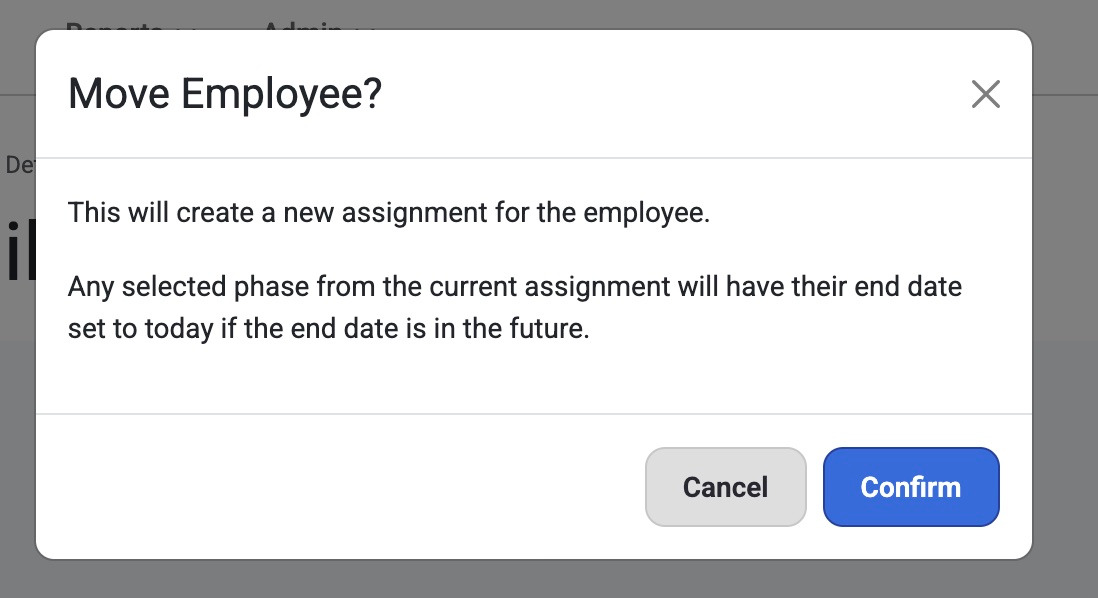
Select ‘Move’. User will be prompted to confirm. Select ‘Cancel’ to make changes or ‘Confirm’ to continue.
Overlapping dates for the same phase will be prevented.
How to Send Schedule Updates:
Users can also Notify Employees of Long-Term Schedule Updates by selecting Scheduling > Assignments>Send Button. A modal with sending options will appear.
The following options include:
Send to employees not notified yet OR send to all employees
Email OR Text Message
Message Format
Preview OR Email
Sending Options
Now
Tomorrow morning (8am)
Tomorrow afternoon (1pm)
Custom
When the user's message is ready select ‘Send.’
Was this article helpful?
That’s Great!
Thank you for your feedback
Sorry! We couldn't be helpful
Thank you for your feedback
Feedback sent
We appreciate your effort and will try to fix the article