Resources> Crews
Purpose: While users can see crew information for individual employees in Employee Details, this Crews page is different in that it lists all crews and information and then users can find specific employees within those selected crews. Users also have the option to select ‘+Add New’ to create a New Crew.
How to: On the top navigation bar select ‘Resources’ and then select ‘Crews’ from the drop down menu.
Employees in the drop-down menu are limited by the Crew Labor Type.
Note: Creating a new crew requires a Leader Name.
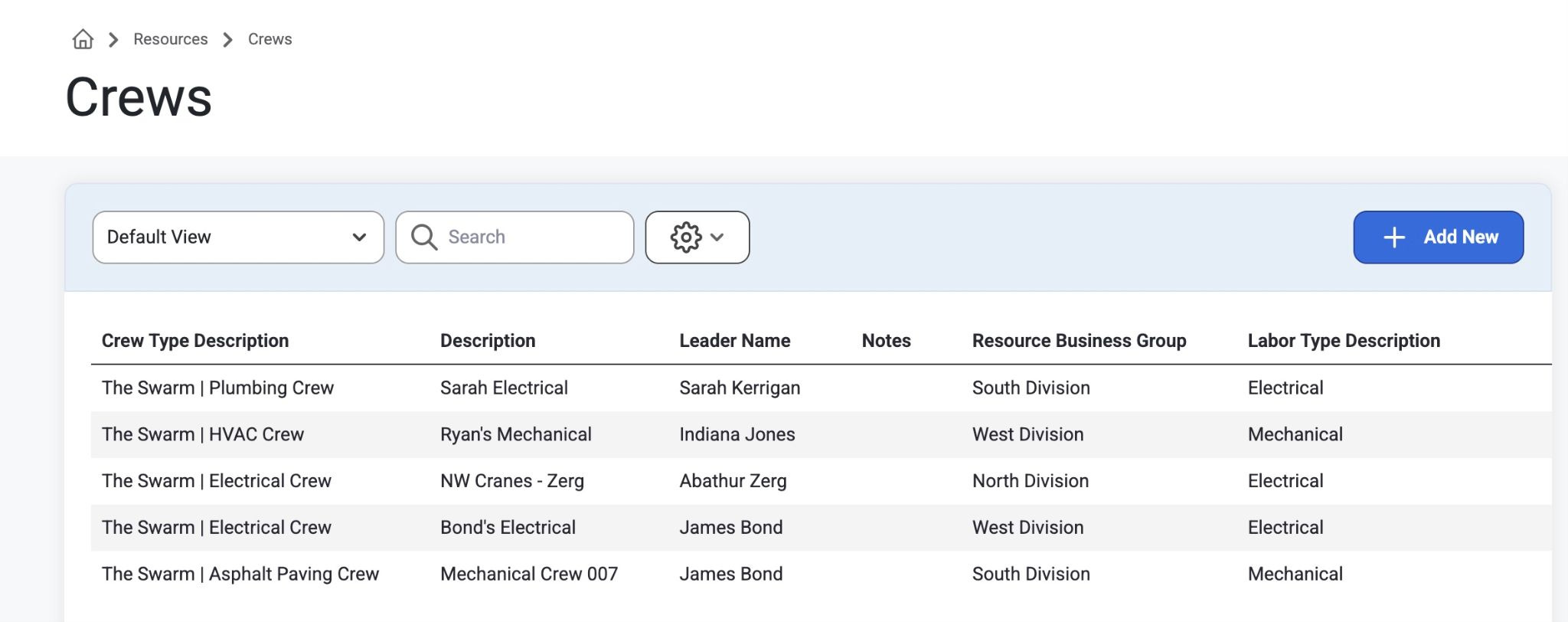
Crew Detail
After clicking to an individual crew, admins can see the same crew's information above, but in an editable format. This is similar to the view in Resources>Employees but this information is organized by Crew instead of by Employee name, so that admins can find specific employees within a crew. There is also an additional detail that the Employees page doesn’t have called Members.
Members
This page shows a grid list of the employees in that specific crew. Admins can delete or add employees from the members list of the previously selected crew. Notice the button to ‘Add Member.’ 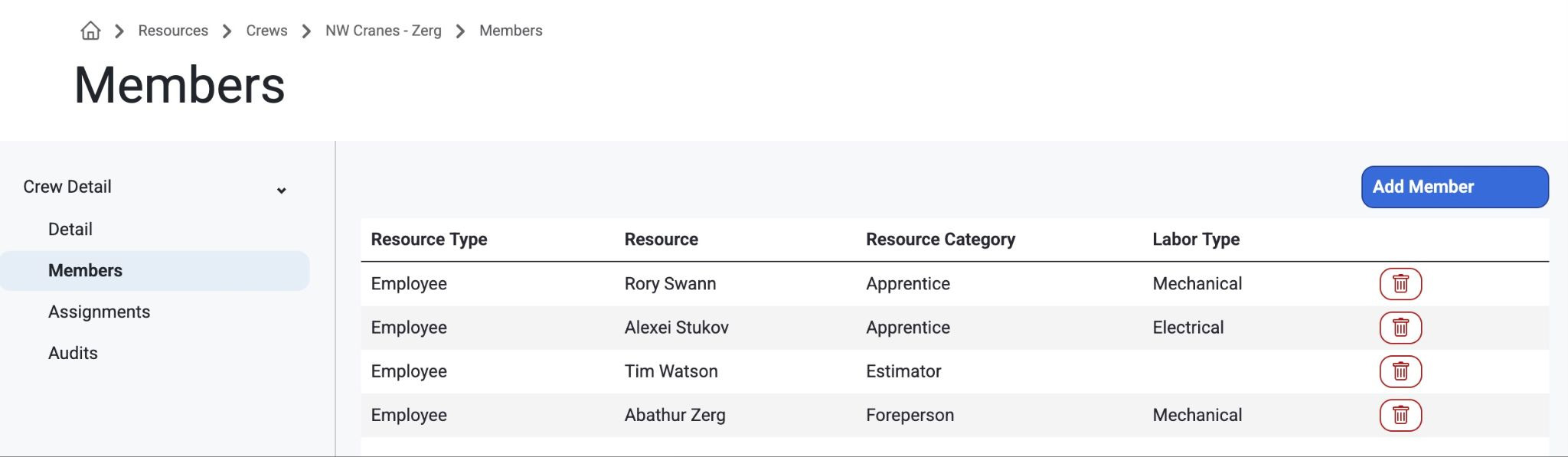
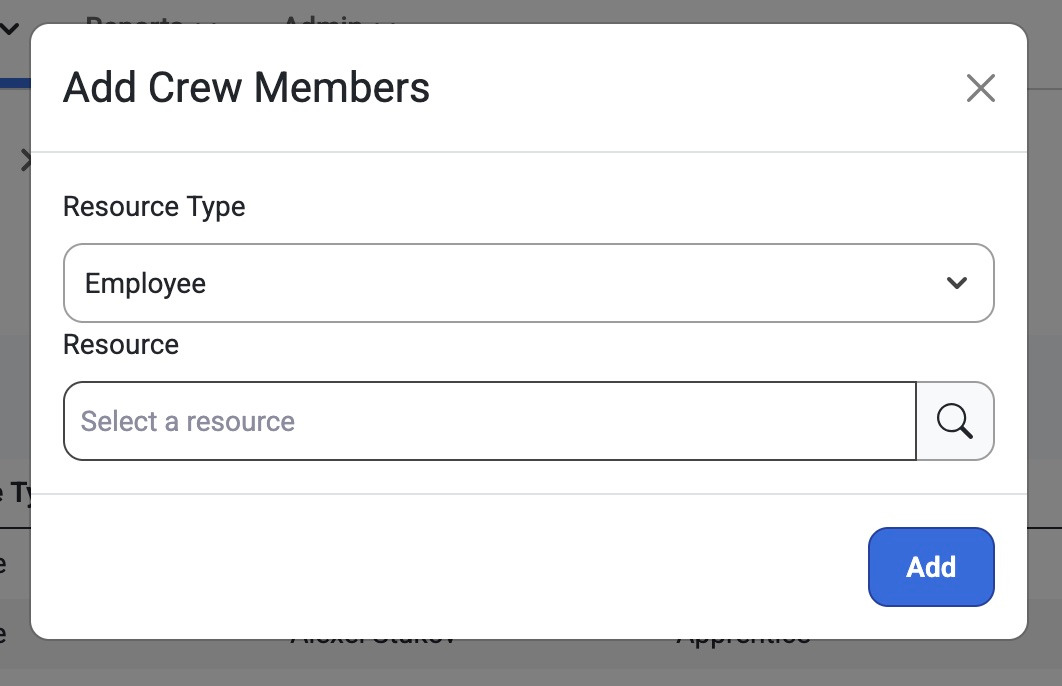
This modal allows admins to add Crew Members by Resource Type (Employee or Asset) and Resource (Name of that employee or asset) to that Members list for the specific Crew. Select ‘Add’ in the modal to add a crew member.
Clicking on any resource in the member grid list will take you directly to their Employee Details such as:
Detail
Assignments
Certifications
Time Off
Work history
Audits
ProjectSight
Member Detail
Notice the “Send Opt-In Text” button in Employee Detail. Clicking this button will instantly send a request to consent for SMS messaging to that employee. If a request has already been sent, the button will appear gray and non-clickable.
This page shows all sensitive employee details on any member of the previously selected crew type. This information can also be accessed directly through Resources>Employees>Employee Detail. Finding this information through the ‘Crews’ tab is to narrow down an employee from their crew. If the admin wants to search all employees, not by a specific crew, then navigate to Resources>Employees.
Read more about it, here: Employees
Member Assignments
The Assignments page shows Current, Future, and Past Assignments from each Crew.
Current Assignments
At the top admins can see site names, phases, begin/end dates and allocation % of each Requested Resource for that crew.
If the user clicks on any of the current assignments, then the user can create job phases for that crew, or to find the location of that assignment on the map.
Note: Clicking on any of the individual current assignments will automatically navigate admins out of the Resources tab, and into Jobs>JobList>Assignments>AssignmentDetail for the selected assignment.
Here admins can add a job phase for that crew, edit schedules, or find the assigned resource for that crew.
In addition, navigate to the ‘Crew’ tab to add or delete a crew member to/from that current assignment. Or click into the employee to make changes to the crew member’s Resource type, Name, and Begin/End date.
Read more about it, Here: Assignments
Future Assignments
Next there's a grid list of all future assignments for that Crew by requested resource.
Past Assignments
At the bottom of the page viewers can see past assignments of that crew and requested resource details.
Audits
The audits page keeps detailed track of any changes or updates that were made to the Crews table.
Was this article helpful?
That’s Great!
Thank you for your feedback
Sorry! We couldn't be helpful
Thank you for your feedback
Feedback sent
We appreciate your effort and will try to fix the article