Labor Projections (also called Worker Loading) help teams quickly estimate the labor needed for active projects. Projections can be broken down by labor type, such as trades, crafts, or specialties.
Job Projections
Header information
Budgeted Hours
Pulled from the Budgeted Labor Hours field on the Job Detail page, or from the Job > Budgets page (if importing budgets from the ERP).
Actual Hours
Pulled from the sum of the Actual Hours column on the Job Detail > Budgets page (if importing actuals from the ERP).
Projected Hours Left
Pulled from the Projected Hours column on the Job Detail > Budgets page.
Remaining Hours
Calculated as:
Budgeted Labor Hours − Actual Hours − Remaining Projected Hours
(This represents the remaining worker hours needed after the last data refresh.)
When projecting the labor needed on a job, users can use the Initialize button on this page to quickly load the labor needed for that job.
Begin Date
Date will default to the Job Begin Date. If that date is in the past, it defaults to today's date
End Date
Defaults to the Job End Date
Labor Type
Choose the type of labor needed (e.g., Electrical, Plumbing, Roofing, etc.)
Distribute By (Hours or Bulk Add Workers)
Hours
With this option selected, users will need to select how they want to spread hours across the job dates.
Hours to Distribute
Pulled from the job’s Budgeted Labor Hours minus already distributed hours.
Distribution
Hours can be evenly spread, be front-weighted, or back-weighted
Rounding Options
Worker counts can be rounded down to the nearest whole worker or rounded up the highest whole worker
Bulk Add Workers
With this option selected, users only need to enter a set number of workers they want each work day across the dates selected
Once the Labor Type row has been added, the projected worker counts can be manually adjusted as needed. This page will also show the number of workers that have been assigned on the Daily Scheduling page so users can quickly see if they need to schedule additional workers.
Global Projections
Global Projections shows short-term workflows by Phase Code with
Employees
Displays daily or weekly worker counts for employees whose Position is set to Short-Term Scheduling or Both.
Can be filtered by Labor Type or Resource Business Group
Totals (assigned / projected)
Left side shows assigned employees (from Daily Scheduling)
Right side shows projected worker counts (from labor projections)
Both totals can be filtered by Labor Type or Job Business group
Difference (assigned / projected)
Left: Difference between actual employee count and assigned employees.
Right: Difference between employee count and projected worker needs.
Job Projections Grid
The grid displays:
Job-level labor projections per Labor Type
Assigned employees (from Daily Scheduling)
This gives a high-level comparison between:
Projected labor needs
Actual worker availability
Current daily/weekly schedules
Use filters to model what-if labor scenarios, such as borrowing employees from other Business Groups. This helps users evaluate staffing options across the organization before making actual scheduling changes.
Daily Scheduling
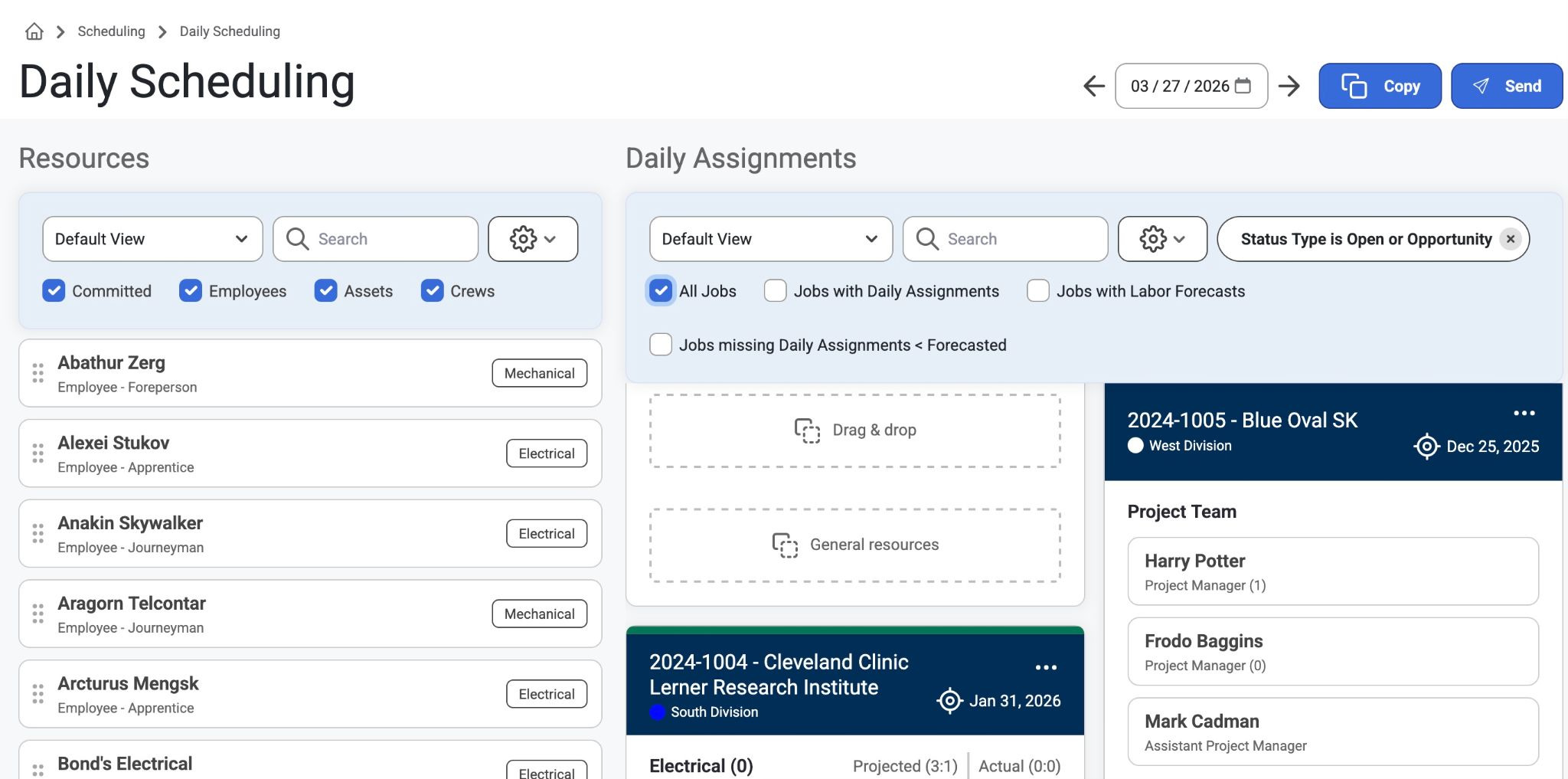
The Daily Scheduling page is for the short term scheduling of Employees, Crews, and Equipment. This is where admins can make assignments to schedule.
Users with "Can View Job" permissions can access this page in read-only mode.
Users with "Can Dispatch" permissions can drag and drop Employees, Crews, and Equipment (they have access to) onto Jobs they are allowed to dispatch for.
Read more about Permissions, here: Permissions
Resource List
Only Jobs, Employees, Crews, and Equipment that are properly configured will appear on the Daily Scheduling page.
Jobs
On the Job detail page, the Enable For Daily Scheduling option will need to be enabled
Employees
The Position assigned to the employee must have a Scheduling Type set to:
Use for Short-Term Daily Scheduling
or Use for Both Long-Term and Short-Term Assignments
Crews
The Crew Type assigned to the crew must have a Scheduling Type set to:
Use for Short-Term Daily Scheduling
or Use for Both Long-Term and Short-Term Assignments
Equipment (Assets)
The Asset Category must have a Scheduling Type set to:
Use for Short-Term Daily Scheduling
or Use for Both Long-Term and Short-Term Assignments
Job Cards
Each Job Card contains the following sections:
Project Team
Displays employees assigned through long-term scheduling with a Position where the Job Role = PM.
General
A flexible section where users can drag and drop any employee into the job—regardless of labor type. This allows admins to assign anyone into a section without a scheduled forecast.
Labor Type Specific
Only allows Employees and Crews with a matching Labor Type to be assigned.
If Labor Projections exist, the projected worker count will display in this section.
If Labor Ratios are set up for the labor type, users will see a comparison of:
Projected Labor Ratio
Actual Labor Ratio
Note: Equipment (Assets) do not have a Labor Type and can be assigned to any labor type section.
Sending Schedule Updates
Note: Before notifying employees of schedule updates, they need to first consent to SMS messaging. This can be done through Jobs or Scheduling.
Jobs>Jobs List>Job Detail>Assignments>Send
Scheduling>Assignments>Send
Read more about this, here: Daily Scheduling
After dragging and dropping some Employees onto a Job to create a short term assignment, you can use the "Send" button at the top of the page.
This will open the "Notify Employees of Schedule Updates" window. This provides the option of notifying employees of schedule updates.
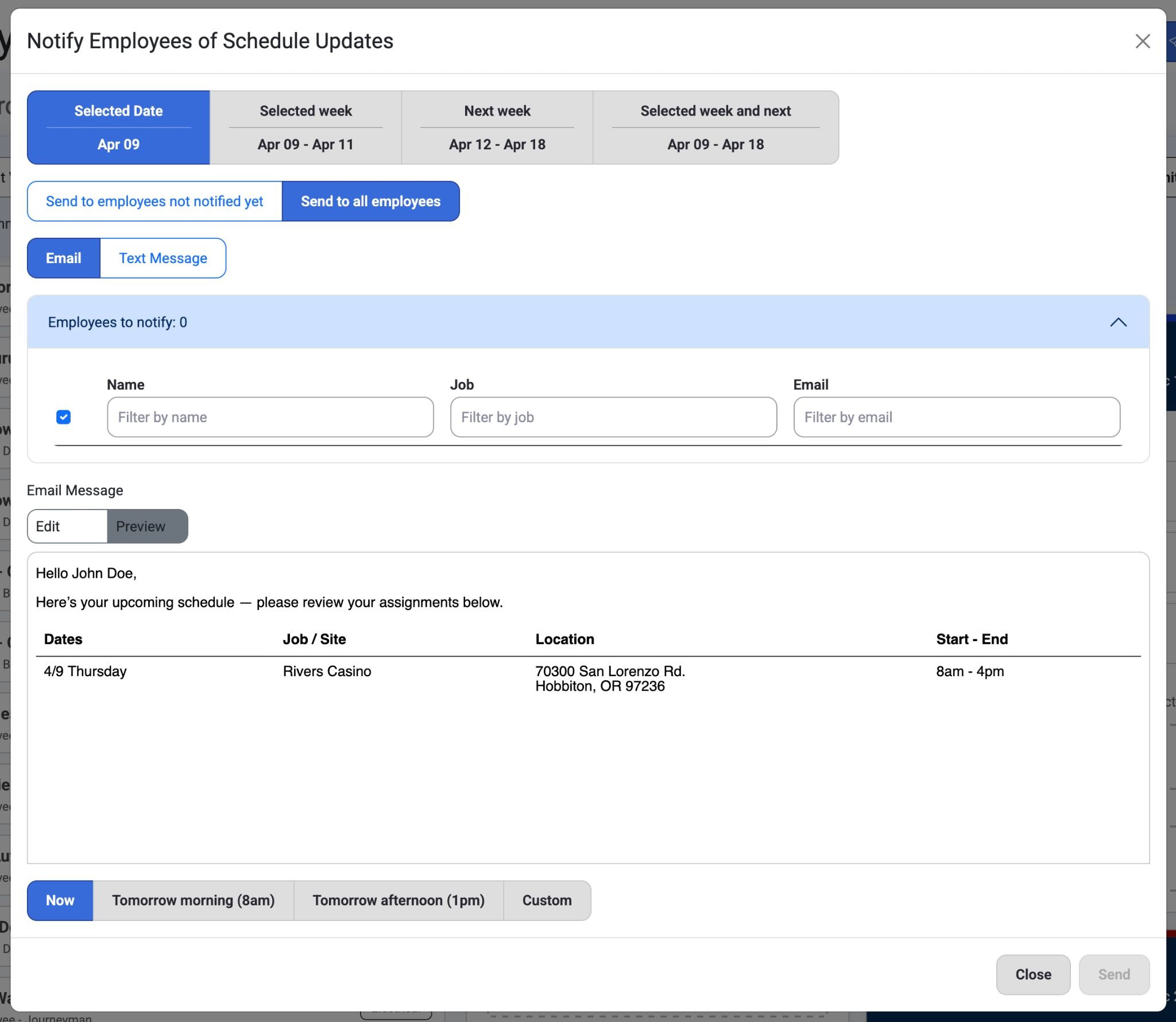
3. The following options include:
Selected Date
Selected Week
Next Week
Selected week and next
Send to employees not notified yet OR send to all employees
Email OR Text Message
Note: The preview option condenses an email format to a simpler preview.
Sending Options
Now
Tomorrow morning (8am)
Tomorrow afternoon (1pm)
Custom
4. Adjust message settings like time frames, recipients, and job and then select ‘Send.’
Read more about Labor Projections and Global Projections, here: Labor Projections
Was this article helpful?
That’s Great!
Thank you for your feedback
Sorry! We couldn't be helpful
Thank you for your feedback
Feedback sent
We appreciate your effort and will try to fix the article