Assignments
This page is where users can make and send out long-term assignments only. For making short-term assignments, navigate to Scheduling>Daily Scheduling.
Learn about it, here: Daily Scheduling
Users can Create, View, and Send Job Detail Assignments in Resource Planning.
Select ‘Jobs’ from the top navigation bar on the main page.
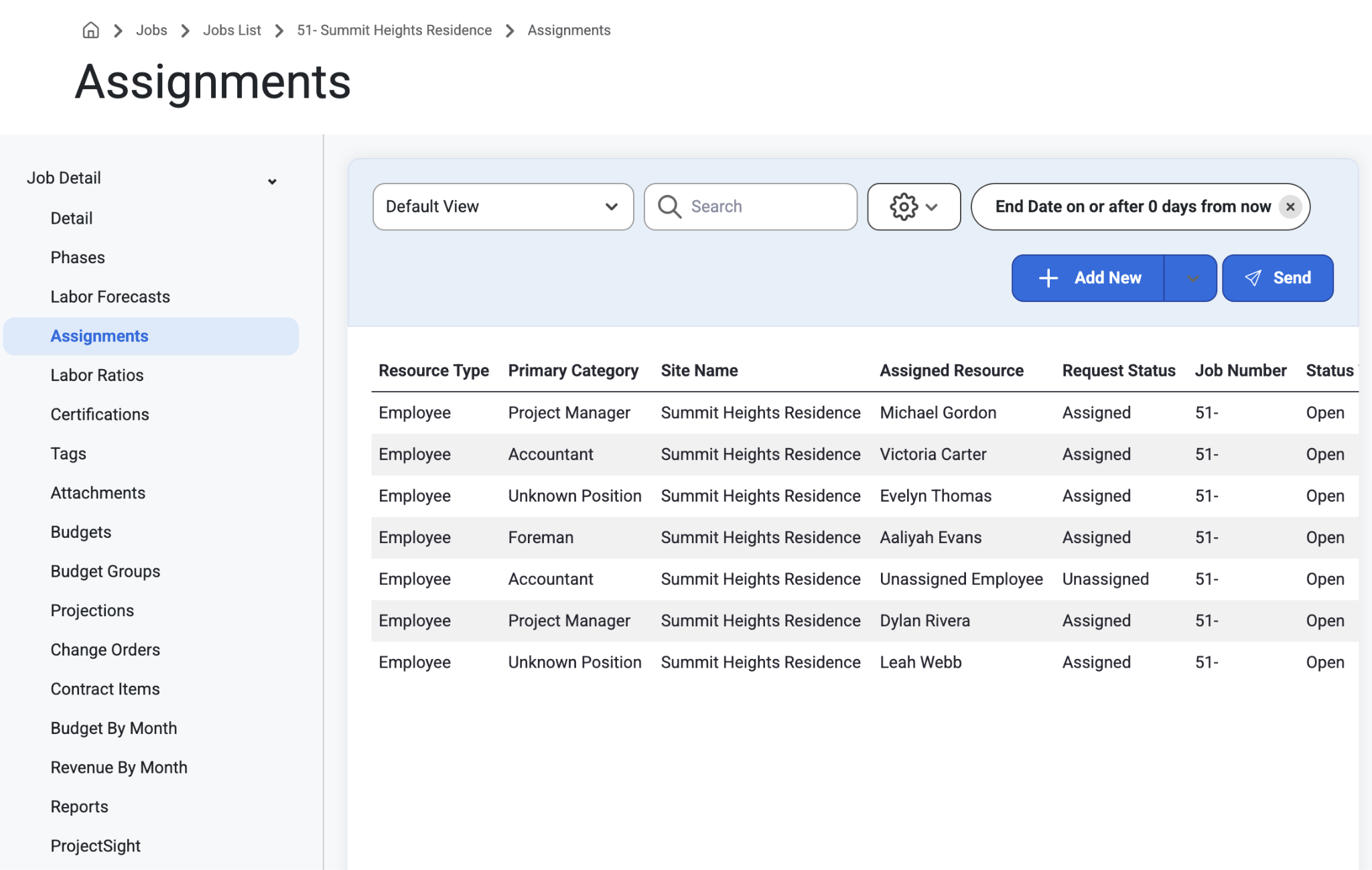
Select a Jobsite and navigate to the Assignments page under Job Detail.
Scroll to the right to view more details on each Assignment.
To Create a Job Assignment
Select the ‘Add New’ button or the drop down arrow, ‘Add From Template’
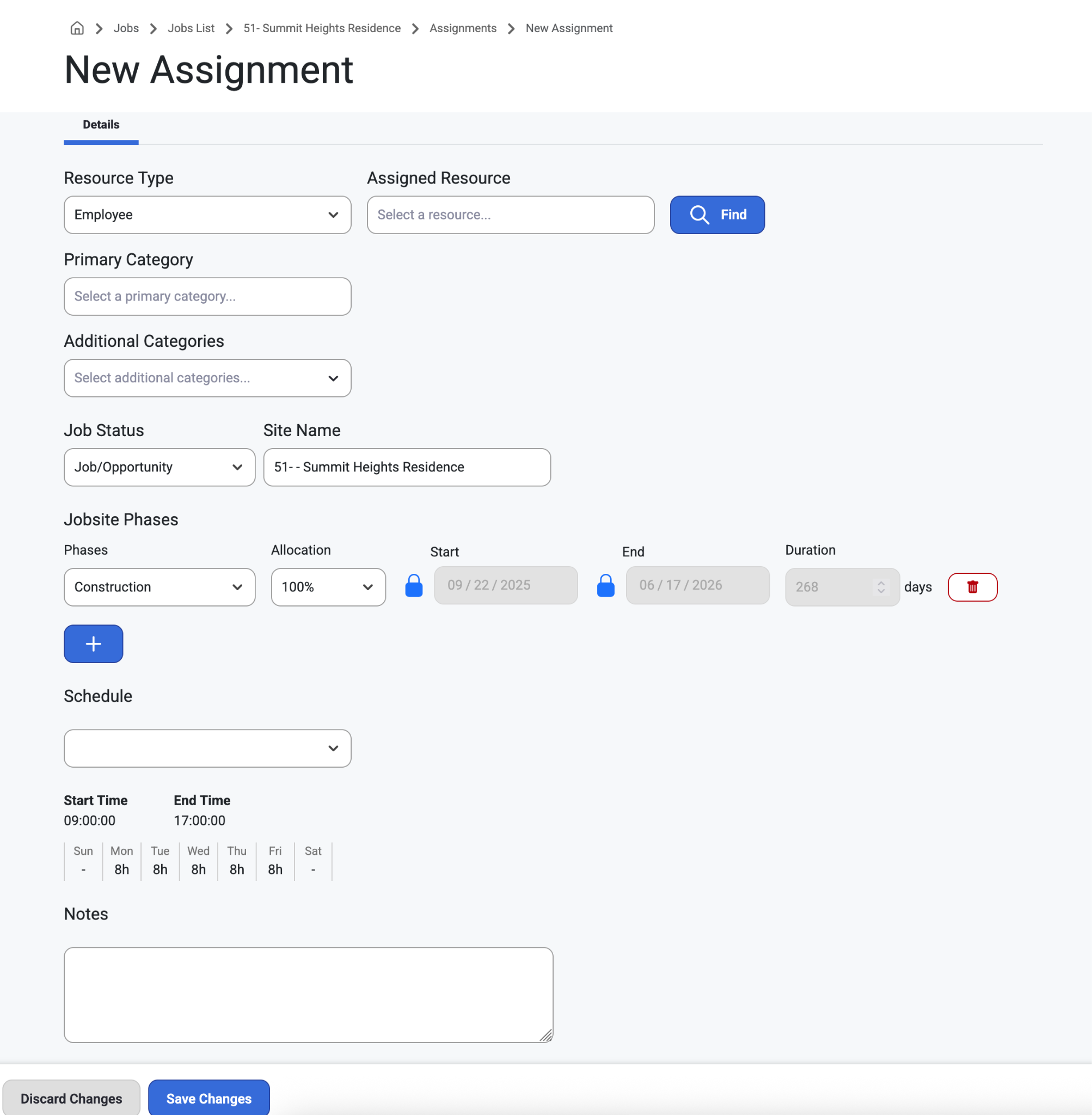
Fill the following detail categories and select ‘Save Changes.’
Resource Type
Assigned Resource
Search on the Map with the ‘Find’ button.
View a detailed map on Employees and their Jobs.
These views can be configured in Permissions.
Read about it, here: Permissions
Select ‘Assign & Close’
Primary Category
Additional Categories
Option to add multiple categories.
Job Status
Opportunity/Job
Site Name
Jobsite Phases
Option to add multiple phases with the ‘+’ button and drop down menu
Option to add Allocation %, start/end times and duration of phase
Schedule
The drop-down menu shows standard time frame schedules.
Notes
These notes will appear in the Employee Slideouts in Daily Scheduling and Gantts.
Read more about Employee Slideouts, here: Employee Slideouts
Note: General Labor Types allow admins to assign anyone in that section without a scheduled forecast.
To Send An Assignment
Select the ‘Send’ button.
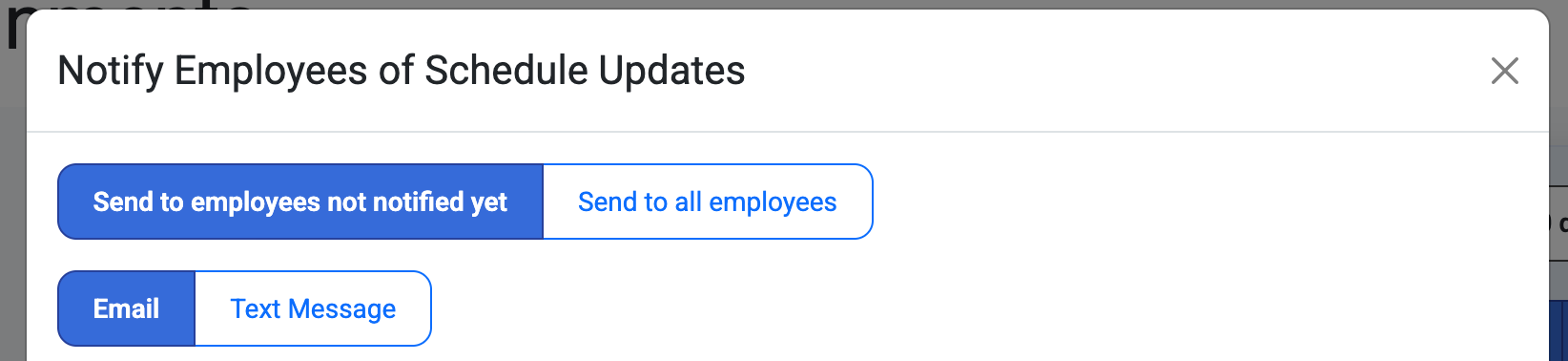
A modal to ‘Notify Employees of Schedule Updates’ options will include:
‘Send to employees not notified’ yet OR ‘Send to all employees’ buttons.
Option to send via ‘Email’ or ‘Text Message’
Learn how to set up consent to SMS Schedule Notifications, here: Users
Search/Select the employees to be notified with the checkboxes.
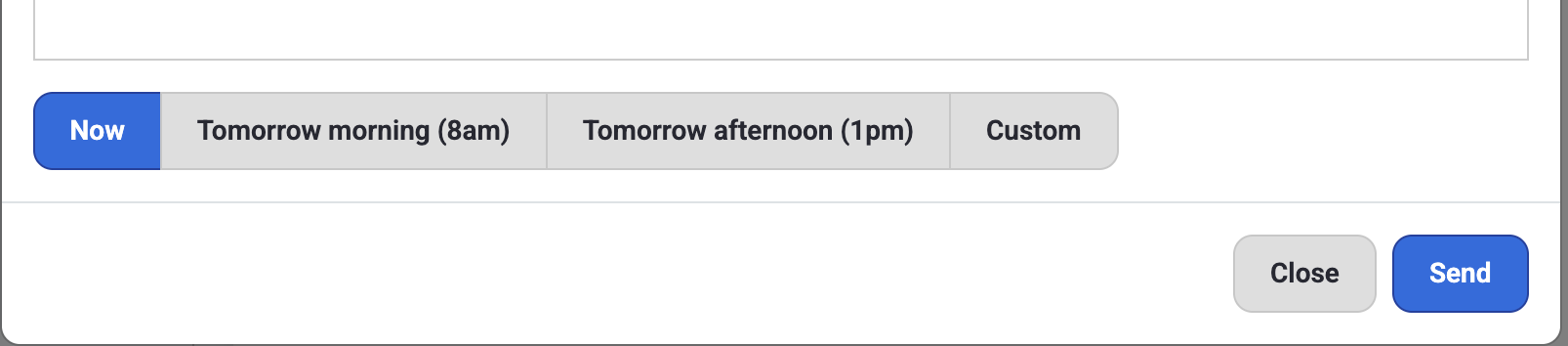
Create a message and select a send option such as:
Now
Tomorrow morning (8am)
Tomorrow afternoon (1pm)
Custom
Select, ‘Send.’
Was this article helpful?
That’s Great!
Thank you for your feedback
Sorry! We couldn't be helpful
Thank you for your feedback
Feedback sent
We appreciate your effort and will try to fix the article