Daily Scheduling
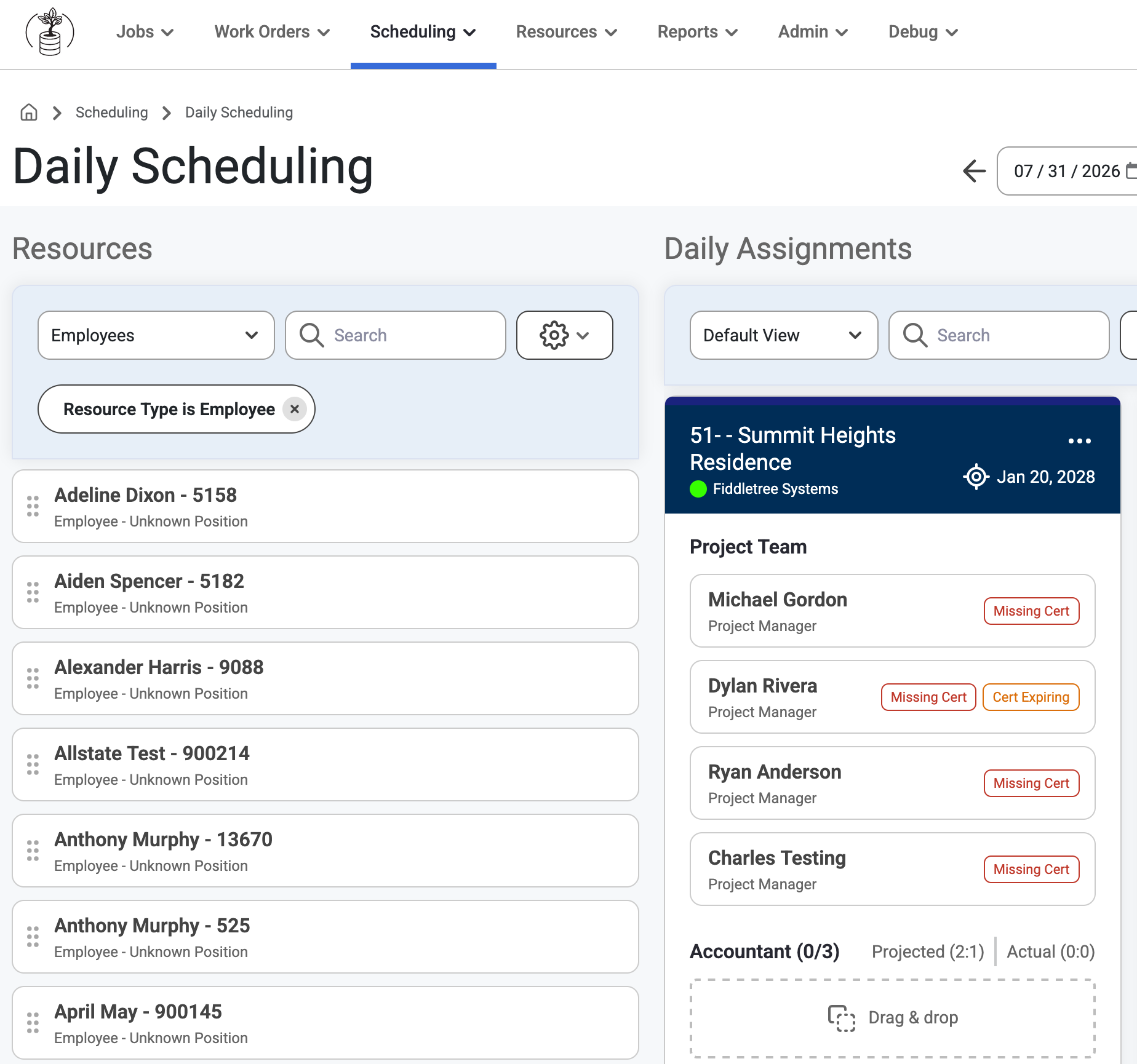
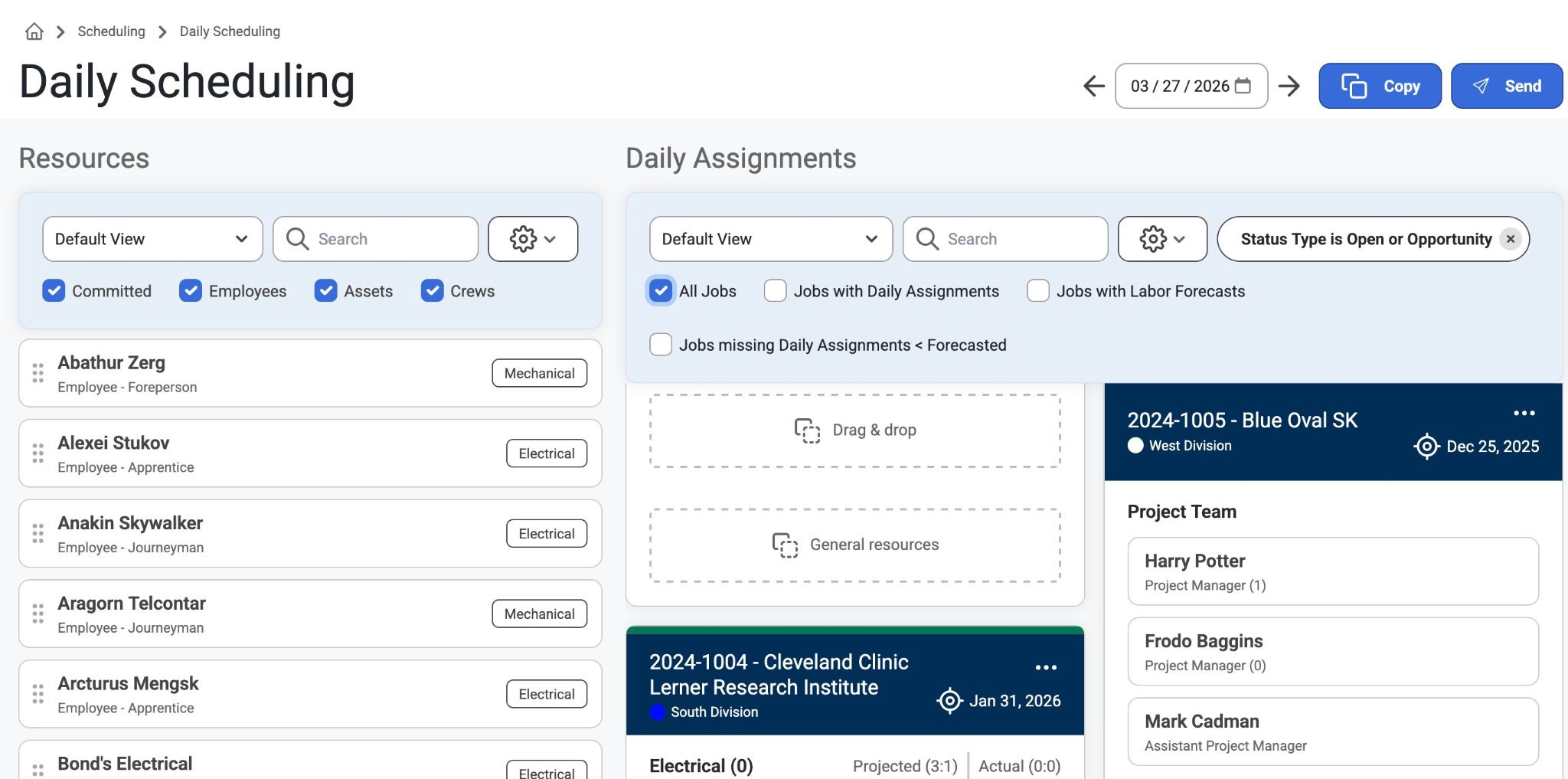
The Daily Scheduling page is for the short term scheduling of Employees, Crews, and Equipment. This is where admins can make assignments to schedule.
Users with "Can View Job" permissions can access this page in read-only mode.
Users with "Can Dispatch" permissions can drag and drop Employees, Crews, and Equipment (they have access to) onto Jobs they are allowed to dispatch for.
If there is a forecast to a phase, the phase description is shown along with the Labor Type.
The Copy Schedule modal lets you select the Job End date as the Copy to End date.
Employees that have a time off request for an assigned day will be indicated with a Leave Badge so they can be dragged off of jobs.
Asset Forecasts are shown just like Labor Forecasts and asset assignments are restricted by category, which allows users to assign assets to those forecasts.
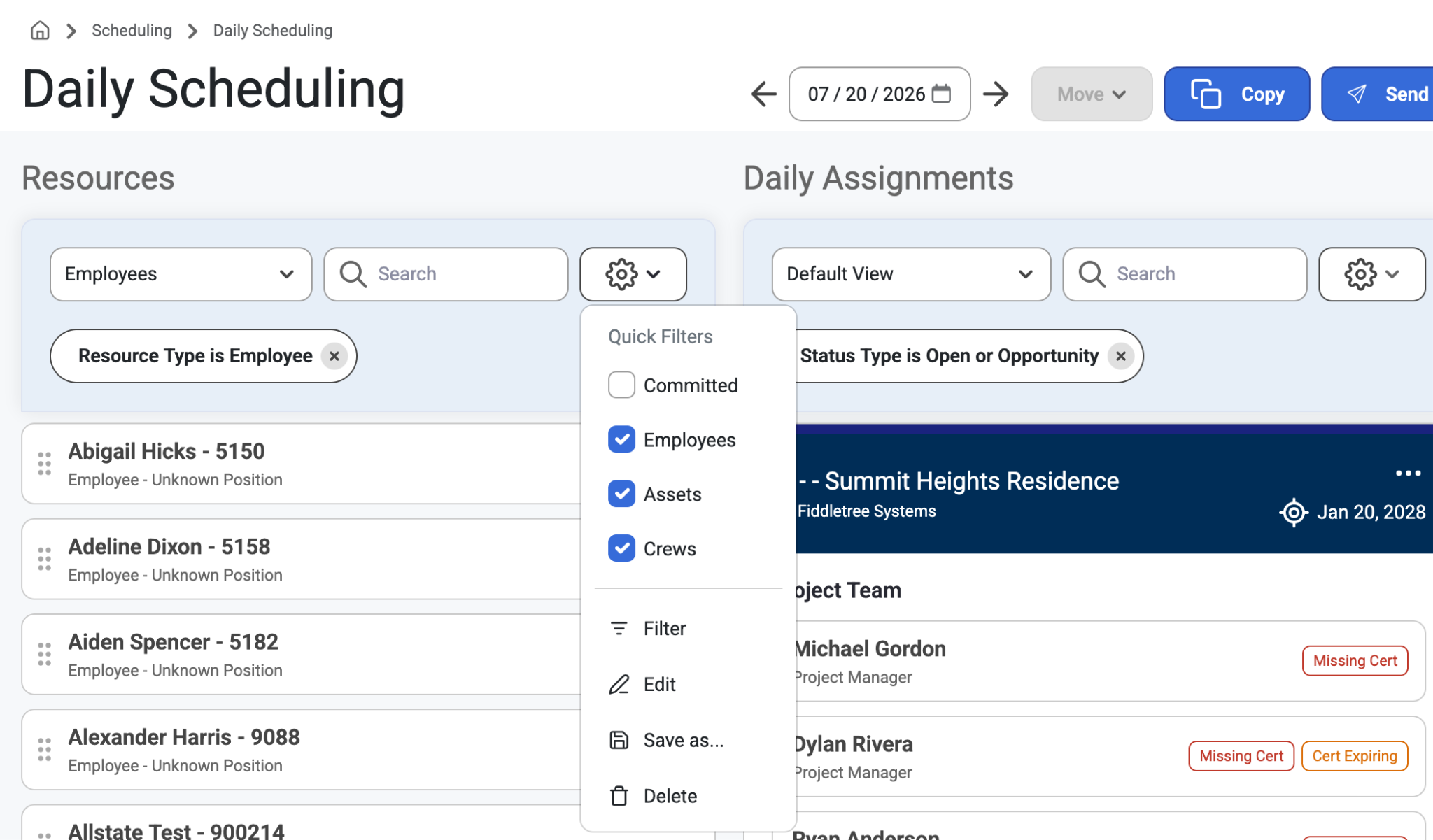
There are additional filter options for quick searches in the Jobs list.
Employee Slide Out
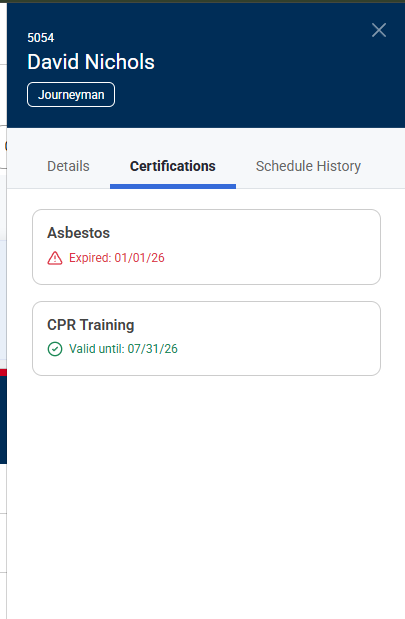
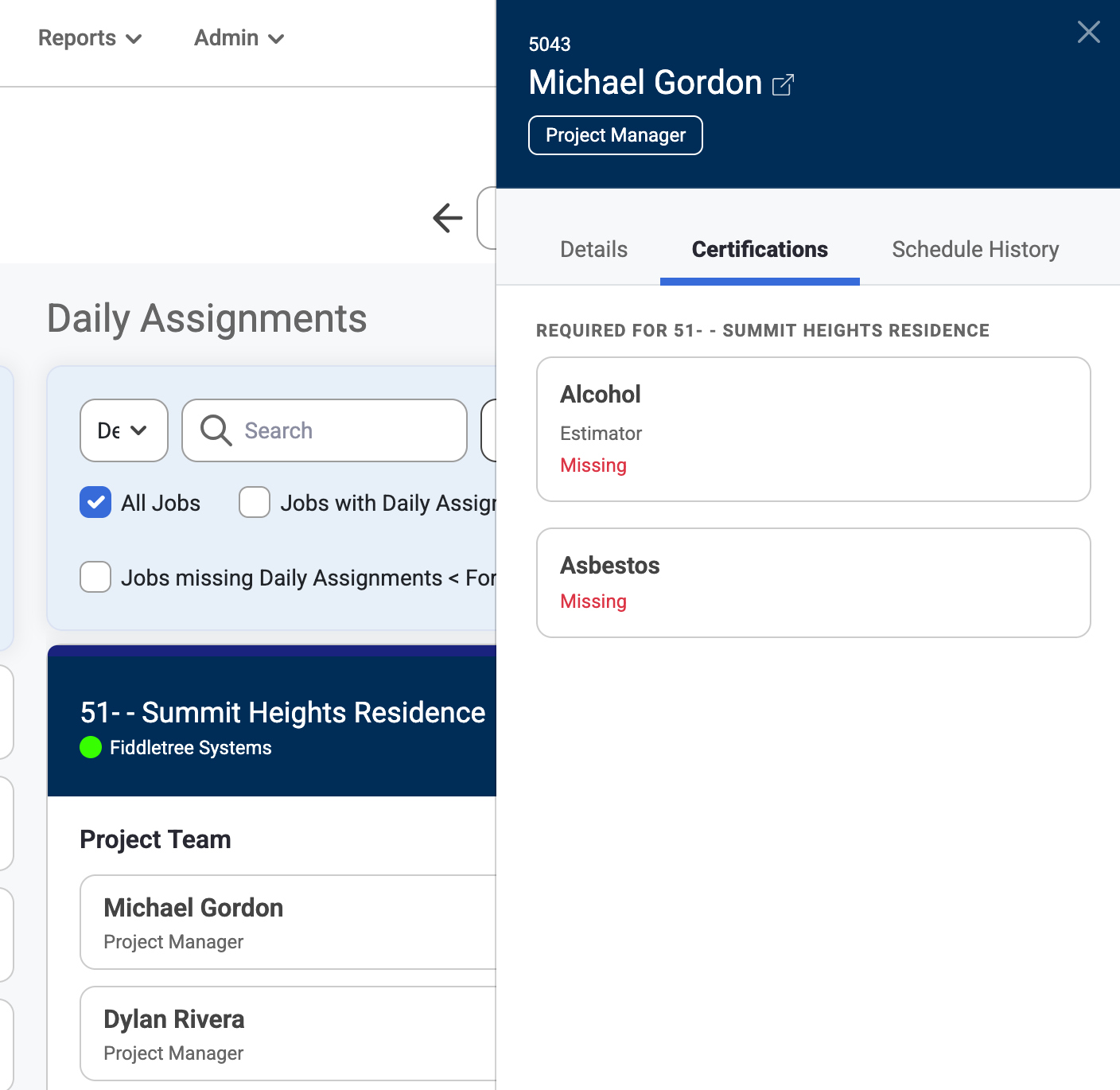
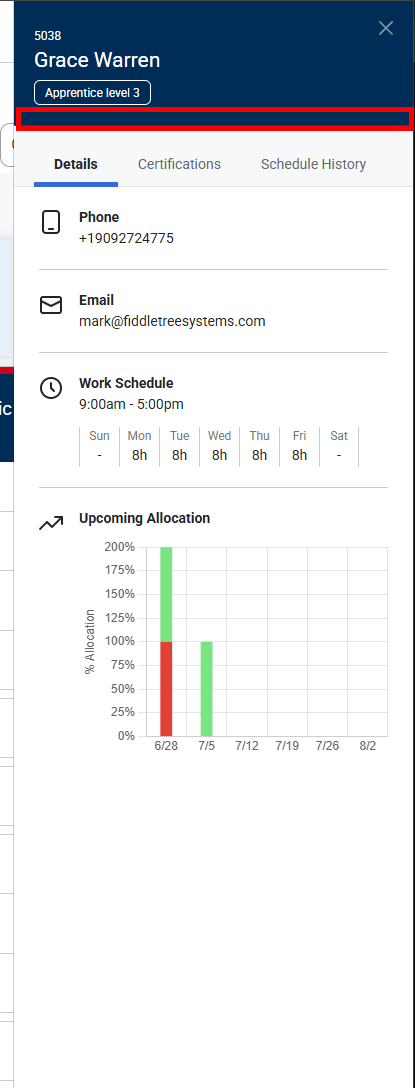
When a user clicks on an employee in Scheduling>Daily Scheduling a slide out to the right will show employee details like Resource, Assignment, Certification, and the Schedule History of that Employee.
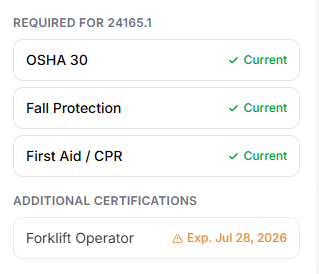
Required certifications will show at the top (if any) and additional certifications will show at the bottom. If there are no required certifications on the job they will not be grouped in that order.
Certifications that expire in 31 days or less will appear in yellow text.
When an employee is assigned to a job that they are missing a required certification for, or their certification is expiring soon, or already expired, a badge will appear by their name for their assigned job.
Primary Labor Types will be listed at the top of the Employees slide out if there is one.
Primary and Additional Labor Types are also displayed in the new bottom section.
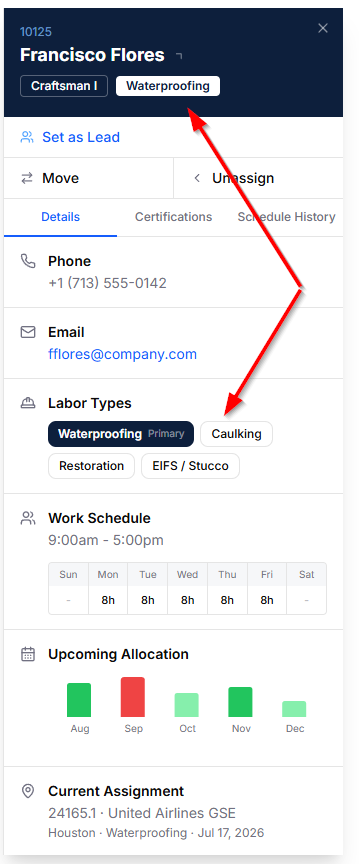
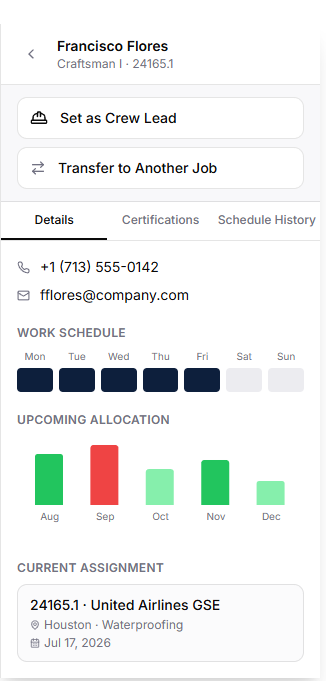
There are specific option for Assign as Lead and Move
Assign as Lead
There can only be one lead per short term header on the Job.
Lead badge will show next to the employee who is lead and is displayed at the top of the list of the short term header.
The Lead button allows the option to unassign lead
When adding or removing a lead, a toast message will confirm the action.
Move
There is an option to select another Job to move the selected employee too, however it is not available for a Project Team assignment, only for short-term assignments.
- When moving an employee or group of employees to another Job, Users can select the Labor Forecast they want to move them to.
- An Employee’s Primary Labor Type will automatically match the Labor Forecast selection by Default.
- If there is not a Primary Labor Type assigned, then it will default to the Secondary Labor Type. If No Labor Type is listed for an Employee, they will automatically be assigned to ‘General Labor Type.’
- An Employee’s Primary Labor Type will automatically match the Labor Forecast selection by Default.
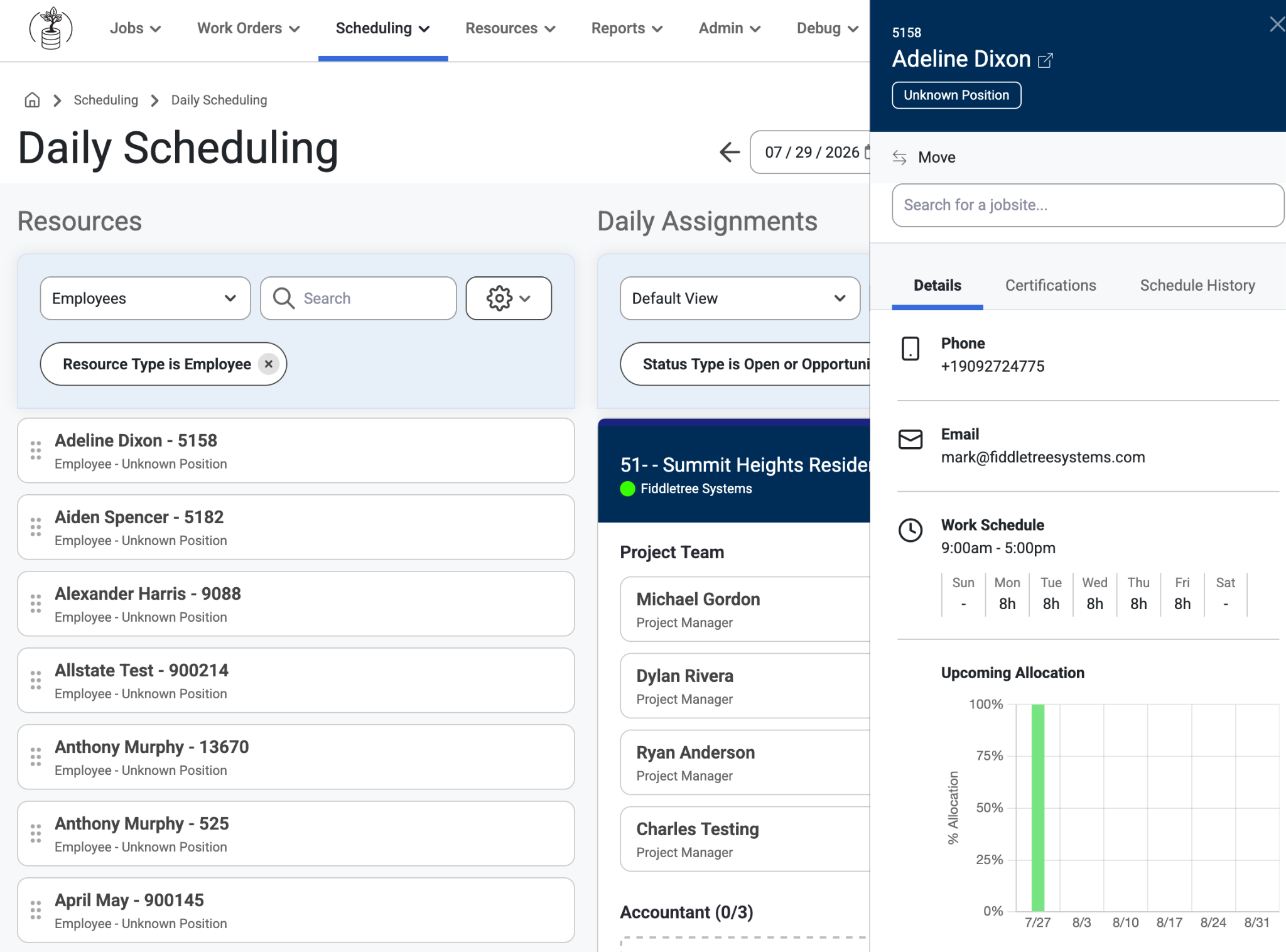
An option to auto-lock the previous daily scheduling after 12am has been added to the Dispatch Board settings. Read more about the Dispatch Board here: Dispatch Board or, Read about Dispatch Board Settings, here: Dispatch Board Admin Settings
Users can right click to open a new tab with the Employee Slide Out Links.
Option to Unassign
Option in View Settings to add a sort under filter option and allows users to save customized views
Resource List
Only Jobs, Employees, Crews, and Equipment that are properly configured will appear on the Daily Scheduling page.
Jobs
On the Job detail page, the Enable For Daily Scheduling option will need to be enabled
Employees
The Position assigned to the employee must have a Scheduling Type set to:
Use for Short-Term Daily Scheduling
or Use for Both Long-Term and Short-Term Assignments
Crews
The Crew Type assigned to the crew must have a Scheduling Type set to:
Use for Short-Term Daily Scheduling
or Use for Both Long-Term and Short-Term Assignments
Equipment (Assets)
The Asset Category must have a Scheduling Type set to:
Use for Short-Term Daily Scheduling
or Use for Both Long-Term and Short-Term Assignments
Job Cards
Each Job Card contains the following sections:
Project Team
Displays employees assigned through long-term scheduling with a Position where the Job Role = PM.
General
A flexible section where users can drag and drop any employee into the job—regardless of labor type. This allows admins to assign anyone into a section without a scheduled forecast.
Labor Type Specific
Only allows Employees and Crews with a matching Labor Type to be assigned.
If Labor Projections exist, the projected worker count will display in this section.
If Labor Ratios are set up for the labor type, users will see a comparison of:
Projected Labor Ratio
Actual Labor Ratio
Note: Equipment (Assets) do not have a Labor Type and can be assigned to any labor type section.
Sending Schedule Updates
Note: Before notifying employees of schedule updates, they need to first consent to SMS messaging. This can be done through Jobs or Scheduling.
Jobs>Jobs List>Job Detail>Assignments>Send
Scheduling>Assignments>Send
After dragging and dropping some Employees onto a Job to create a short term assignment, you can use the "Send" button at the top of the page.
This will open the "Notify Employees of Schedule Updates" window. This provides the option of notifying employees of schedule updates.
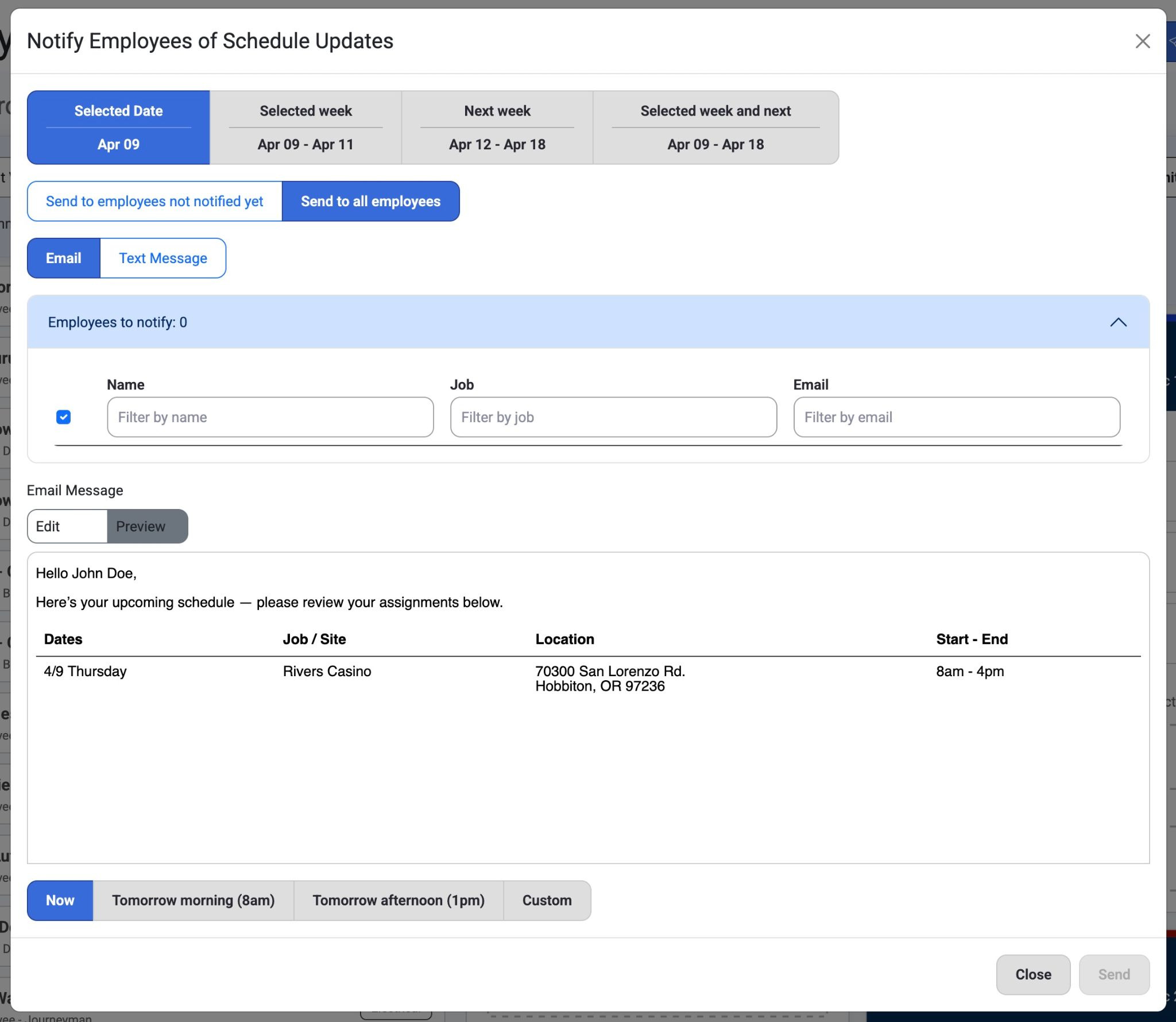
3. The following options include:
Selected Date
Selected Week
Next Week
Selected week and next
Send to employees not notified yet OR send to all employees
Email OR Text Message
Note: The preview option condenses an email format to a simpler preview.
Sending Options
Now
Tomorrow morning (8am)
Tomorrow afternoon (1pm)
Custom
4. Adjust message settings like time frames, recipients, and job and then select ‘Send.’
Recent Update: Copy Schedule modal now lets you select the Job End date as the Copy to End date
Note: For more insight on Short-Term Workflows for Daily Scheduling, please reference the article below and scroll down to ‘Daily Scheduling’:
Direct Link: Short-Term Workflows
Was this article helpful?
That’s Great!
Thank you for your feedback
Sorry! We couldn't be helpful
Thank you for your feedback
Feedback sent
We appreciate your effort and will try to fix the article