This page makes it easy to see all of the Cost Projections by Month and by Job. On this page, users can Bulk Initialize Cost Projections for any and all jobs they have access to for the entire organization. Clicking into any of these records will navigate to the Jobsite specific Projections page.Select 'Jobs" from the top navigation bar and select 'Global Projections.' Here, users will find a Site name grid with each Site Name various columns with information on each site.
Global Projections are a way for users to see what their projected values are, whether they be budgeted, actuals, differences or percentages. Each tab includes a grid of phase codes for the cost type.
Revenue
Labor Force
Staff
Equipment
Package Materials
Scroll to the right to view the column titles or click 'Next' to go to the next Job Site Name.
Month- the date the site was initiated
Assigned PM-for that site
Status
Sequence
Created Date
Created By
Original Contract Amount
Approved COs
Contract Amount
Original Amount
Estimated Amount
Change Order Cost
Projected Cost
Actual Amount
Projected Hours
Actual Hours
Projected Units
Current Gross Profit %
Projected Profit
Projected GP%
Projection Change
JTD Billings
Percent Complete
Previous Projected Amount
Gross Profit % of Cost
Previous Projected Hours
Previous Projected Units
Projected Amount Difference
Projected Hours Difference
Projected Units Difference
Projected Amount % Change
Projected Hours % Change
Projected Units % Change
Last Initialized Date
Simply click on any Site name for a detailed and consolidated view of all those columns. Search by Tab.

Summary
Under the ‘Summary’ tab users can view a grid of Headers and Costs with their associated metrics and totals. Scroll down to view a grid of Job Departments, Descriptions, and Submitting information.
Revenue
Under the ‘Revenue’ tab take a look at the:
Department Summary
Approved Change Orders
Orders, Descriptions, Approval Date, Amount, Department
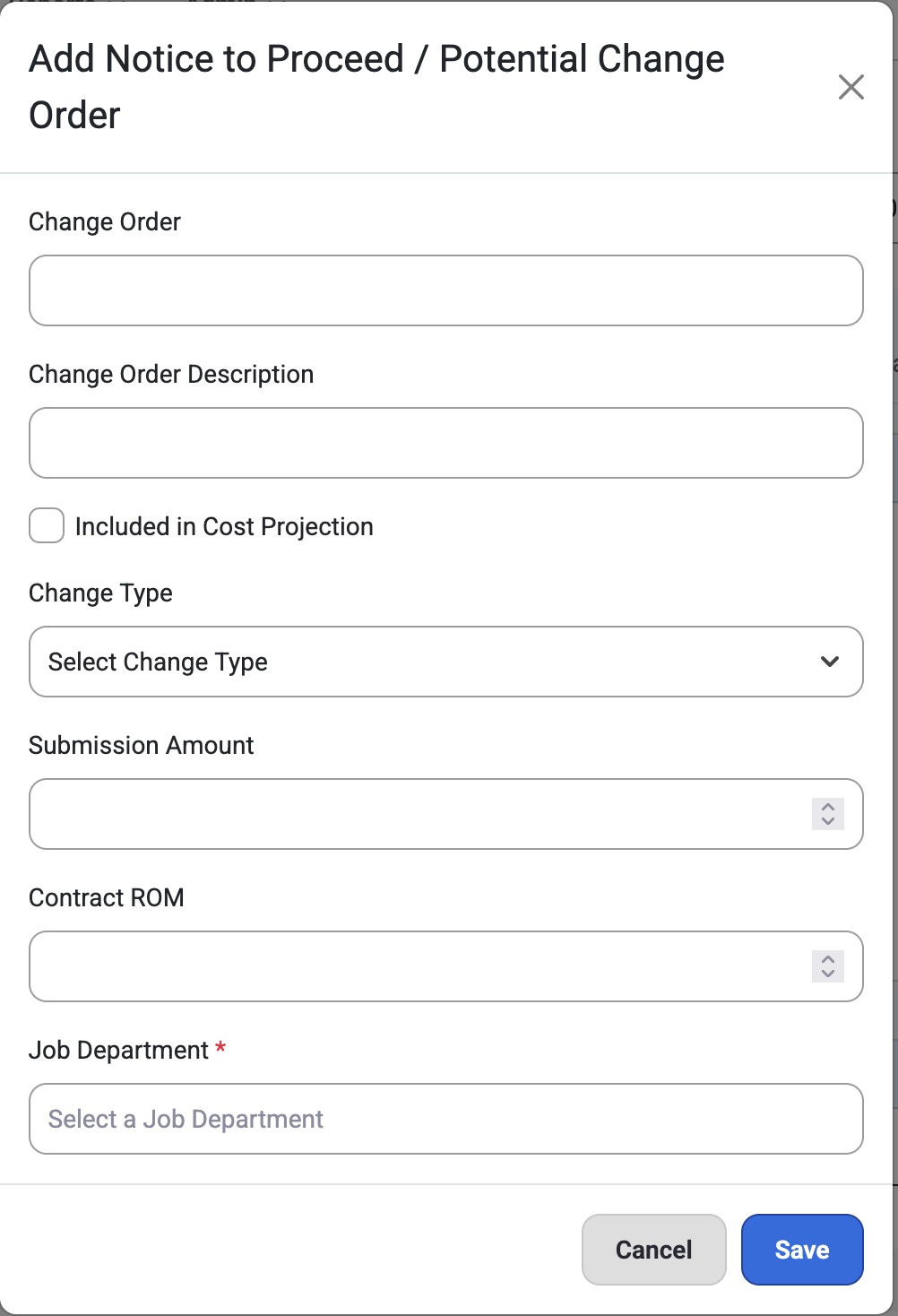
Notices to Proceed/Potential Change Order
Department, Change Order, Descriptions, Submission Amount, Contract ROM, Change Type, Check box to ‘Include In Projection.’
Users can select ‘Add New’
All Review
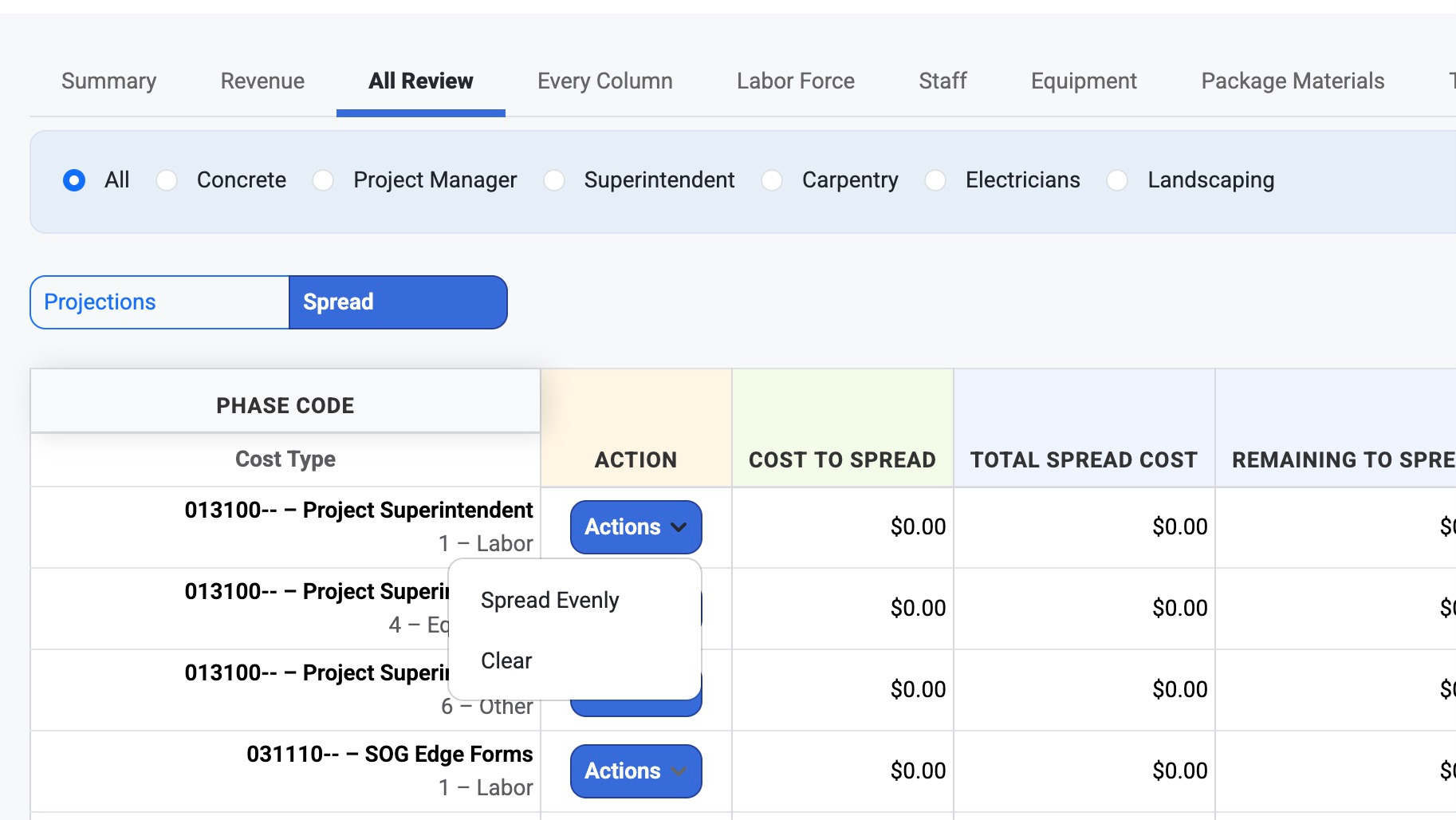
Under the ‘All Review’ tab users can see a customizable view of the Job Site projection.
Use the Search and Filter options to find Phase Codes. Select “Spread” to create an Action for each phase code.
Filter by:
Concrete
Project Manager
Superintendent
Carpentry
Electricians
Landscaping
Every Column
Select the 'Every Column' tab for a detailed informational view of the various column titles for each Job Site. The JC Department row will stay locked in place. By scrolling to the right, users can:
Manually input budget corrections by units, hours, or cost
Manually input Actual Corrections
Select a Method type (Budget, Actual, Override)
Over values will appear green. Under values will appear red.
Scroll to the bottom to see the Grand Totals.
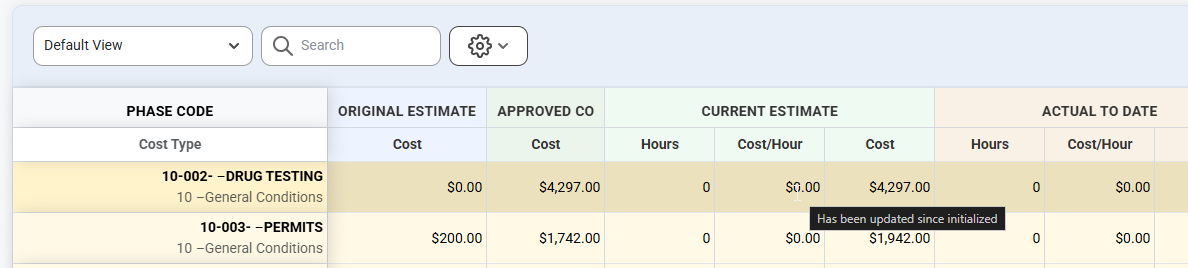
Note: Scroll to the right and hover above a value under 'Actual To Date' to view if it has been updated.
Labor Force
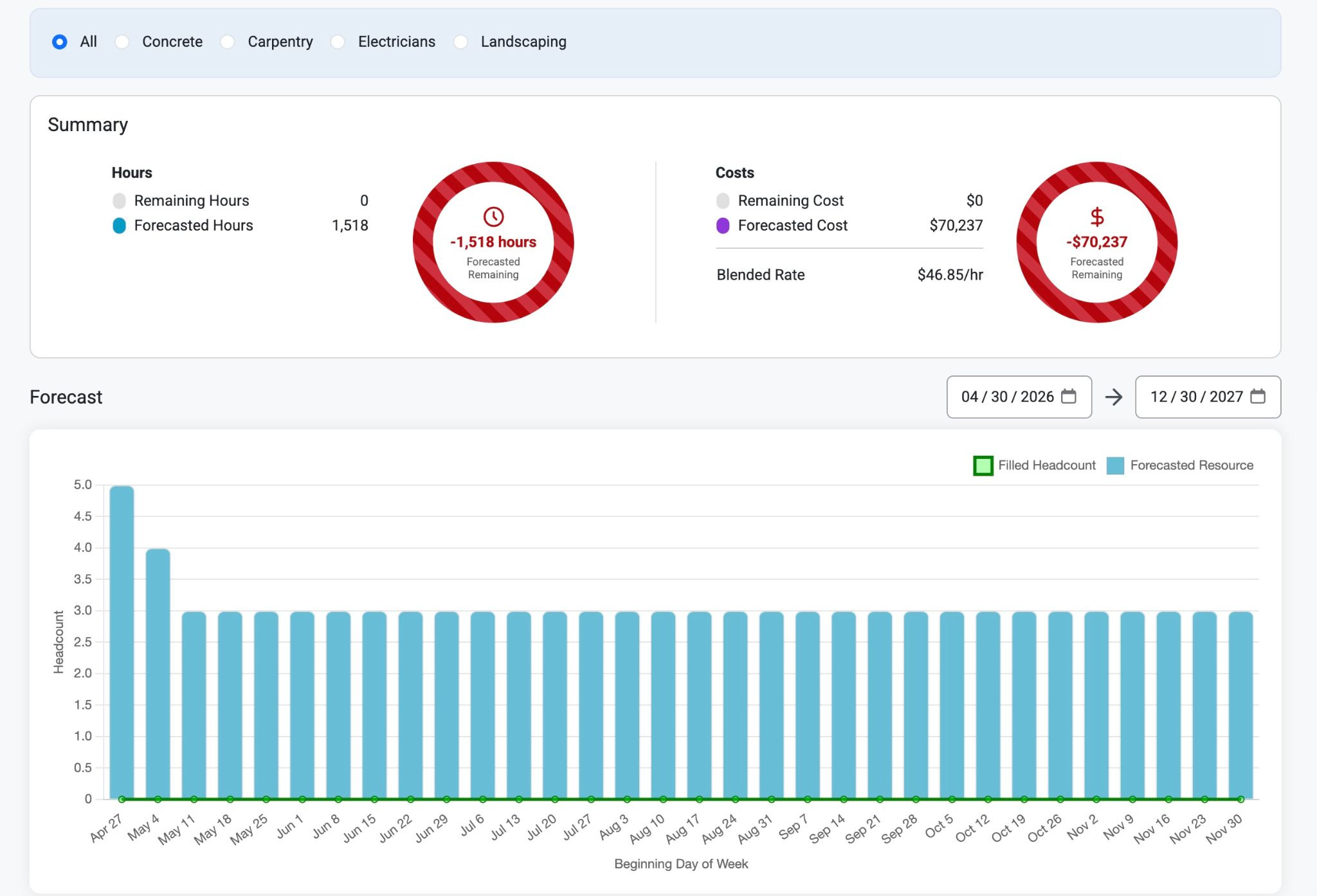
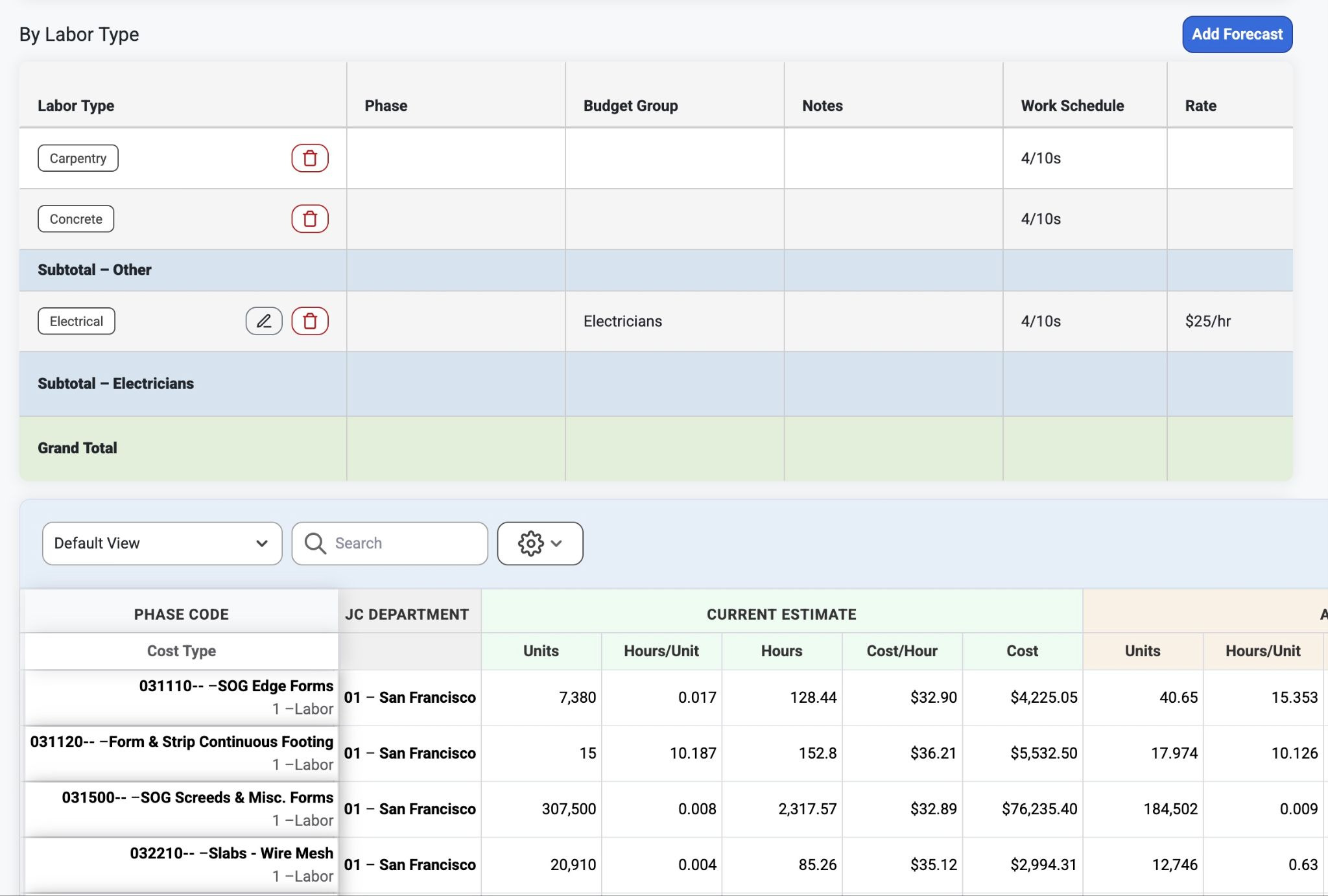
The ‘Labor Force’ tab shows a Summary and donut chart of remaining and forecasted Hours and Costs. The Forecast graph shows Headcount and beginning day of work week. Users can search by Labor type or Add Forecast. Users can also filter by concrete, carpentry, electricians, or landscaping. Scroll to the bottom to see the Phase Codes for those Cost Types.
Staff
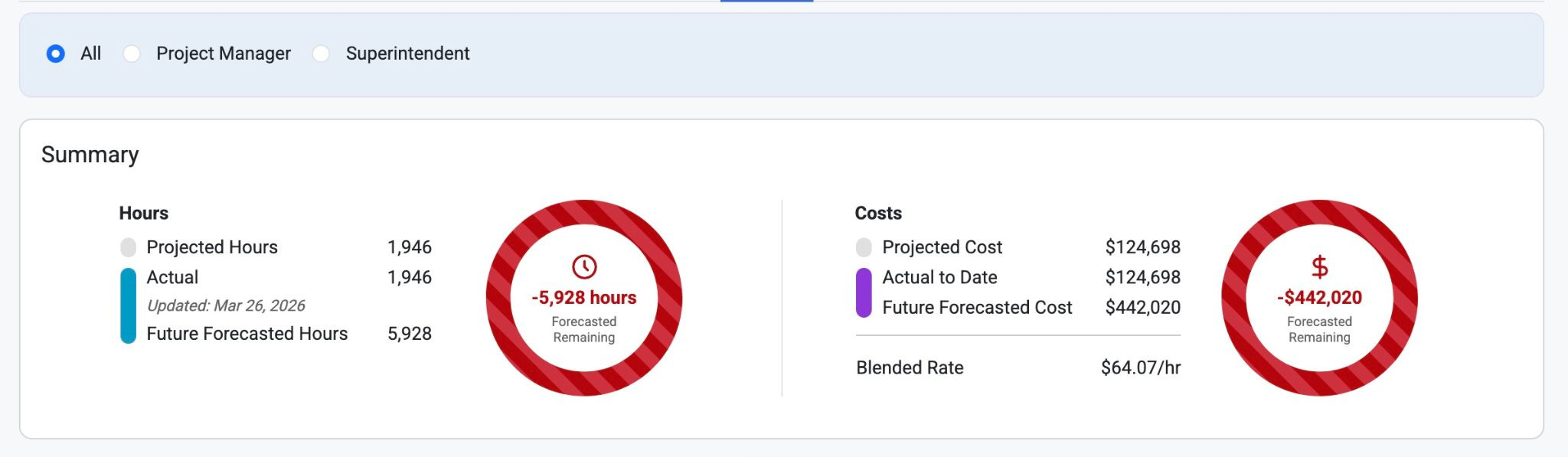
Under the ‘Staff’ tab users can view a Summary and donut chart of Projected, Actual and Future Forecasted Hours and Costs as well as a Blended Rate. Select Project Manager or Superintendent to see those projected summaries.
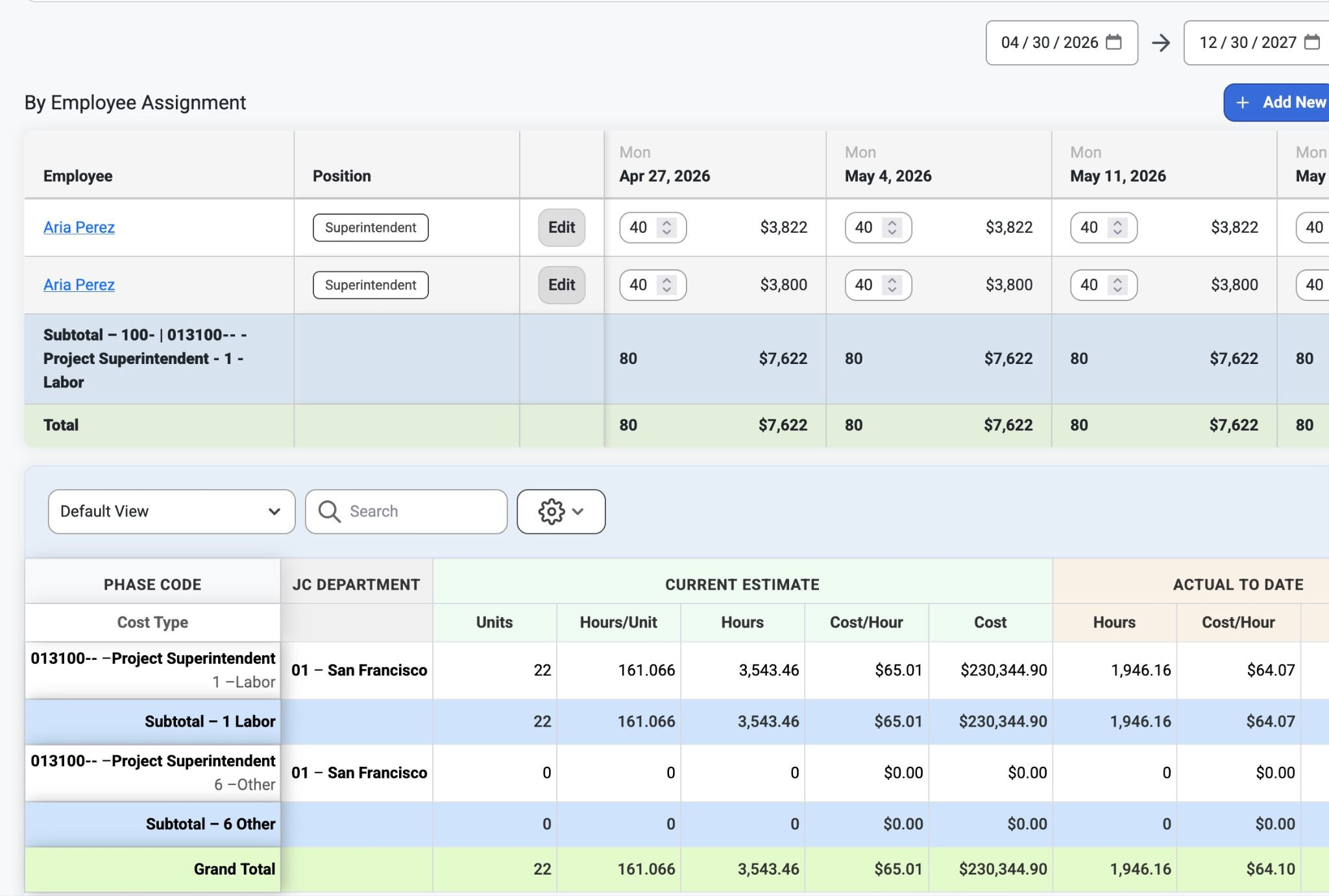
In the ‘By Employee Assignment’ grid, users can search employees for those projections by date. Users can also select ‘Add New’ to create a new employee assignment for that projection. Scroll to the bottom of the page to view the Phase Codes for the Cost Types.
Equipment
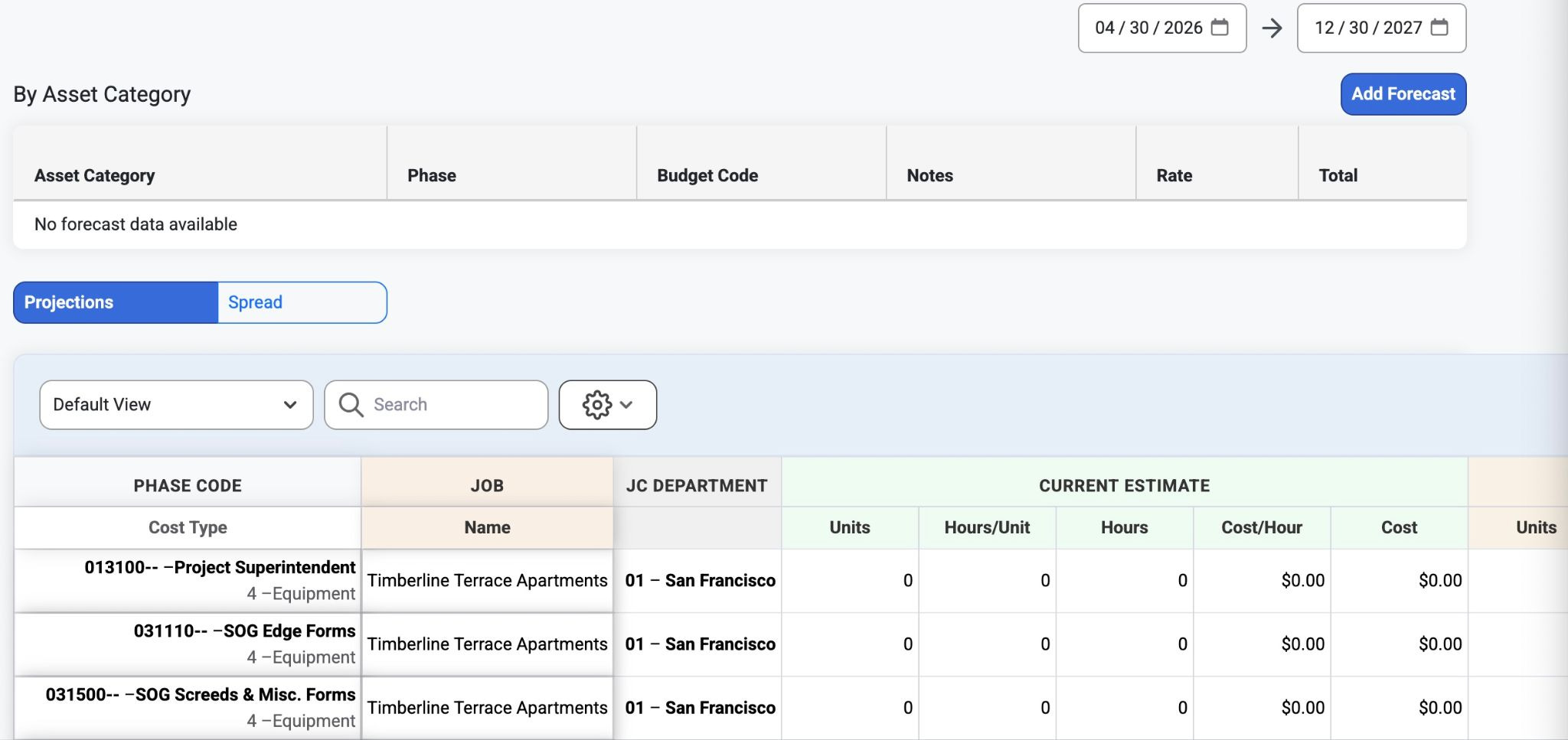
Under the ‘Equipment’ tab users can view a grid ‘By Asset Category’ and the Phase codes for Cost Types. Select ‘Add Forecast’ to create an Asset Forecast. ShowPhase Codes by Projections or Spread.
Package Materials
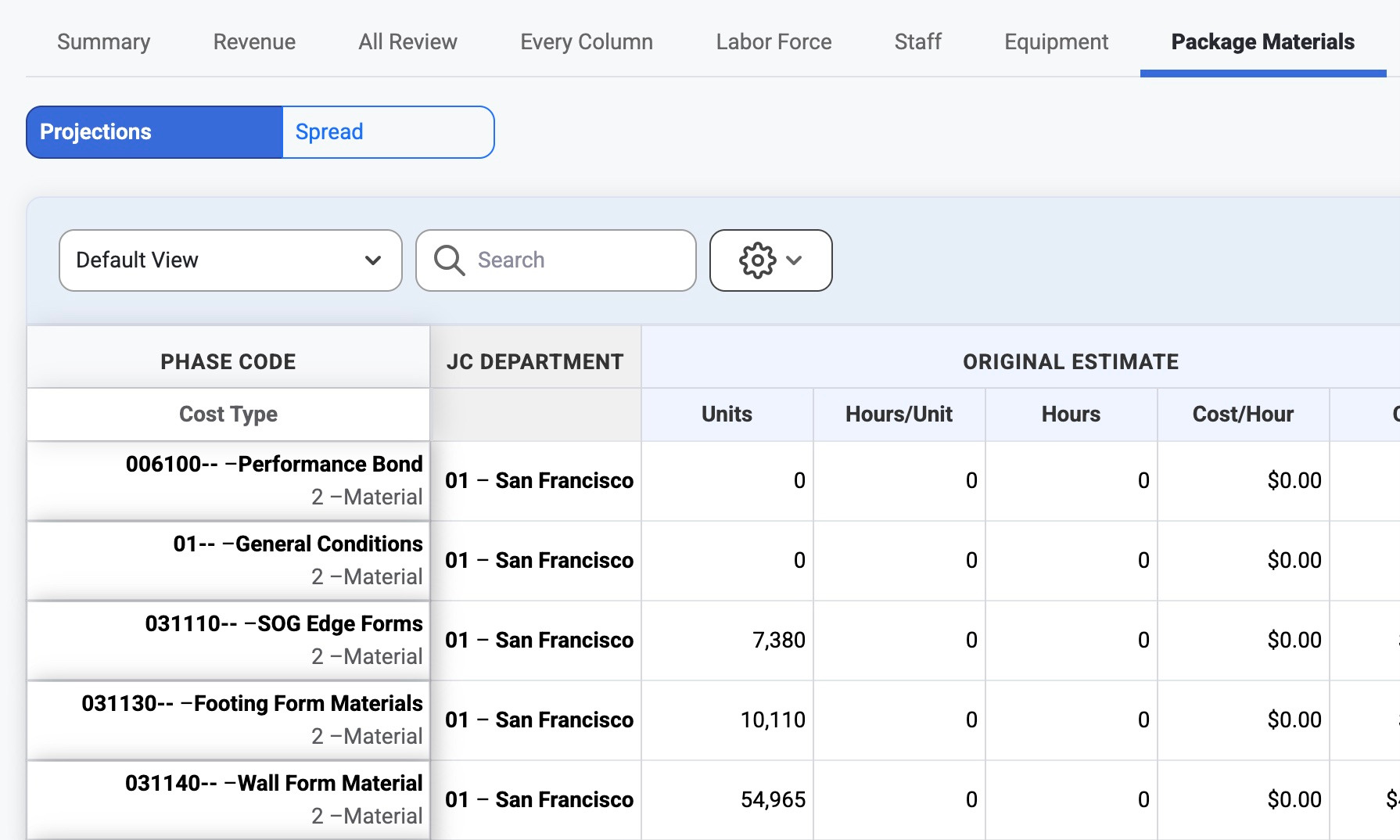
Under the ‘Package Materials’ tab users can see a grid of phase codes by projection or spread.
Manually adjust Budget Corrections
Select a Method Type (Actual, Budget, Override)
Scroll down to see Grand Totals
Was this article helpful?
That’s Great!
Thank you for your feedback
Sorry! We couldn't be helpful
Thank you for your feedback
Feedback sent
We appreciate your effort and will try to fix the article