In order to send an employee a schedule update notification to their phone number, the employee will need to consent to notifications first.
SMS Consent Options
There are two ways to request SMS consent from employees:
Send consent requests in bulk to multiple employees
Send a consent request to an individual employee
When sending bulk requests, the system will automatically only send to employees who have not yet opted-in or opted-out. Once an employee opts out of notifications, our system cannot send them any additional notifications to their phone.
Before You Send Requests
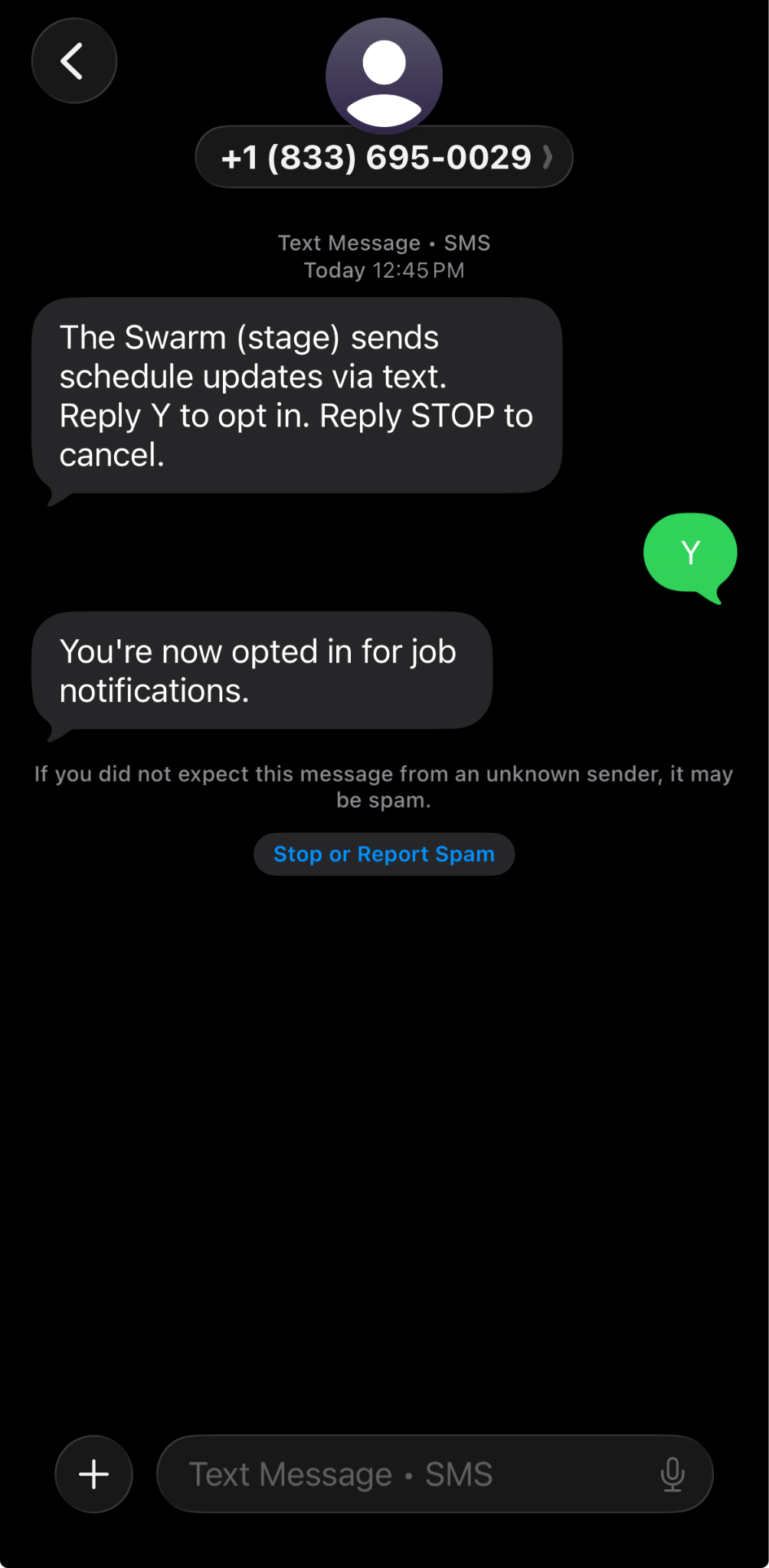
We recommend notifying employees in advance that they will receive a text message requesting consent. To opt in, employees must reply “Y” to the message.
Troubleshooting Responses
If an employee accidentally deletes the message, they can reply “Y” to the original number to complete consent or an administrator can resend the consent request.
If an employee replies “STOP”, they will be opted out and must send the Resource Planning notification phone number “Y” again to opt-in. This number is +1(833)694-1880.
Note: If there are issues with employees opting out, users can use the filters on the Employee Grid to find the Employees that have opted out so they can call them and have them opt-in.
To send out SMS Consent to Multiple Employees at Once:
From ‘Resources’ on the top navigation bar, select ‘Employees’ from the drop-down menu. Users can see an Employee grid showing all employees.
Users can use filters on the Employee Grid page to limit who the Bulk consent SMS will go to.
Select “Send Opt-In Texts”
Confirm Opt-In for all listed Employees to receive texts by clicking "Confirm"
To Send out SMS Consent to Individual Employees
From ‘Resources’ on the top navigation bar, select ‘Employees.’
Click on any employee from the grid. This will navigate users to ‘Employee Detail.’
Select the blue icon ‘Send opt-in text.’ This will be sent automatically. If the button is gray, that means this person has already been notified.
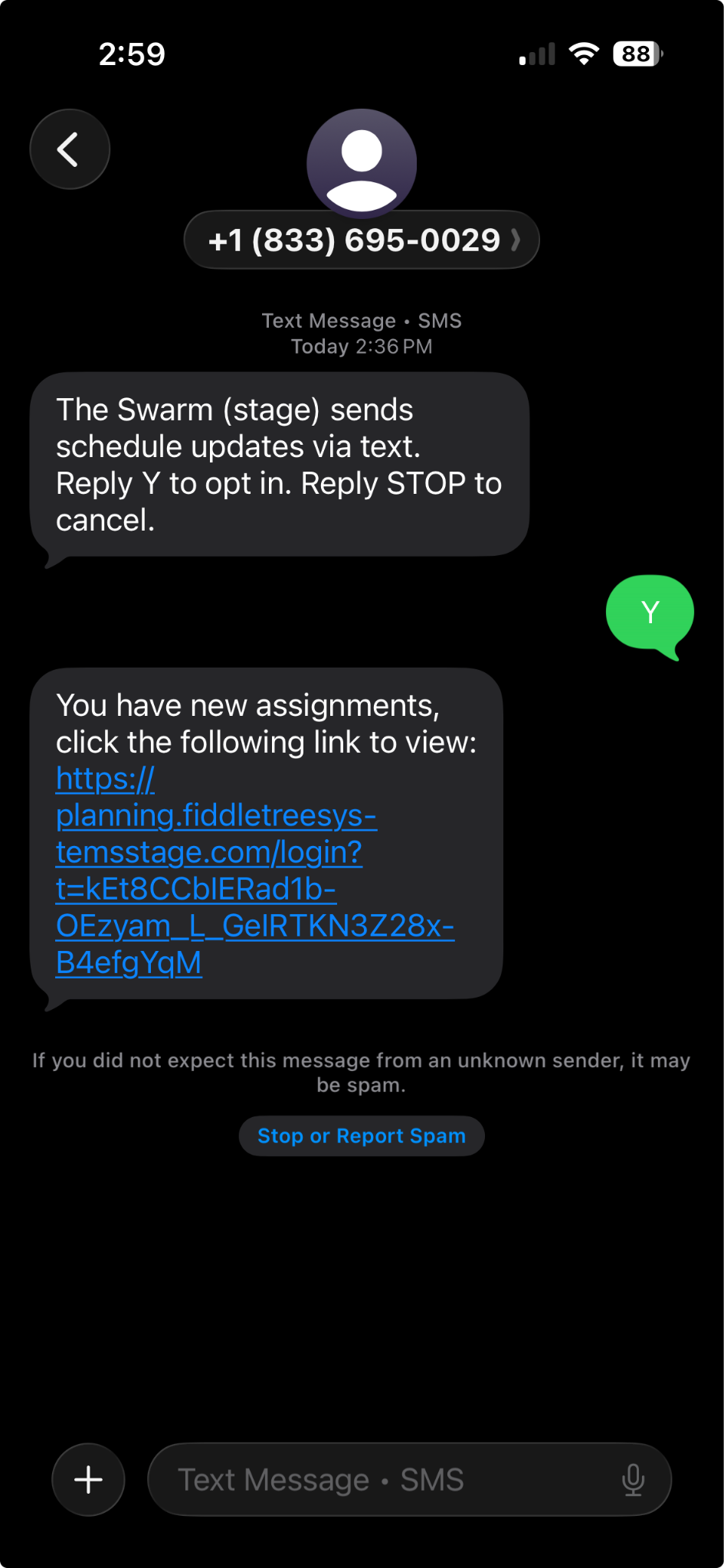
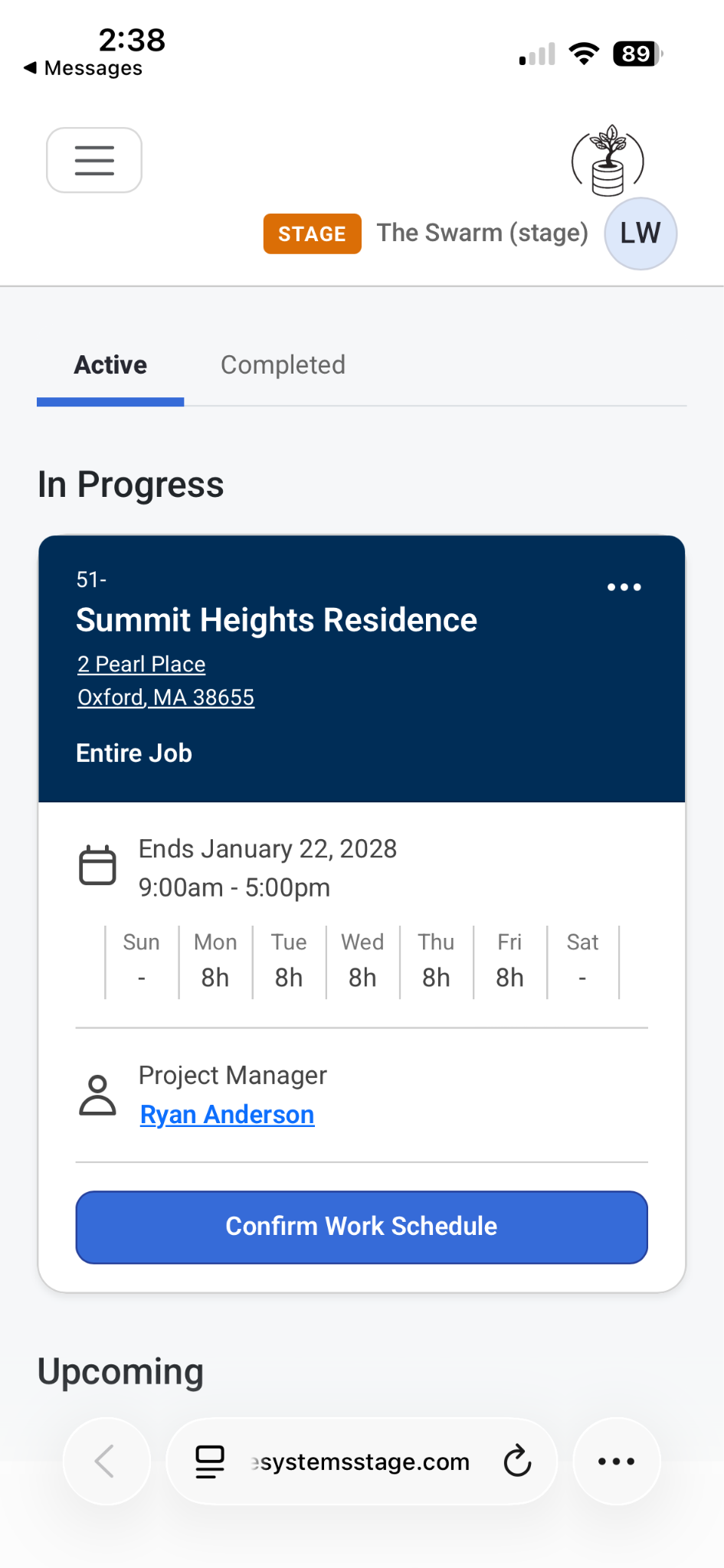
Example of a Received Opt-In Text for Job and Schedule Updates:
You can reply STOP any time to unsubscribe.
Note: Additionally, a user can locate the exact day an employee opted in or out of SMS messaging by scrolling to the bottom of the ‘Employee Details.’

For more information on Adding Users, Permissions, Notifications, and Rule Groups, visit this article: Organization
Was this article helpful?
That’s Great!
Thank you for your feedback
Sorry! We couldn't be helpful
Thank you for your feedback
Feedback sent
We appreciate your effort and will try to fix the article