Where to Create Certifications?
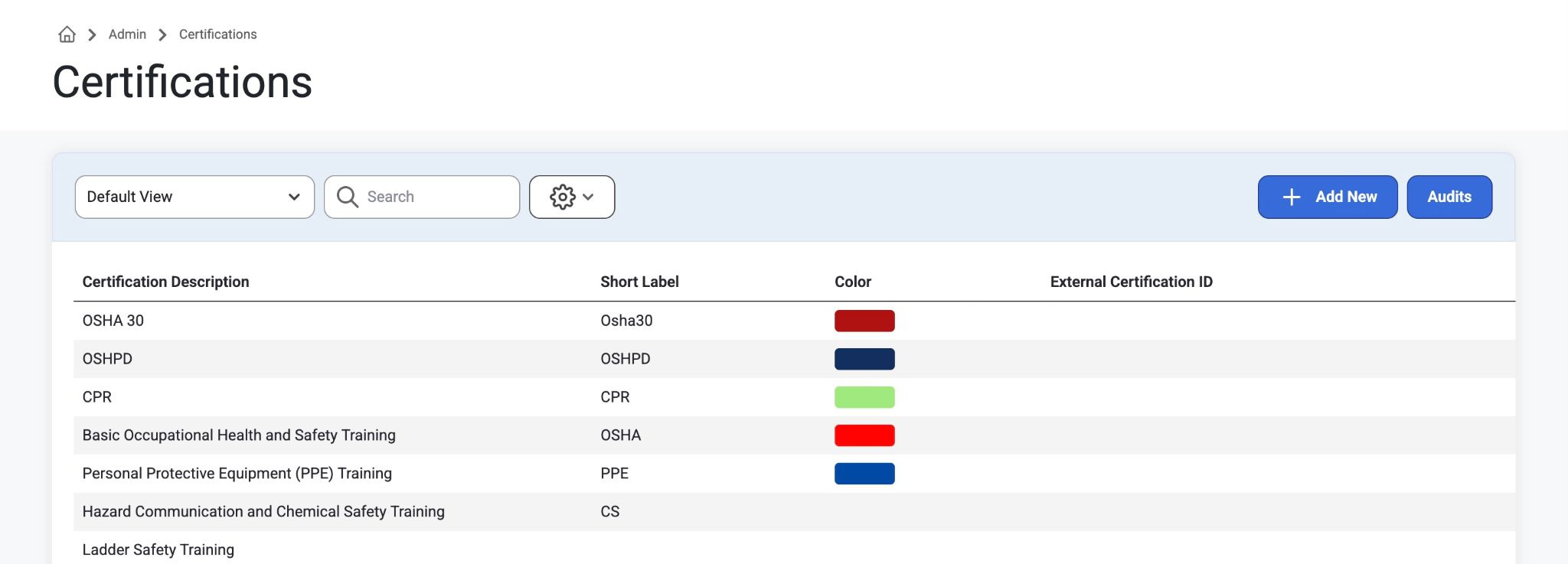
Certifications can be created in Admin >Employee Setup> Certifications or imported from another system
Select ‘Add New’ to create a new certification.
Adding Certifications to a Job:
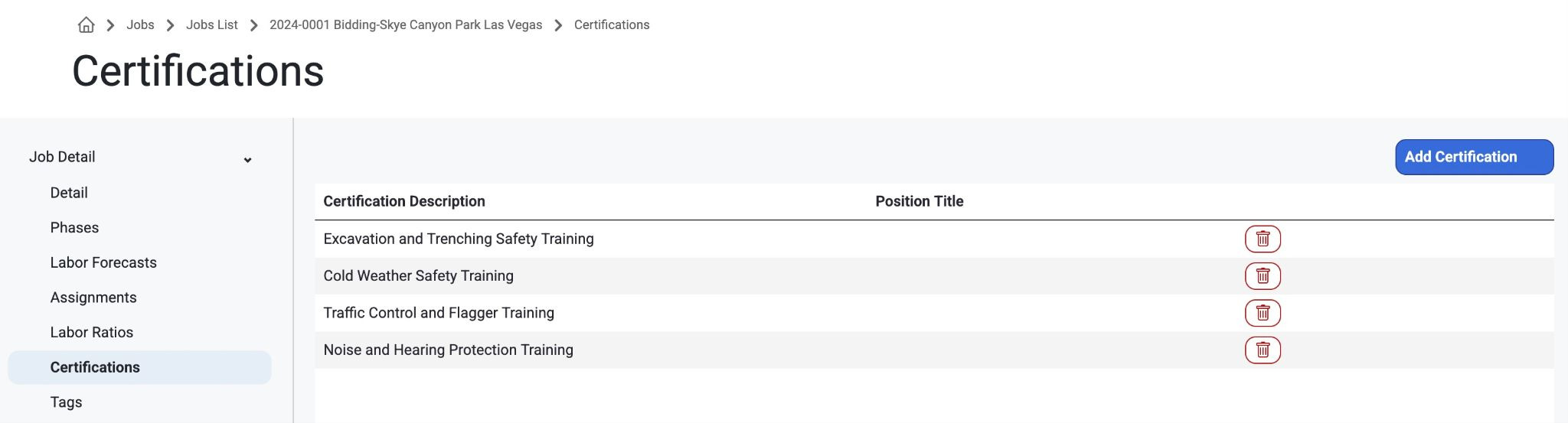
Within a Job, go to the Certifications page.
View all Certifications for this Job.
With the "Add Certification" button, add a Certification to the Job.
In the Add Certification modal, select which certifications you would like employees assigned to this job to have. The Position is only required if this certification is position specific.
For example, you may want your Project Managers to have additional training certifications that your field employees assigned to the same job.
Where are Certifications Used?
Job Certifications will be used when Dispatcher users are using the Assignment > Find button to find the best resource for the request.
In the Resource Recommendations modal, the Certs column will show the user each employee and how many of the Job certifications they have. Employees that are missing the Job Certifications can still be assigned to a request.
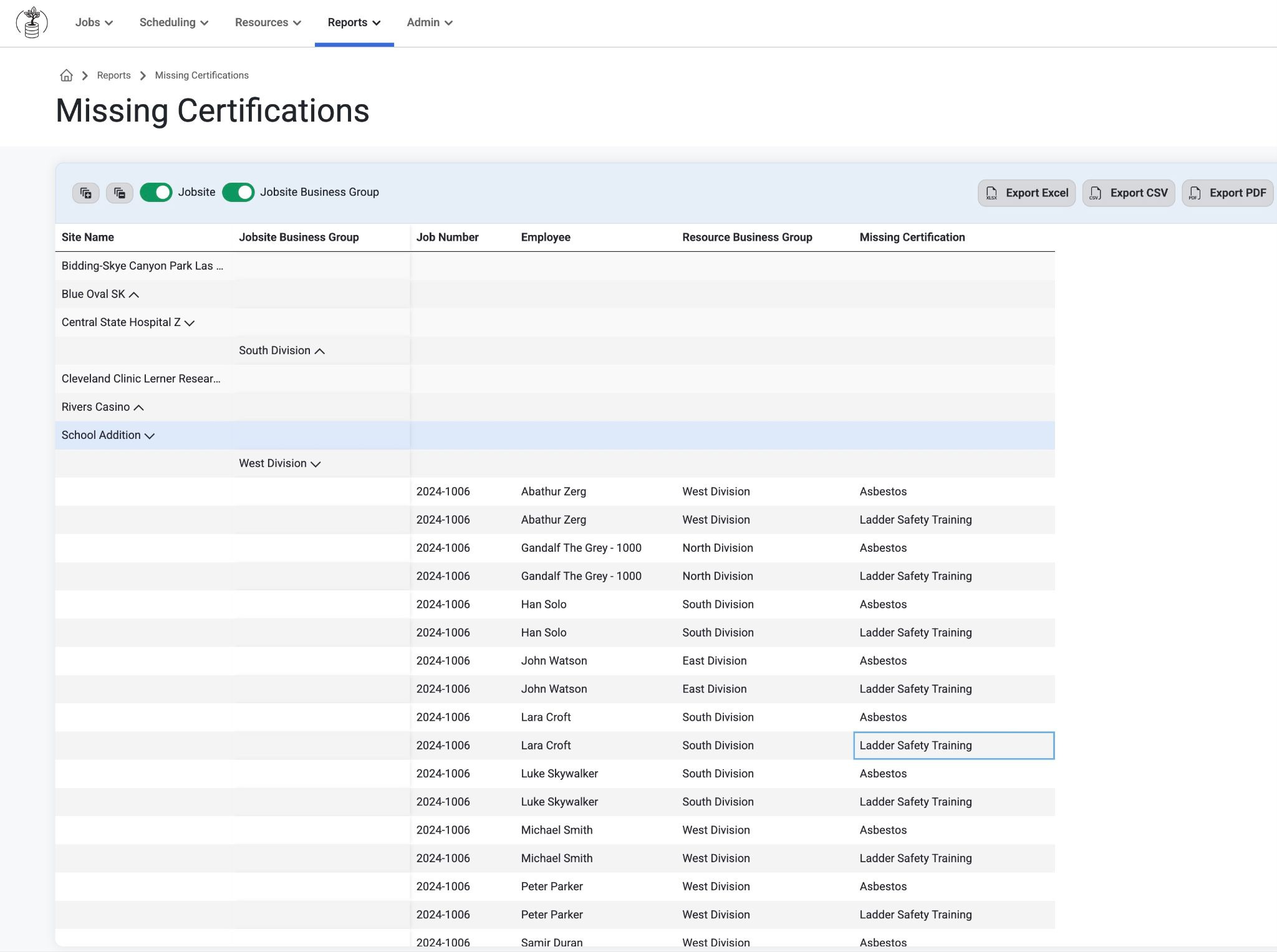
The Reports > Missing Certifications report will show all of the employees that have been assigned to a Job with required certifications they are missing and which certifications they need.
Was this article helpful?
That’s Great!
Thank you for your feedback
Sorry! We couldn't be helpful
Thank you for your feedback
Feedback sent
We appreciate your effort and will try to fix the article