Projection Setup
The Cost Projection Setup is highly customizable and located in Admin Settings. Cost Types and Job Departments data are imported from accounting systems (Vista, Spectrum, etc) and stored. The settings created here will transfer over to Jobsite>Projections. To access this setup, navigate to ‘Admin’ on the top navigation bar and select ‘Projection Setup’ from the drop-down menu.
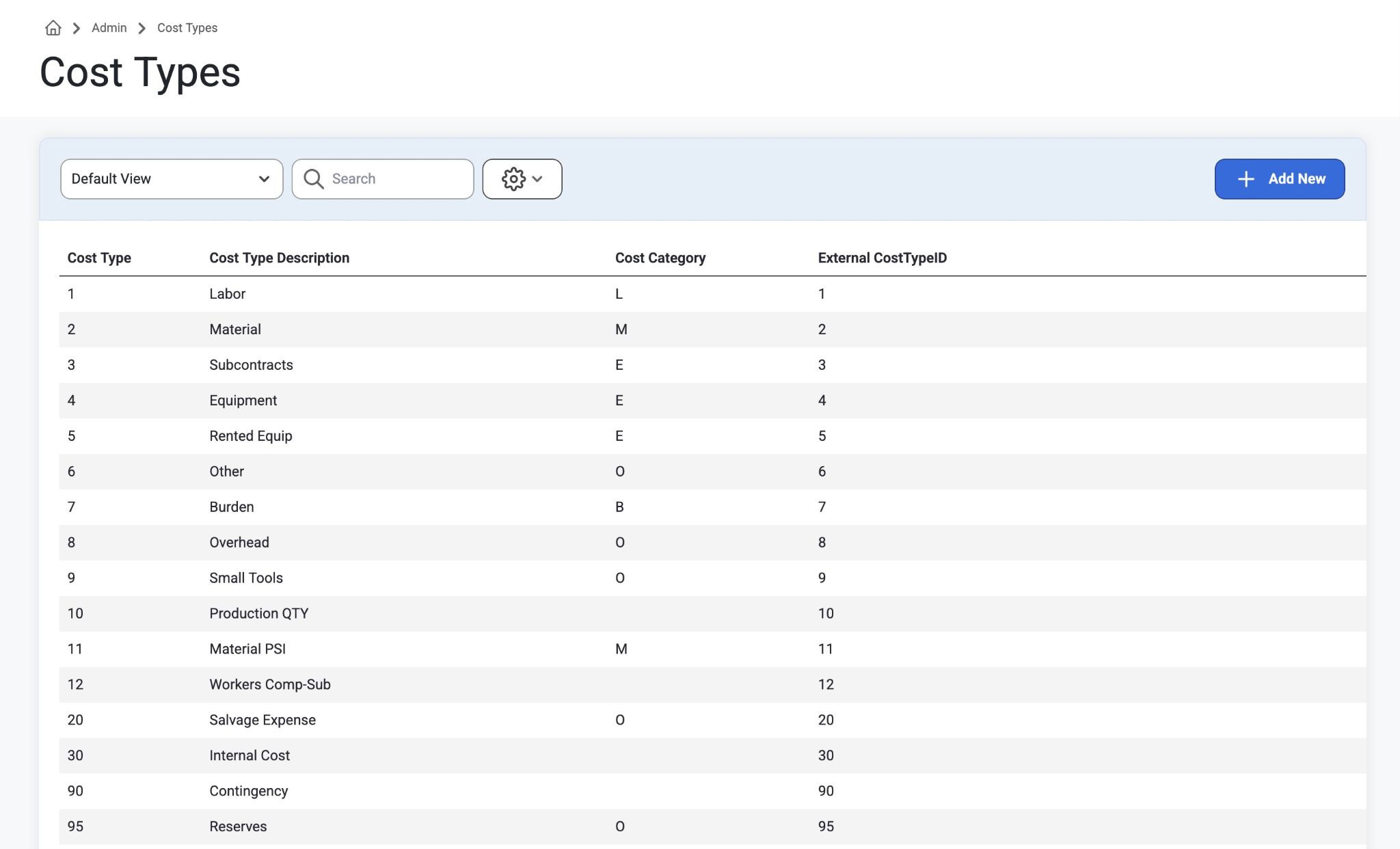
Cost Types:
Purpose: Cost Types are listed with their Cost Type Description, Cost Category, and External CostTypeID. This is used to track costs and information in their related fields.
How to: Select any row to view details on that particular cost or click “Add New” to create a new Cost Type.
Job Departments:
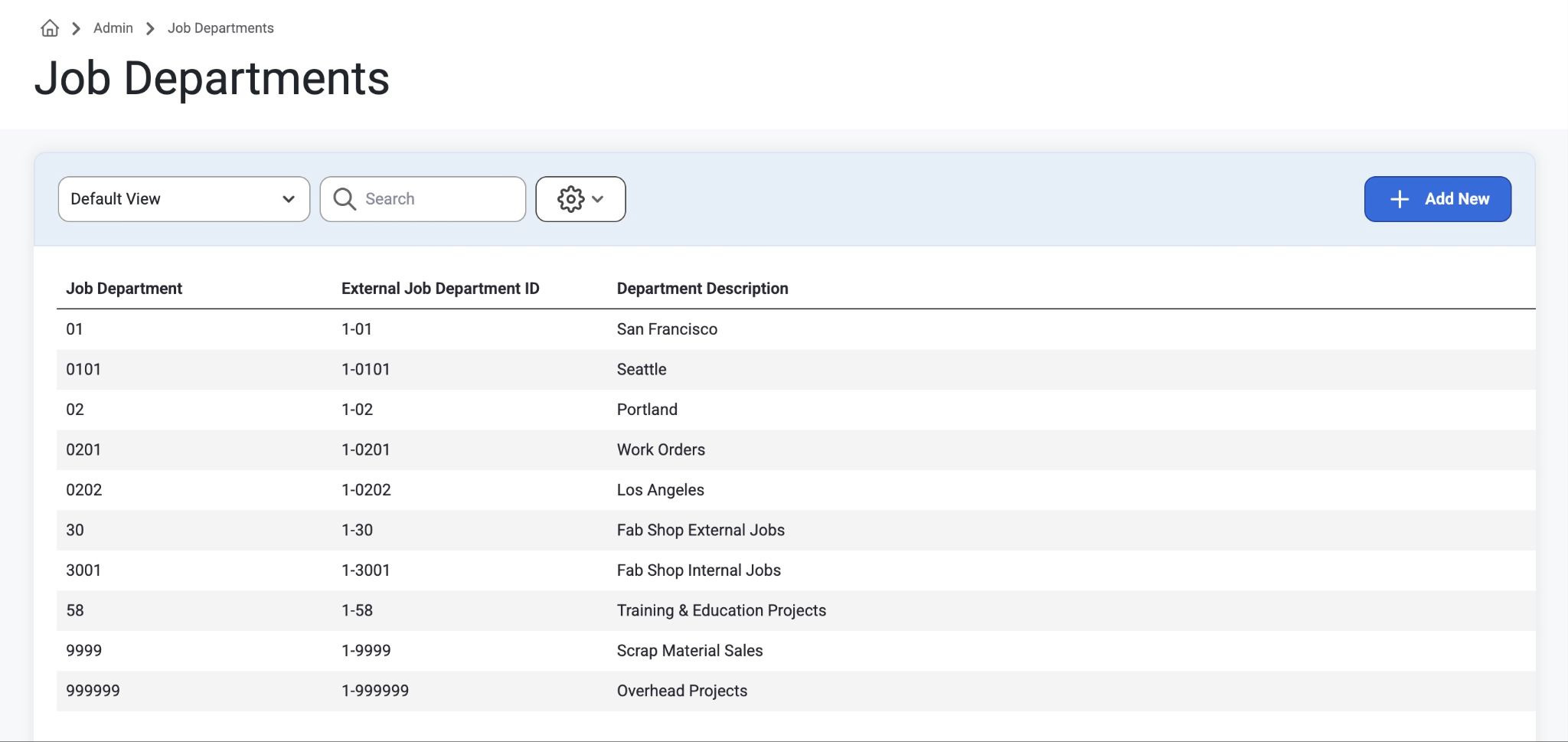
Purpose: Job Departments are listed with related External Job ID and Department Description. This allows users to easily locate specific job department details
How to: Click “Add New” to create a new Job Department or search rows with provided filters and search bar.
Projection Categories:
Purpose:
This is where customization is key. Projection Categories allow high-level users to create tabs on the Jobsite > Cost Projections page for the purpose of splitting out the budget codes by Cost Types and customizing what is available to view on each tab.
Projection Categories show a clickable listed description of Projections to help users plan ahead. In the Projections Grid List, scroll to the right to view more columns:
Select ‘Add New’ to create a new projection
Select ‘Change Display Order’ to customize the view.
When all the descriptions have been created, selecting 'Change Order Display’ allows users to click and drag each one to preference. Once the Display Order is organized and saved, click into each Description for additional settings and customization.
Select ‘Copy’ to copy a category with a New Name.
A modal will allow users to select a category to copy from a drop-down menu
Type in the New Category Name and click, ‘Copy.”
The headers here are always being updated and are off by default. Available Headers are:
Customer Name
Contract or Job record
Total Projected Cost at Completion
Same as ECAC
Users can rename fields and drag them across sections.
Margin w/out COs
Pending COs
Gross Profit with COs
Gross Margin with COs
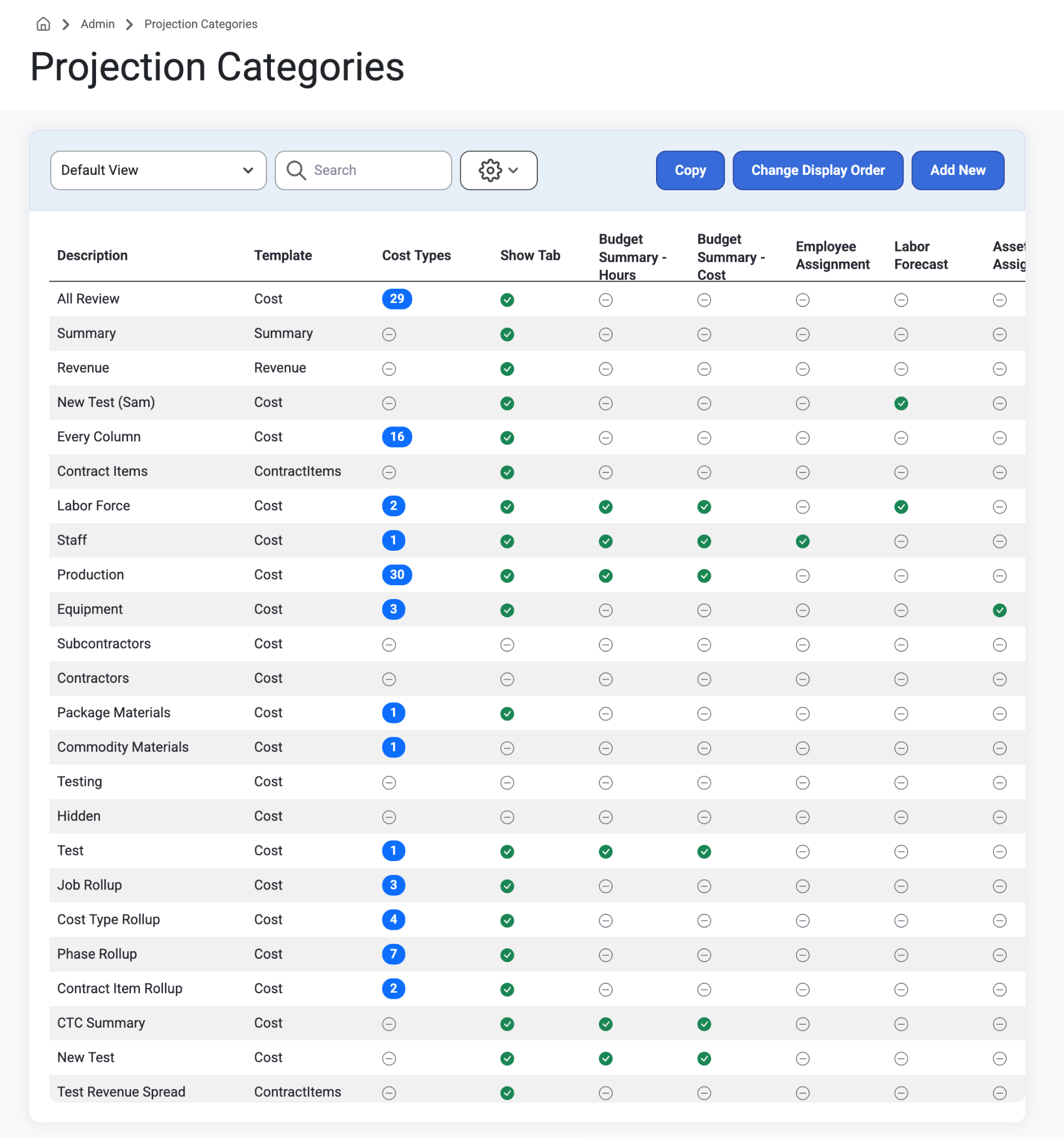
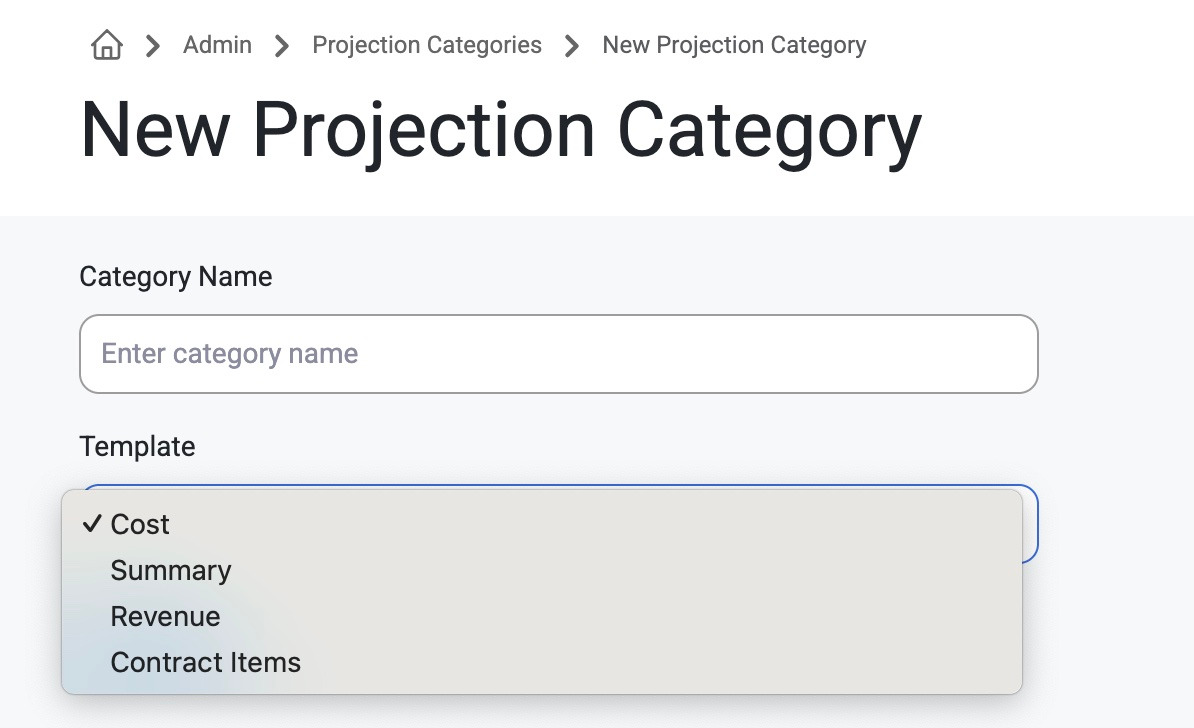
How to : Click any description to see a detailed view of that category’s settings. Depending on the category, users can Enable/Disable settings and customize templates. The templates control how the tab behaves on the cost projection page. For each Tab, select from the drop-down menu whether its Cost, Summary, Revenue or Contract Item. Cost is the standard configurable tab, while the others render special built-in views. All of these standard description names listed below can be customized to the admins preference.
How to Create a Projection Category: Select ‘Add New’ to create a new projection category and assign it to a Template from the drop-down menu (Cost, Summary, Revenue, Contract Items) and click ‘Create.’
Projection Tab Views and Template Setup
These tabs can be heavily customized by Tenant Admins. Each Projection Category tab will only show the Budget Codes with Cost Types tenants have linked to the Projection Category. This can also be customized within Projections itself by clicking the tooltip info icon by each tab name that can only be seen by Tenant Admins, as well as the Revenue Bulk Spread.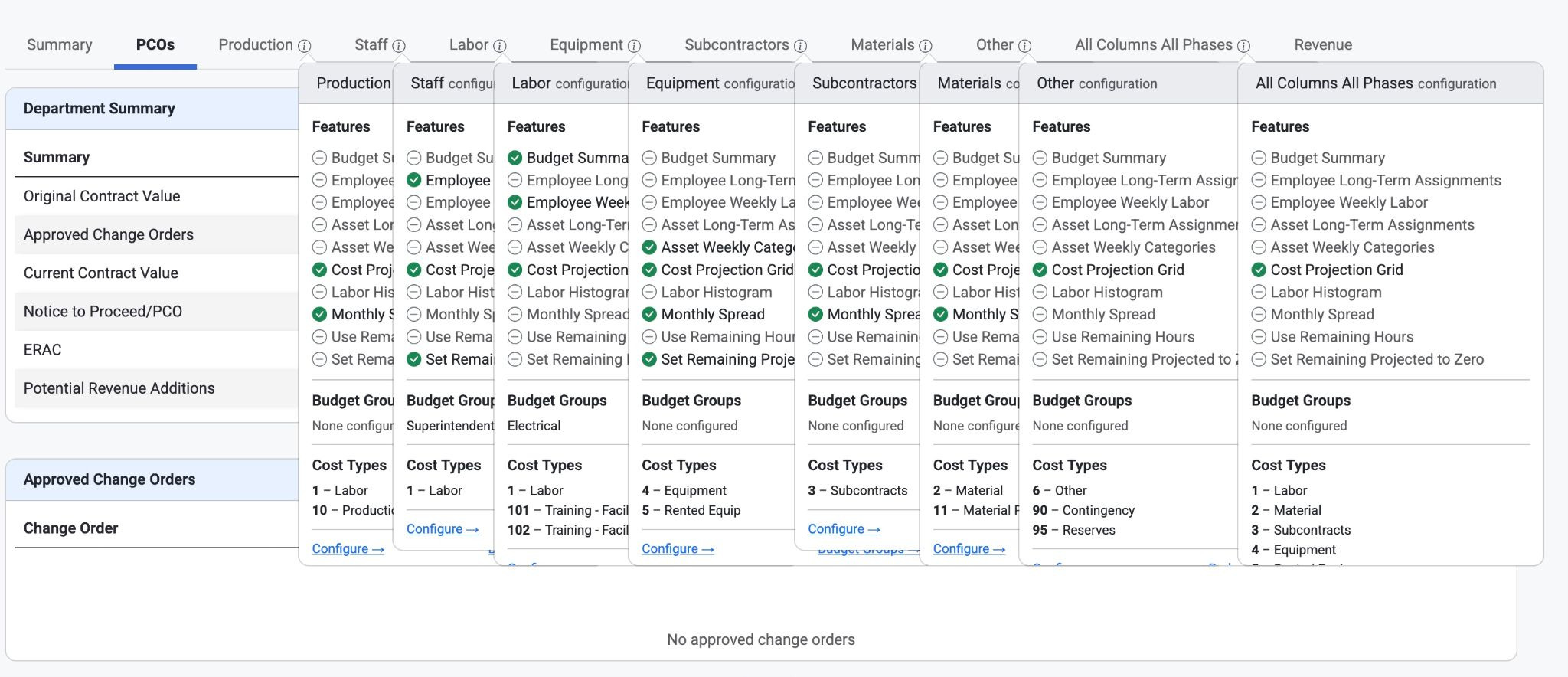
Template Settings
Cost
Settings
Here, Admins can Enable or Disable certain views of Projections:
General
Category Names
The display name for this projection category tab; type in.
Template
Controls how this tab behaves on the cost projection page.
Select from Drop-down menu. "Cost" is the standard configurable tab. "Summary", "Revenue", and "Contract Items" render special built-in views.
Show Tab
Show this projection category as a tab on the cost projection page.
Show Cost Projection
Include the cost projection grid on this tab.
Show Cost Spread
Allow users to spread projected costs monthly.
Show Revenue Spread
Allow users to spread projected revenue monthly by contract item.
This setting is Disabled by default. Tenant admins can Enable this via Projection Setup.
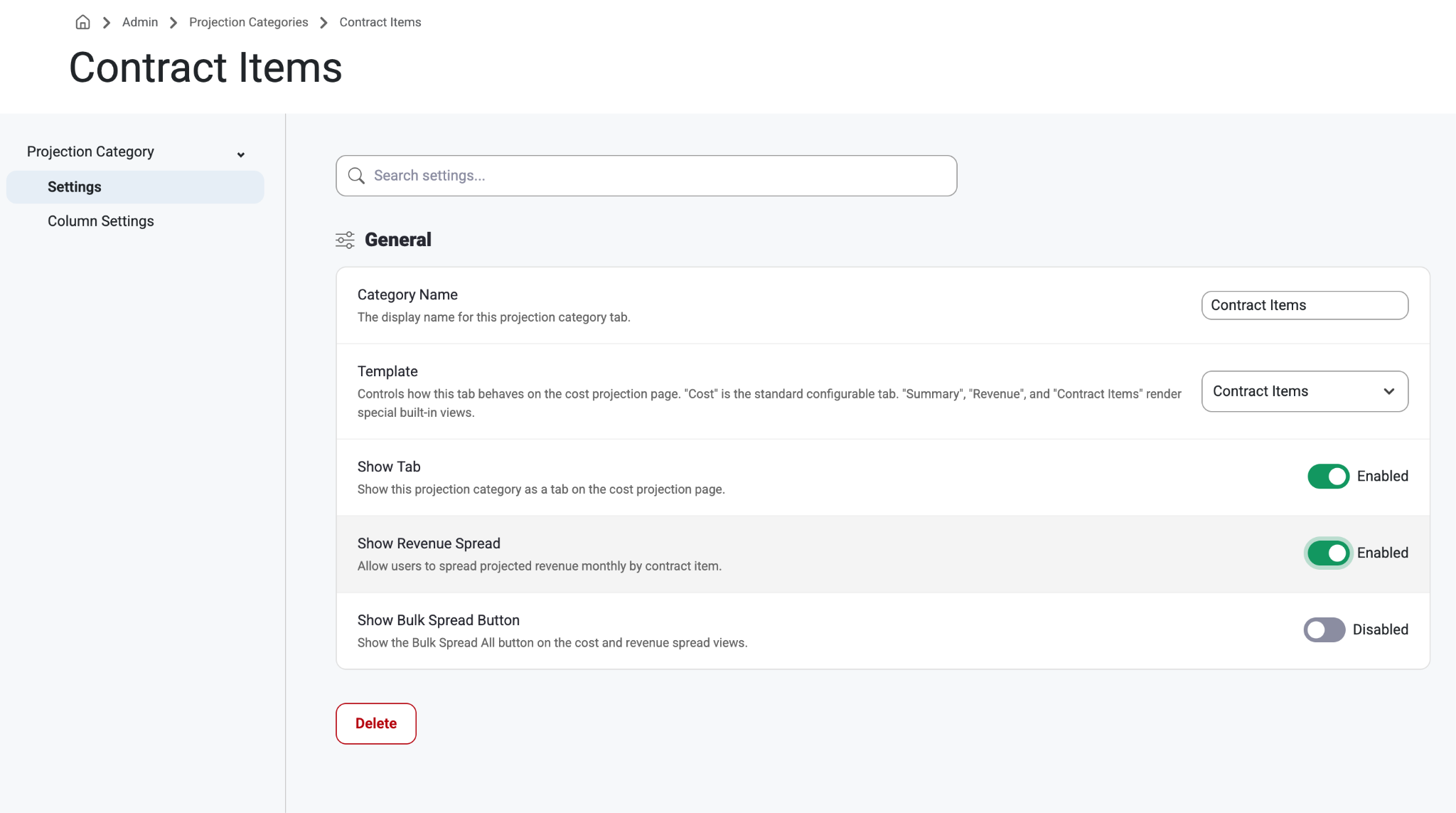
Show Bulk Spread Option
Show the Bulk Spread All button on the cost and revenue spread views.
Hide Subtotal Rows
Hide subtotal rows in the cost projection grid.
Set Remaining Projected to Zero
Set remaining projected values to 0 when there are no forecasts or assignments on budget codes.
When enabled, Employee Assignments and Asset Forecasts linked to Budget codes will auto populate the Cost Projection grid Total Projected Cost
If there are no Employee Assignments or Asset Forecasts linked to specific Budget Codes on this tab, set the Total Projected Cost in the Cost Projection grid to zero.
Allow Approver Corrections Override
When correction fields (Budget Corrections or Actual Corrections) are marked read-only, job department approvers and admins can still edit them.
Show Audit Column
Show the Audit (magnifying glass) column in the cost projection grid, allowing admins to view projection calculation details for each budget code.
Group Row Values By
How to group rows in the projection grid.
Select from drop-down menu:
Phase Cose/Cost Type
Phase Cose
Cost Type
Contract Item
Job
Budget Summary/Donut Views
Include Budget Summary-Hours
Show the hours donut budget summary section on this projection category.
Enable/Disable
Include Budget Summary-Cost
Show the cost donut budget summary section on this projection category.
Enable/Disable
Use Remaining Hours
Enable the remaining hours option in projections.
Enable/Disable
Remaining Hours/ Cost Label Override
Override the default label for the cost summary
Type in default
Future Forecasted Hours/ Cost Label Override
Override the default label for the future forecasted summary
Type in Default
Read more about this here: Budget Summary (Donut)
Forecast
Here, Admins can Enable/Disable the following Forecast views:
Include Employee Assignment
Show employee assignment data on this projection category.
Include Labor Forecast
Show labor forecast data on this projection category.
Include Asset Assignment
Show asset assignment data on this projection category.
Include Asset Forecast
Show asset forecast data on this projection category.
Include Labor Histogram
Show the labor histogram chart on this projection category.
Disabled by Default and must be Enabled to view.
Include Employee Assignment Subtotals
Show subtotal rows for employee assignments in forecast data.
Include Labor Forecast Subtotals
Show subtotal rows for labor forecasts in forecast data.
Include Asset Forecast Subtotals
Show subtotal rows for asset forecasts in forecast data.
Submit
Require Total Spread Cost to Equal Total Projected Cost
Enforce that the total spread cost matches the total projected cost before submission.
Enable/Disable
Require Actual + Future Forecasted < Total Projected
Block submission if the sum of Actual and Future Forecasted exceeds Total Projected.
Enable/Disable
Column Settings
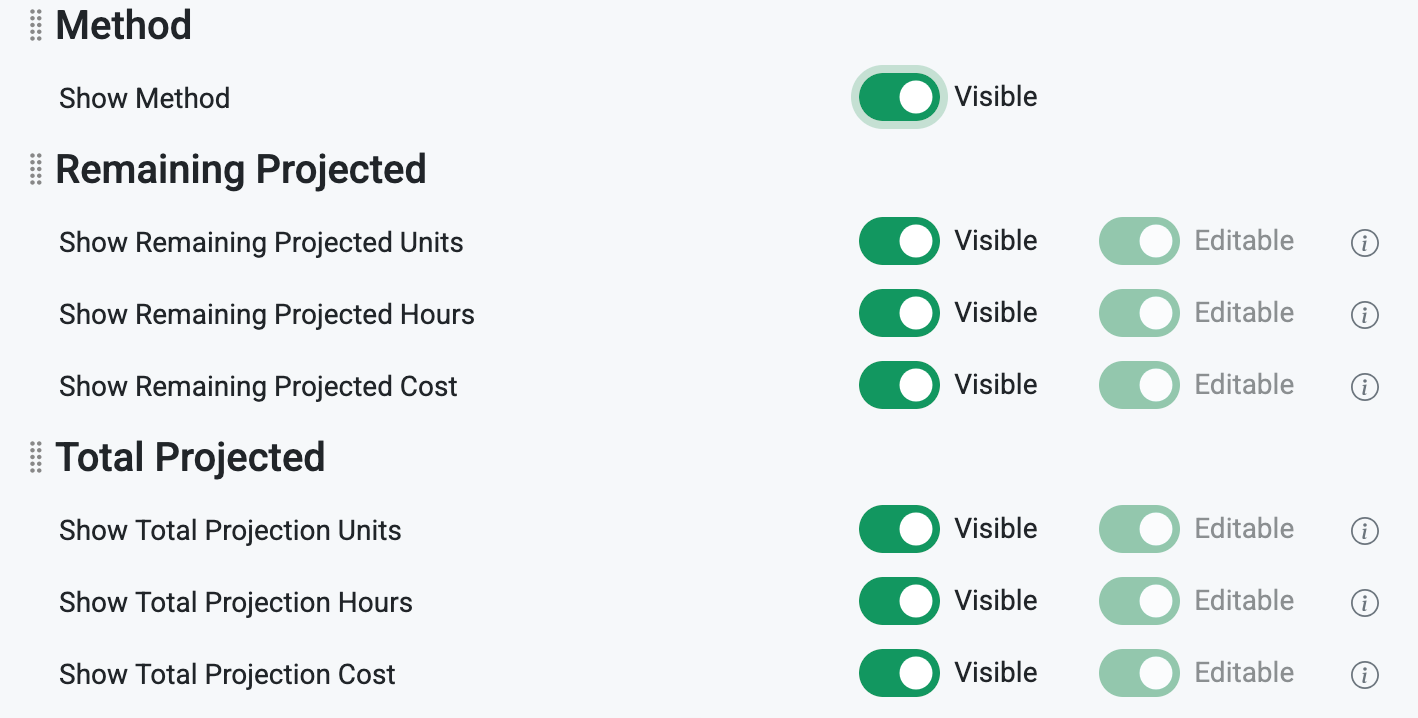
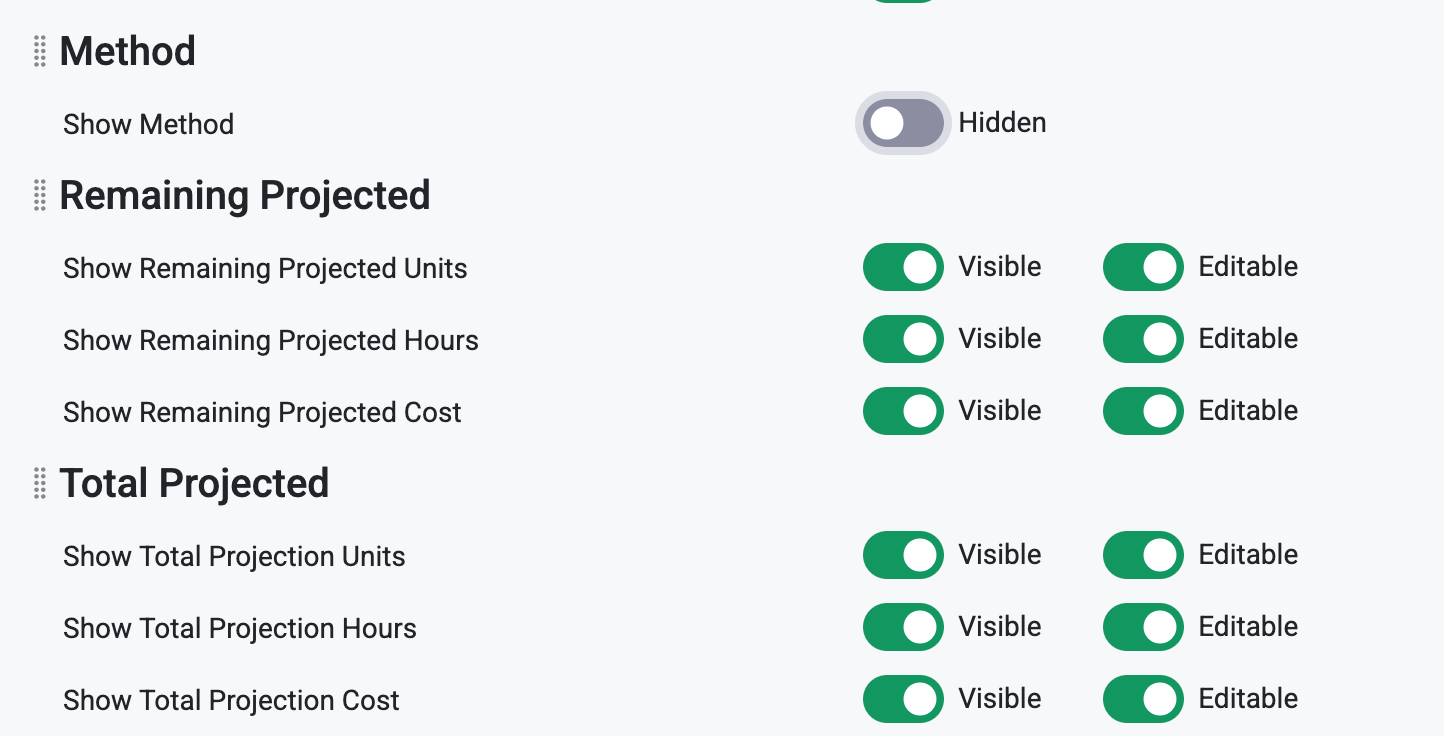
Here, Admins can control visibility and permissions to edit different column settings in Cost Projections.
Actual and Budget Correction columns are optional to enable or disable. If they are editable, they are not editable at the summary/rollup level.
Users can now type in amounts in Total Projected columns that are lower than the Actuals for things like credits. When this happens, a comment or note will be required. However, when the Method column is enabled, a user is unable to Edit the Total Projected amount. This setting can be configured here in Projection Setup by Admin Users.
Summary/KPIs
This page only shows up on cost and summary templates.
‘Include Budget Summary’ setting has 2 settings for Cost and Hours and both need to be Visible if using.
Summary Table
Department Approval Table
Read more about this here: Summary Tab
Cost Type
This page shows a grid list of Cost Type numbers and Cost Type descriptions.
Admins and Filter, Search, Add or Delete rows.
Budget Groups
This page shows Budget Group Descriptions.
Admins can Filter, Search, Add or Delete rows.
Summary/Revenue/Contract Item
Admins can customize, Enable/Disable views and visibility of Projections in:
General Settings
Category Name
Admins can type this in manually
Template
Controls how this tab behaves on the cost projection page. "Cost" is the standard configurable tab. "Summary", "Revenue", and "Contract Items" render special built-in views.
Select a template from the drop-down menu.
Show Tab
Enable or Disable to show this projection category as a tab on the cost projection page.
Show Revenue Spread
Enable or Disable to allow users to spread projected revenue monthly by contract item.
'Enable' to view a revenue spread table. 'Initialize' creates the table for each month per job. Changing the job end dates will impact the spread.
Show Bulk Spread Button
Enable or Disable to show the Bulk Spread All button on the cost and revenue spread views.
Or simply Delete the category
Summary/KPI’s (Summary and Cost Template only)
‘Include Budget Summary’ setting has 2 settings for Cost and Hours and both need to be Visible if using.
Summary Table
Department Approval Table
Read more about this here: Summary Tab
Column Settings
Here, Admins can control visibility of different columns in Cost Projections.
Contract/Item/Description
Contract Amount/Units
Billed Amount/Units
Previous Projected Amount/Units
Projected Amount/Units
Template Behaviors
Summary- If this Projection Category exists, it will show Cost Projection summary information and KPIs. Make a Projection Category with this name, assign it to a configurable tab, or enable/disable visibility.
Revenue- If this Projection Category exists, it will show:
A breakdown of Job revenue by the Job Department and a field to enter Potential Revenue Additions.
A list of approved change orders on the Job and their amounts.
A section at the bottom for Notices to Proceed / Potential Change Order
Users can add any records here that have not yet changed orders if they need to.
Any of these records can be included in the cost projections revenue/cost amounts by checking the ‘Include In Projection’ checkbox.
In the summary section where there are multiple JC Departments on the job, a total column will show.
Cost- The cost template includes the projected costs per category and can include description names like production, staff, labor, equipment, subcontractors, materials, etc..)
Users can change general settings, column settings, or names of cost types and budget groups.
Contract Items- This template will show Revenue Items from the contract and will not affect users at all until a new category with a Contract Items template is created.
Cost Projections Grid:
When the Hours column is hidden in a section, the Hours/Unit column will also be hidden.
In Full Grid Mode, there is an ‘Export to Excel’ button that exports all of the values shown. Only columns that are enabled will be shown.
Additional Notes for Users:
Within cost projections a modal can't be dismissed when the older and newer versions are out of sync. The system will check every 5 minutes and when a user navigates between tabs.
Upon submission there will be a "snapshot" taken of the data on the cost projection for historical reference.
When a projection has already been initialized for a selected date, more options will be available like:
Add New Data Only
Will only pull in new phase codes and cost types.
Only Update Actuals
Update only actual values, keep existing projections.
Override All Values
Replace all existing projection data with new values.
Only Tenant Admins and JC Department Admins can un-submit Cost Projections.
When deleting a projection category, a confirmation modal will appear to confirm.
The Projection category overlay will only show active Budget Groups.
Cost Projections Histogram charts must be enabled here if users want to see them in Jobsite>Labor Forecasts.
For more information on Projections visit this article: Projection Overview
Was this article helpful?
That’s Great!
Thank you for your feedback
Sorry! We couldn't be helpful
Thank you for your feedback
Feedback sent
We appreciate your effort and will try to fix the article