The Jobsite Projections page is where users can create or edit the monthly Cost Projections for a Job. Months that are already closed but exist in the system will be available as read only. For future months that do not have a Cost Projection yet, users can click the Initialize button to create a new month's cost projection. Users can also see who last initialized settings in text above the ‘Initialize’ button.
Projection Tab Views and Setup
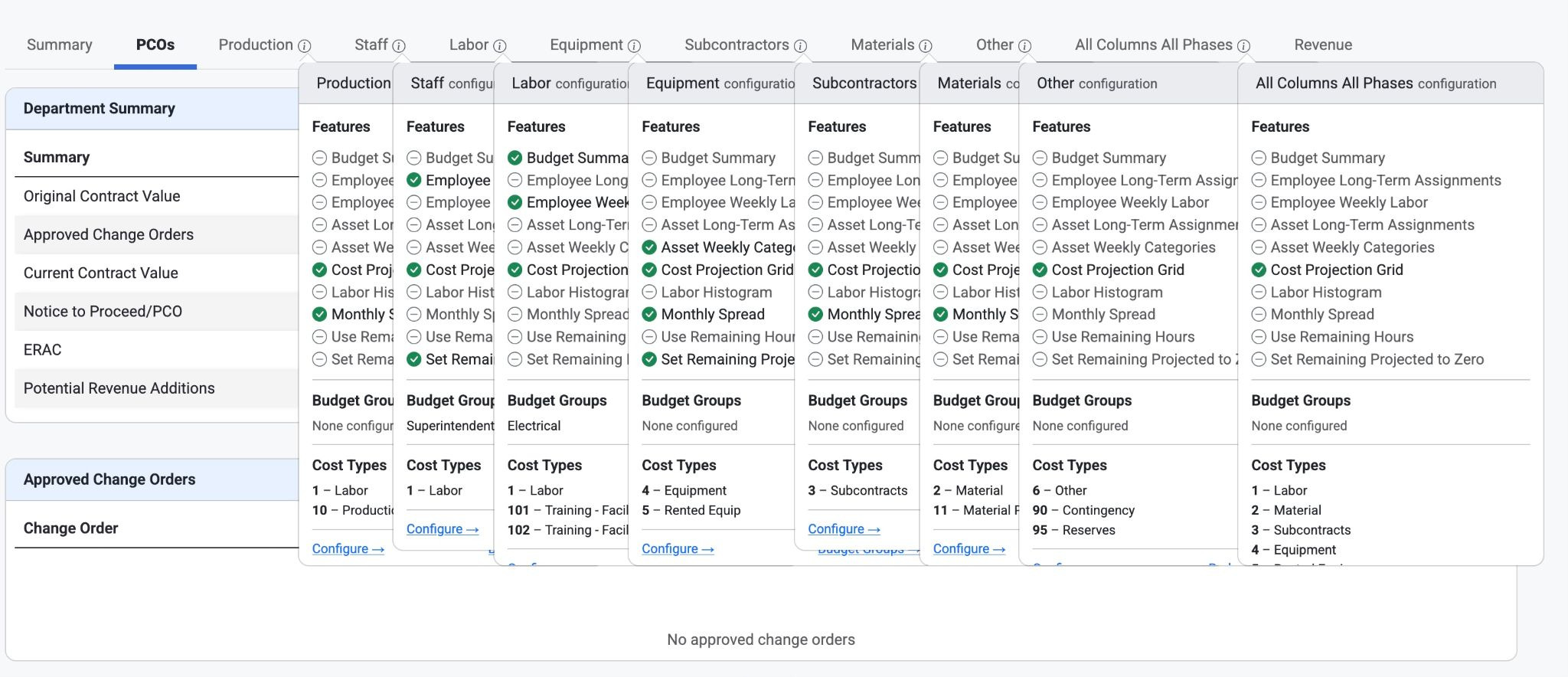
Once viewing a specific monthly cost projection, users will be able to see all of the tabs that have been configured in Admin > Projection Setup > Projection Categories. Each Projection Category tab will only show the Budget Codes with Cost Types you have linked to the Projection Category. These can be heavily customized by your Cost Projection / Resource Planning administrator. This can also be customized within Projections itself by clicking the info icon by each tab name and looks like this when selected.
Read more about Projections Settings and Setup here: Projection Setup Or for a more in-depth revision, click Here: Cost Projections Setup
Cost Projections Grid:
The cost projections grid can be viewed on any tab based on how the view is customized.
Added audit column in cost projections.
Added JC Department and Job Resource Group to search filter
Added ‘search’ to the Initialize dropdown menu
If the method column is enabled, there is now a new Recalculate button that will recalculate the cost projection detail rows with method.
Notice on the cost projections grid the ability to add Notes per budget code row and the last initialized date shows above the buttons. In the Notes column, a large chat icon will appear blue after the page has been refreshed.
There is a setting that allows approvers and admins to be able to enter the unit and budget corrections even when those columns are ‘Read Only’ for other users. Approvers are based on the job department approvers and can be setup in Permissions. Read about it here: Organization>Permissions
Was this article helpful?
That’s Great!
Thank you for your feedback
Sorry! We couldn't be helpful
Thank you for your feedback
Feedback sent
We appreciate your effort and will try to fix the article