Creating Assets
To find, select ‘Resources’ from the top navigation bar and select ‘Assets’ from the drop-down menu. This page shows a grid list of all Asset-type Resources. Select ‘+Add New’ to create a new asset resource.
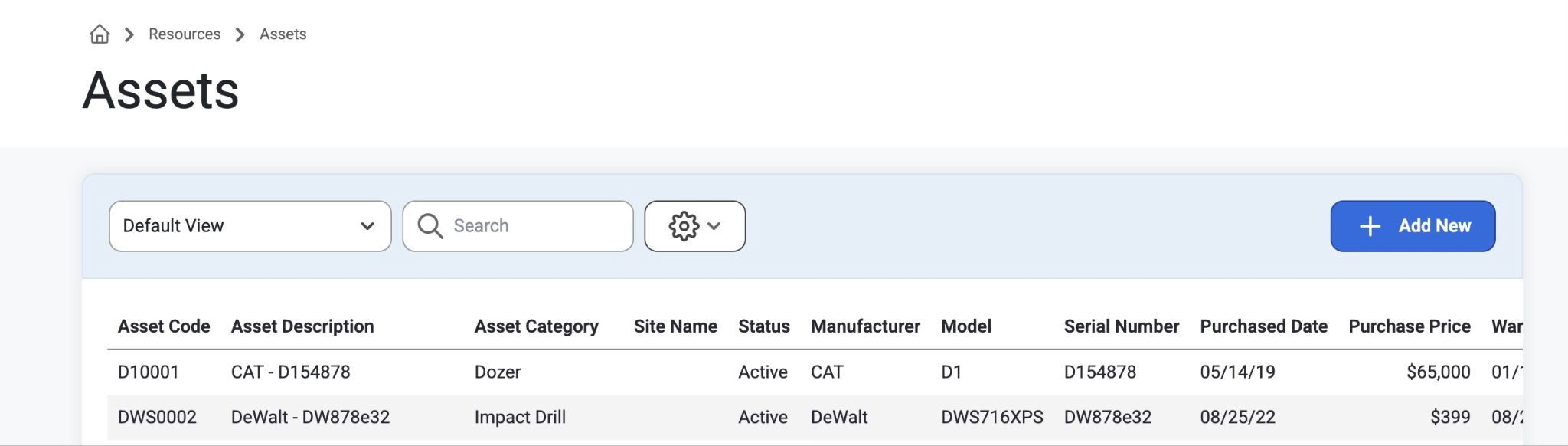
When adding a new asset, admins can input information on that asset such as code, category, manufacturer, status, serial number, model, site name, the hourly rate of the asset, purchase date, warranty expiration date, and other notes.
Click in the grid list to view details, assignments, and audits for that asset.
Detail
View or edit asset information, rate range, required dates, and history or to delete an asset.
Assignments
View all current, future, and past assignments for each asset.
Clicking on any current asset will automatically navigate the admin out of the Resources page and into JobsList>Assignment>AssignmentDetail for the selected asset.
Here, admins can add/delete a job phase for that asset, edit schedules, or find the assigned resource for that asset on the map.
Direct Link to navigating Assignment Details: Assignments
Audits
The audits page keeps detailed track of any changes or updates that were made to the Assets table.
Was this article helpful?
That’s Great!
Thank you for your feedback
Sorry! We couldn't be helpful
Thank you for your feedback
Feedback sent
We appreciate your effort and will try to fix the article